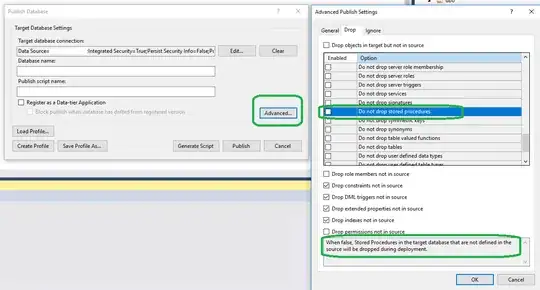
The easiest way is using "Schema compare", where you would manually select objects to be dropped/ignored/added. to do this:
- Right click the database in the solution explorer (choose schema compare)
- Connect to your database
- Click the 'compare' button
- select/deselect differences changes that will be made
- click the 'update' button
- *note: if you want to NOT block on possible data loss, you need to configure that BEFORE comparing schemas. Do this by clicking the little settings icon
If you wish to DELETE (DROP) database objects in production database, that do not exist in your Database Project, you should successfully Build and Publish the project on production database using default settings.
If you have performed the Build successfully, proceed like this:
Check to see if this checkbox is deselected:
In Solution Explorer, right-click your database and select "Publish".
"Publish Database" window should open
Click the "Advanced..." button.
"Advanced Publish Settings" window should open
Switch to "Drop" tab
Deselect the checkbox "Do not drop stored procedures".
Click OK and continue with publish.