You might want to consider just tracking queries that take longer than a certain amount of time using the Extended Events (Quick Start Extended Events) feature that is provided with newer version of SQL Server.
Let's create an Extended Event for you that captures statements that run longer than 60 seconds (just an example).
Navigate to the Extended Events in SSMS
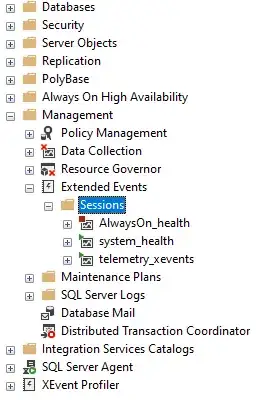
Here you can right-click on the Sessions branch to open up the context menu.
New Session...
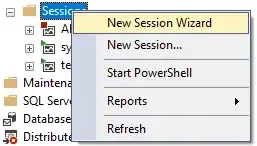
Contrary to the marked session, we will use the empty New Session... option.
New Session Wizard Introduction
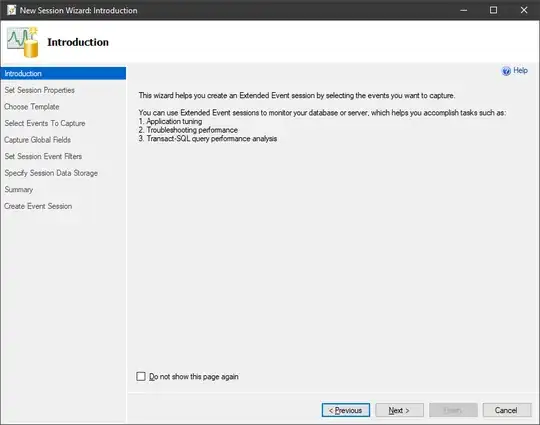
Click on Next >
New Session Wizard Set Session Properties
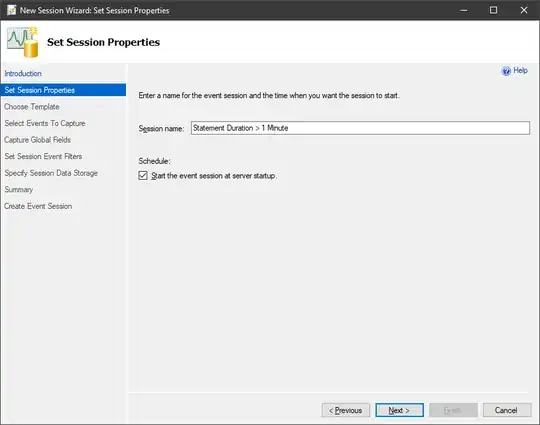
We'll give the session a name: Statement Duration > 1 Minute, then click the option to Start the event session at server startup, and then click on Next >..
New Session Wizard Choose Template
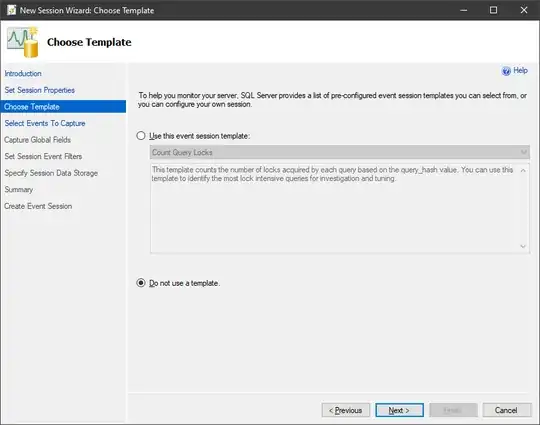
We won't be using a default template. Next >
New Session Wizard Select Event To Capture
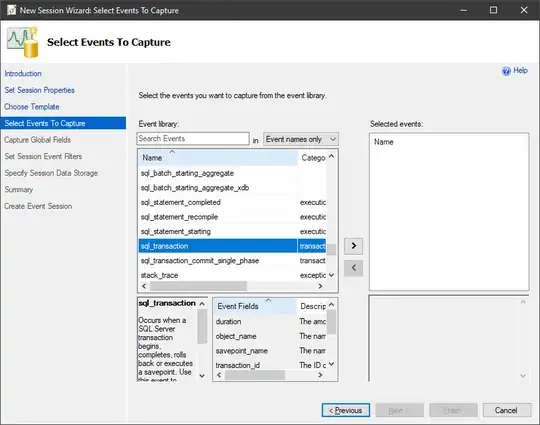
We'll only use the sql_transaction event and move that over to the right with the corresponding > arrow. Next >.
New Session Wizard Capture Global Fields
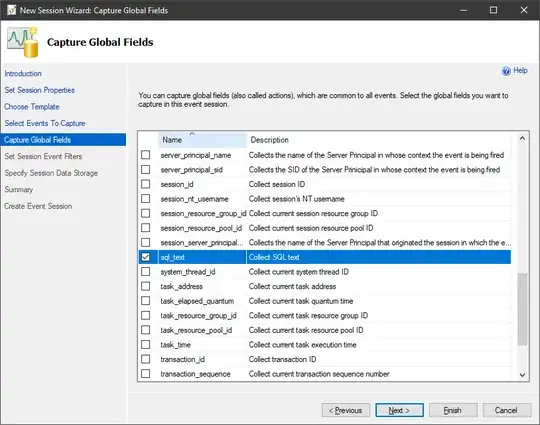
We'll select at least the sql_text field, but I added some more like:
- client_app_name
- client_hostname
- database_name
- nt_username
- plan_handle
- query_hash
- query_plan_hash
- sql_text
- username
...and then hit Next >.
New Session Wizard Set Session Event Filters

We'll filter on sqlos.task_execution_time for the moment and set a value of 6000. We'll come back on this setting to change it to duration. Hit Next >.
New Session Wizard Specify Session Data Storage
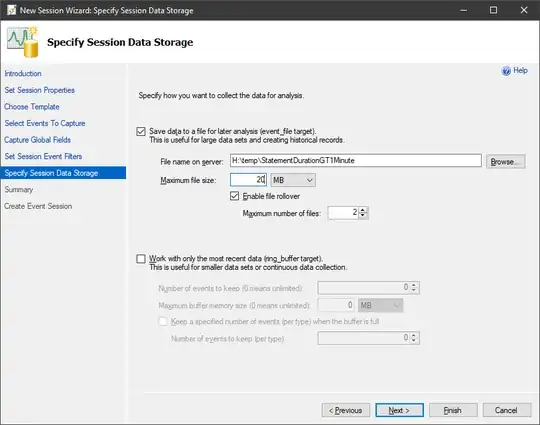
Here you specify where you want to store the data in files or ring_bugger target. We'll use a file for the time being. Configure values that would suit your server and then click on Next >.
New Session Wizard Summary
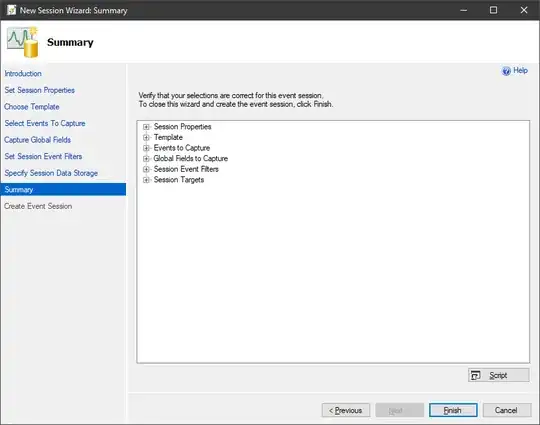
Validate your configuration and click on Next >.
New Session Wizard Create Event Session
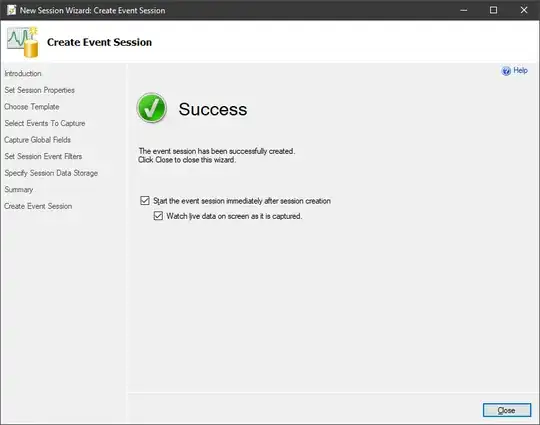
Select both options to have something running and then click on Next >.
Extended Events | Sessions | Statement Duration > 1 Minute
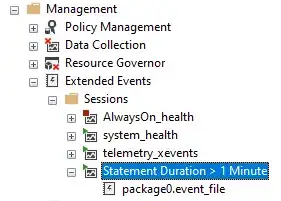
You'll now have a new Extended Event and a windows displaying the current output of this Extended Event.
Change Configuration
Right-click the session and stop it. Right-click again and go into the properties:
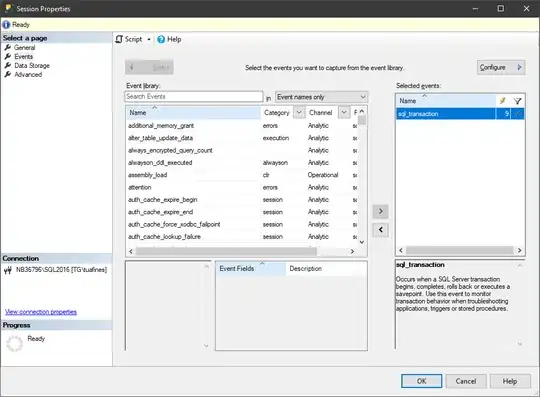
Select the sql_transaction and then click on Configure >...
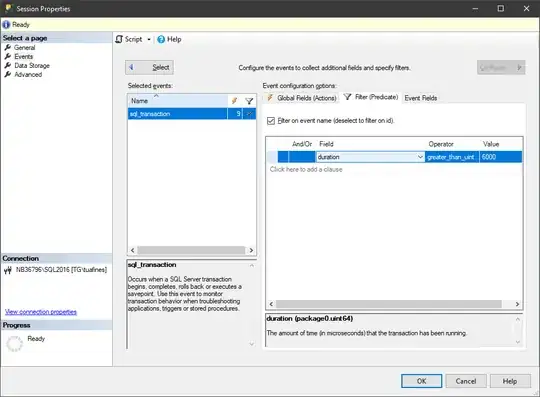
...switch to the Filters tab and delete the current filter. Add a new filter with the values duration, greater than and 60000000 (microseconds).
Click on OK and then start your session again in the Extended Events. You might have to select Watch Live Data again to have a current window open.
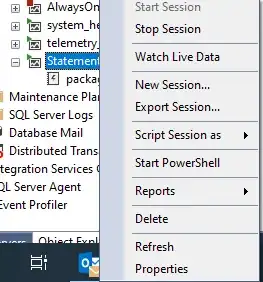
The Fun Part
Now you have an Extended Event Session which will track statements that take longer than 60 seconds. Run a statement on that server with something like this:
BEGIN TRAN
    UPDATE DemoDB.dbo.Tweets SET TweetText = 'something else' WHERE TweetID = 2;
    WAITFOR DELAY '00:02';
COMMIT TRAN;
After a minute you should see an event pop up in your Watch Live Data window in SSMS. It might look like this:
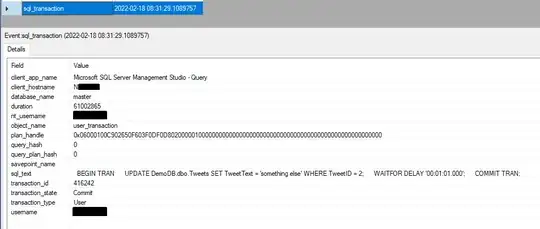
You can read the statement and with the plan_handle you can even go and query the sys.dm_exec_text_query_plan DMV to have a look at the execution plan:
SELECT
CAST(query_plan AS XML)
FROM sys.dm_exec_text_query_plan(0x06000100C0187C0A601FD200D902000001000000000000000000000000000000000000000000000000000000,0,-1)
Which shows:
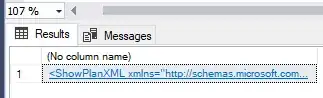
Click on the XML link and voilà:
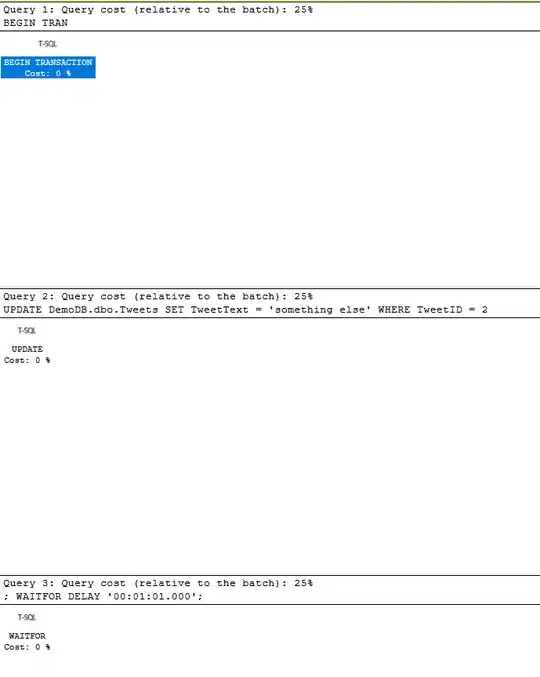
This (in my example) execution plan can then be used to see if things are running ok, or if you might benefit from additional indexes or query tuning.
Answering Your Question
Is there any option to see killed sessions in Query Store?
If the statement has run before, but didn't take longer than your timeout, then these queries might be found in the Query Store.
If the statement terminates, because something changed, then maybe. It depends on the reason for the time-out.
Create an Extended Event as described in my solution and instead of setting it to 30 minutes set the time-out to 29 minutes and 59 seconds, or use the filter value of 1799000000 microseconds.
You should now be able to track long running transactions in the Live Data or in the File which is created.


