the way I have done this in the past is to copy all the permissions from the current location folder that you currently backup to, and set these permissions in the new location.
you actually do not need to copy all the permissions, only the sql server related.
this is the powershell script that I have used for that:
#--==============================================================
#-- list all the permissions on a folder
#--==============================================================
Get-Acl -Path "\\homer\e$\DWBackups" | Format-Table -Wrap
#--==============================================================
#-- copy all the permissions from a folder to another
#--==============================================================
$Acl = Get-Acl "\homer\e$\TS-SQLBackups"
Set-Acl "\homer\e$\DWBackups" $Acl
#--==============================================================
#-- list all the permissions on a folder
#--==============================================================
Get-Acl -Path "\homer\e$\DWBackups" | Format-Table -Wrap
To check where your backups are currently going to:
these are the default folders:
select
    InstanceDefaultDataPath = serverproperty('InstanceDefaultDataPath'),
    InstanceDefaultLogPath = serverproperty('InstanceDefaultLogPath')
But where the backups have been gone to:
    -- checking backups -- shows the number of days since last full backup
    -- marcello miorelli
    -- 25-june-2014
--04-Aug-2014- added the Backup Size
--07-Mar-2016- added the backup location and Duration

declare @backup_type CHAR(1) = 'D' --'D' full, 'L' log

;with Radhe as (
    SELECT  @@Servername as [Server_Name],
    B.name as Database_Name,
    ISNULL(STR(ABS(DATEDIFF(day, GetDate(),
               MAX(Backup_finish_date)))), 'NEVER') as DaysSinceLastBackup,
    ISNULL(Convert(char(11), MAX(backup_finish_date), 113)
    + ' ' + CONVERT(VARCHAR(8),MAX(backup_finish_date),108), 'NEVER')
    as LastBackupDate

    ,BackupSize_GB=CAST(COALESCE(MAX(A.BACKUP_SIZE),
                   0)/1024.00/1024.00/1024.00   AS NUMERIC(18,2))
    ,BackupSize_MB=CAST(COALESCE(MAX(A.BACKUP_SIZE),
                    0)/1024.00/1024.00 AS NUMERIC(18,2))
    ,media_set_id = MAX(A.media_set_id)
    ,[AVG Backup Duration]= AVG(CAST(DATEDIFF(s,
                 A.backup_start_date, A.backup_finish_date) AS int))
    ,[Longest Backup Duration]= MAX(CAST(DATEDIFF(s,
                 A.backup_start_date, A.backup_finish_date) AS int))
    ,A.type
    FROM sys.databases B

    LEFT OUTER JOIN msdb.dbo.backupset A
                 ON A.database_name = B.name
                AND A.is_copy_only = 0
                AND (@backup_type IS NULL OR A.type = @backup_type  )

    GROUP BY B.Name, A.type

)

 SELECT r.[Server_Name]
       ,r.Database_Name
       ,[Backup Type] = r.type
       ,r.DaysSinceLastBackup
       ,r.LastBackupDate
       ,r.BackupSize_GB
       ,r.BackupSize_MB
       ,F.physical_device_name
       ,r.[AVG Backup Duration]
       ,r.[Longest Backup Duration]

   FROM Radhe r

    LEFT OUTER JOIN msdb.dbo.backupmediafamily F
                 ON R.media_set_id = F.media_set_id
After you grant the relevant permissions to your new backup folder and change it in your jobs, if sql server can read and write to that folder then you should not need to restart your services.
However if you do you will need to do in in a controlled way, using the
sql server management console
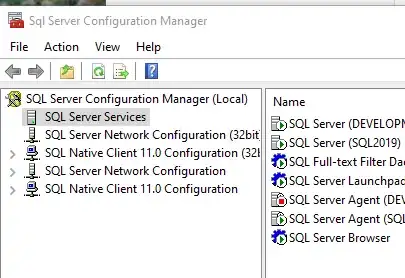
I hope that it does not come to that, but I had in the past some illogical behaviour on some servers and I had to plan a restart of the service - I could though, postpone it to my next patching.
Specially when virtual machines are involved.


