0

To explain the situation, I am creating a site plan (using Autocad 2022), I have a building that is angled within a complex property. The 4 corners of the building are dimensioned to a property line(PL). What I did, was offset a line from each of the PLs that had a dimension attached to it at the appropriate value. I now have 4 lines at different angles and I need each corner to be touching one of the lines. The align tool only works for 2 reference points really and even that does not do so well at attaching to 2 points. I could manually play around, but there has to be some what to select a point and a line it should attach to for each of the 4 corners.

Update: Here is a snip of one of the situations I am trying to resolve. I need the corner with the red circle to sit somewhere on the red line, the corner with the green circle to sit on the green line, and so on for the cyan and white. I believe there should only be one way that all of the corners can be sit on their respected line at once. enter image description here This image shows after I have already tried to quickly do this manually.
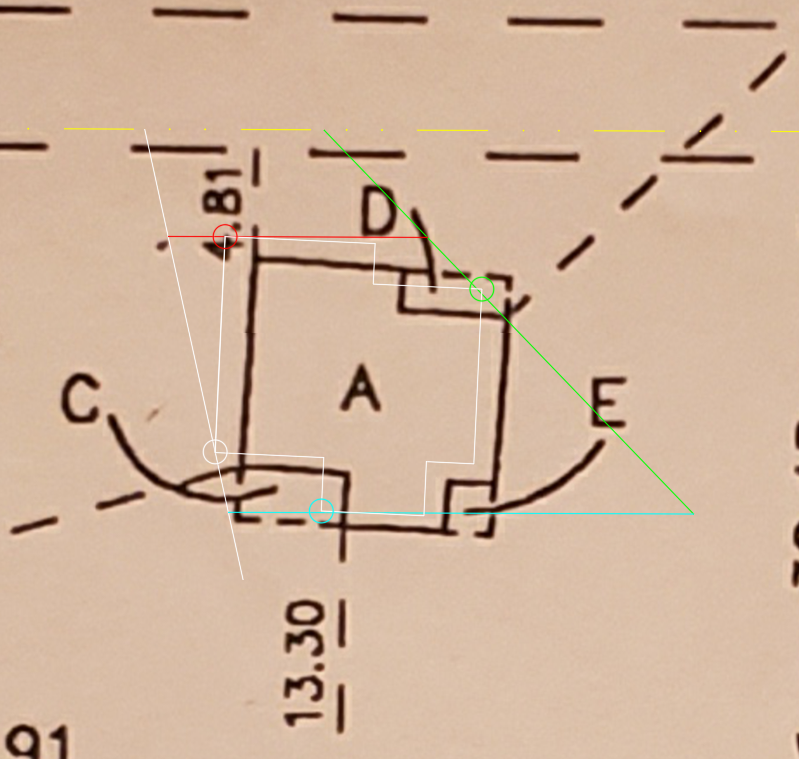
Anyone have any advice on this situation?

Markitect
  • 101
  • 1

1 Answers1

0

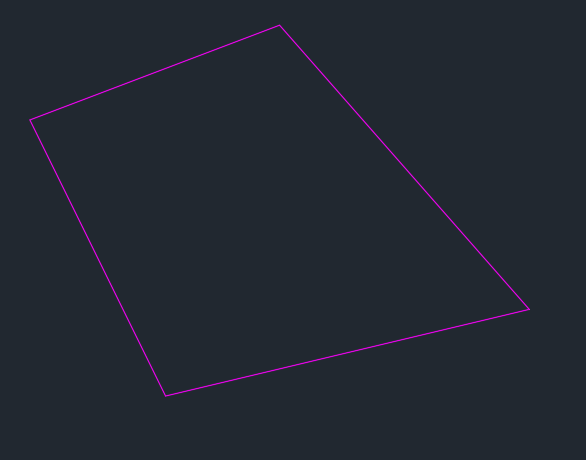
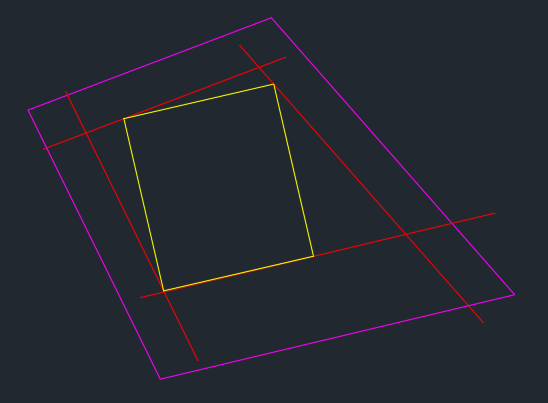
Lets assume for now that your property line in magenta are laid out as followed:

enter image description here

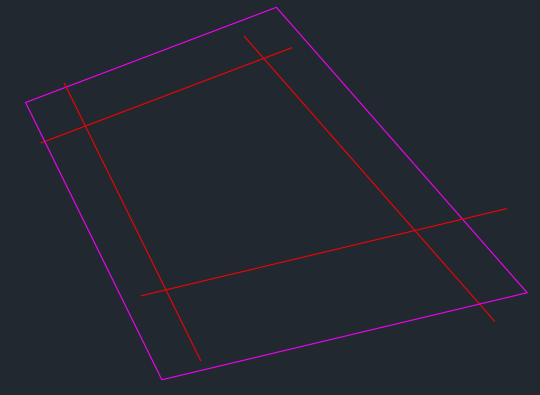
Now we offset the property lines to define a boundary the building has to fit in. Lets also assume that the lower property line is your street frontage and therefore requires a larger offset (mainly so it is not all equal offsets). The re line represent your parallel offsets:

enter image description here

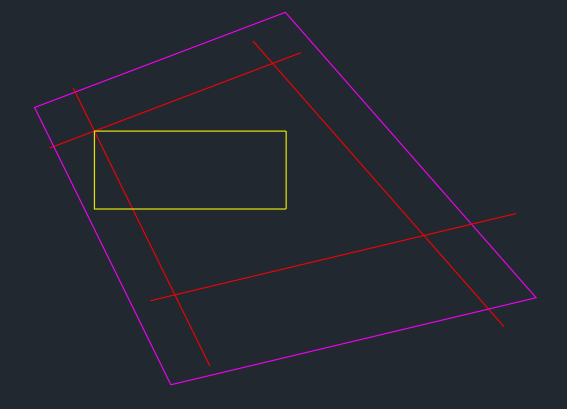
Depending on what your ultimate goal is with the building placement your solution may vary from this point. I would start by drawing a rectangle with the corner coincident one of the other corners. Lets take the top left:

enter image description here

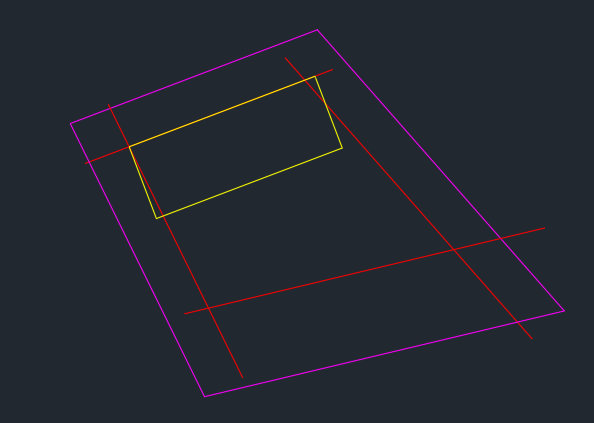
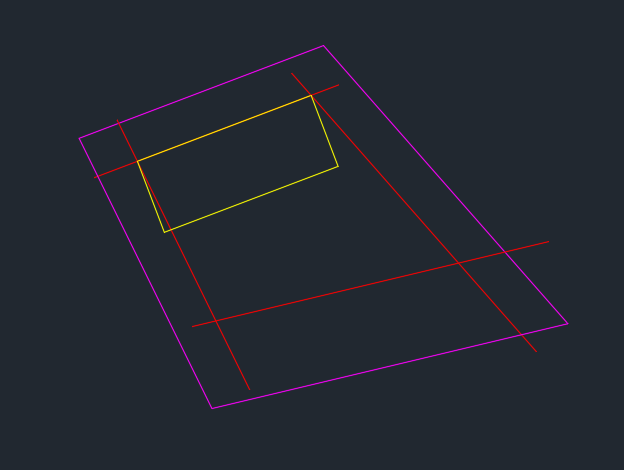
I would then rotate the yellow rectangle with the top left corner as my base point. I would rotate using the reference option. My reference line would be the two end points of the top rectangle. I would then choose any point on the top red offset line to rotate to. When done properly it should align as follows:

enter image description here

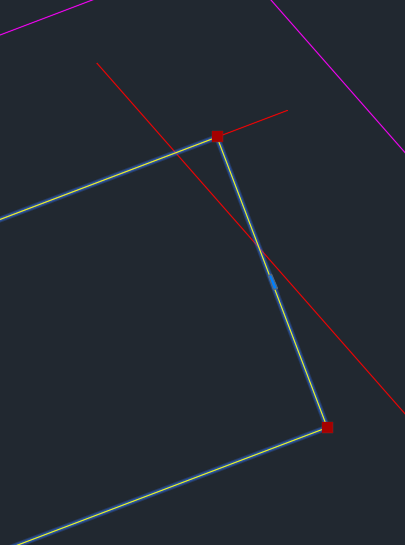
Now note in this situation the top right corner of the rotated rectangle is now outside the offset line. It could also have been short of the property line. To get this in the right position I would select the rectangles two right corner grip points at the same time and drag the top right one to the intersection of the two red offset lines:

enter image description here

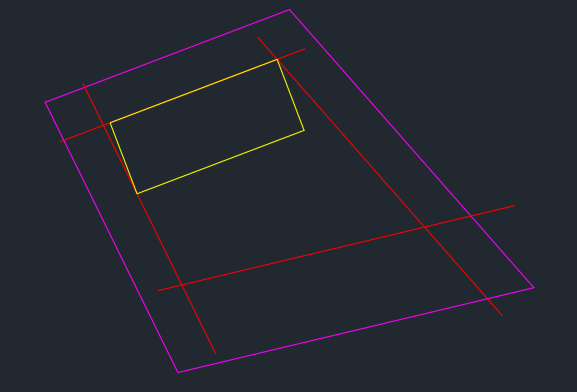
If done right it should look like this:

enter image description here

I would repeat this process for the left side, except this time you want to drag the two left corner grips such that the bottom left corner goes to the intersect of the left red offset line the the bottom yellow rectangle line. when done right it should look like this:

enter image description here

Now depending what your needs are, you may need to have the building touching front and back offset lines. Just repeat the steps above as needed and you can get something that looks like the following:

enter image description here

There are multiple solutions on how to size the building. Try a few different placements and see which one suits your needs. It will also give you good practice with CAD.

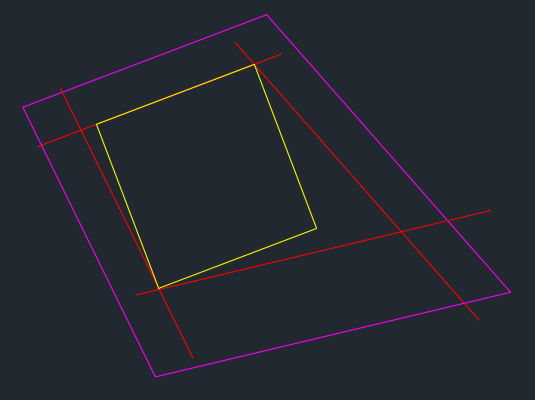
Here is an option with all four corners on at least 1 line:

enter image description here

Note: For this example it is not the only solution.

Forward Ed
  • 1,270
  • 11
  • 26