7

This is a new installation of Server 2022 Standard 21H2. I'm trying to configure the SMTP Server so that a client application can send emails internally.

When I open IIS 6.0 Manager and right click the SMTP virtual server, it usually generates the following error:

SMTP Server Error

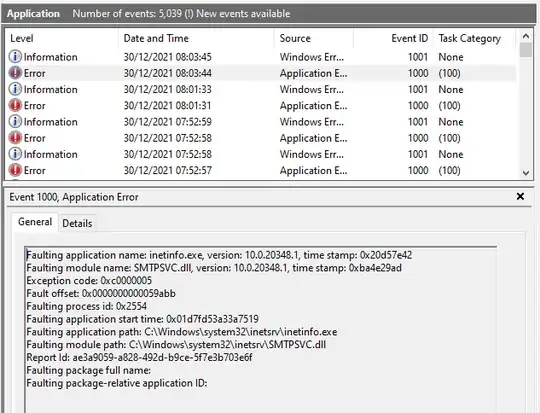
If I try often enough, I can get in and configure the settings. Though whenever I attempt to send a message through the SMTP server, the SMTP service stops and the following event is logged:

Event Log

Can anyone suggest where I would start to troubleshoot this please?

Ian Pendlebury
  • 71
  • 1
  • 1
  • 2

4 Answers4

12

My findings are similar to the other answers here, but it seems I needed to add a few steps (under Microsoft Windows Server 2022 Standard):

  • By default, I can enable SMTP and listen for connections, but when I attempt to send email to its port, the SMTP service crashes. Also, when I attempt to access Properties of [SMTP Virtual Server #1], IIS 6.0 Manager pops up this Snapin Error:

    MMC has detected an error in a snap-in. It is recommended that you shut down and restart MMC.

Here is the procedure that worked for me:

  1. Stop the Simple Mail Transfer Protocol (SMTP) service.
  2. Stop the IIS Admin Service service.
  3. Edit (privileged session) C:\Windows\System32\inetsrv\MetaBase.xml.
  4. Under <IIsSmtpServer Location ="/LM/SmtpSvc/1", set RelayIpList="" as described in Andrew's answer, and save the file.
  5. Start the Simple Mail Transfer Protocol (SMTP) service
  6. Important: Now, run IIS 6.0 Manager, right-click [SMTP Virtual Server #1], click Properties, open the Access tab, click the Connection... button and click OK and then do the same with the Relay... button.
  7. Now click OK to close the [SMTP Virtual Server #1] window.

The preceding updates your MetaBase.xml file and causes SMTP to function correctly.

CODE-REaD
  • 323
5

We found that the following steps worked, and we can predictably edit the settings in the IIS 6.0 Manager without errors (and without crashing when applying settings):

  1. Stop the SMTPSVC service (Display Name: "Simple Mail Transfer Protocol (SMTP)")
  2. Stop the IISADMIN service (Display name: "IIS Admin Service")
  3. Edit C:\Windows\System32\inetsrv\MetaBase.xml
  4. Find <IIsSmtpServer Location ="/LM/SmtpSvc/1"
  5. Add RelayIpList="" as an attribute. (Settings are alphabetical.)
  6. Save the MetaBase file.
  7. Start the IISAdmin service.
  8. Start the SMTPSVC service.

You can now open the Internet Information Services (IIS) 6.0 Manager (InetMgr6.exe) and work like normal. The setting above relates to the Access Tab > Relay Restrictions section, but doesn't set anything in it (i.e. It sets "all except the below list" with a blank list).

After setting this value, you can change it to what you need it to be. (i.e. The value doesn't need to be 'null' for the fix to work, just so long as the variable key is present in the file).

The steps above have been tested on a few new installs of Windows Server 2022, and have worked for us every time. If you have done an upgrade there are some other things to consider. (It seems like the SMTP service is not installed after upgrade, so you will require a backup of the settings that can be applied post reinstalling the service. But that is discussed in other topics.)

PS: Remember to set the SMTPSVC service to start "Automatically". By default it's set to "Manual".
Andrew
  • 71
1

In order to make the SMTP virtual server editable in IIS 6.0 Manager and also stop the crashes when the server receives an email, do the following:

  1. Stop the SMTP service.

  2. Open the file C:\Windows\System32\inetsrv\MetaBase.xml.

  3. Locate the section <IIsSmtpServer Location ="/LM/SmtpSvc/1". (The "1" is important.)

  4. Add the following attributes:

    • AccessSSLFlags="0"
    • AuthFlags="AuthAnonymous"
    • IPSecurity="18000080200000807800008080000080010000008800000000000000000000000400000003000000020000000200000002000000e00000009c000080020000000100000002000000f000000090000080020000000200000002000000fe00000094000080020000000200000004000000000000008800008000000000000000000000000000000000ffffffff7f000001fffff000fffffe00c2f67600ffffe000d4190000"
    • RelayForAuth="4294967295"
    • SaslLogonDomain=""
    • SmtpInboundCommandSupportOptions="7697601"
  1. Start the SMTP service again.

I case you wonder, these attributes are found in the same section on Windows Server 2019. You can also just copy this whole section from a Windows 2019 MetaBase.xml onto your Windows 2022 server. That works as well.

Do not ask me why this works or why these attributes are different on Windows 2019 and 2022. It's just how I got all our 2022/IIS/SMTP servers running: Copy over the config from a Windows 2019 system.

1

Microsoft announced the death of SMTP components with Windows Server 2012,

https://learn.microsoft.com/en-us/previous-versions/windows/it-pro/windows-server-2012-r2-and-2012/hh831568(v=ws.11)#smtp

Thus, any attempt to bring ashes back won't end up very well.

Please switch to other SMTP alternatives.

Lex Li
  • 1,414