My Git setup runs fine on Linux, but when I try to set things up under Windows (using Git for Windows and TortoiseGit), I don't know where to put my private SSH key (or, better still, how to tell ssh where it's located). I'm using the standard ssh.exe option during installation of Git for Windows. The setup runs fine if I allow password authentication (in lieu of RSA) on the server.
Asked
Active
Viewed 1.2M times
566

Peter Mortensen
- 2,327

binaryorganic
- 6,141
33 Answers
539
For Git Bash
If you are running msysgit (I am assuming you are) and are looking to run Git Bash (I recommend it over TortoiseGit, but I lean to the CLI more than GUI now), you need to figure out what your home directory is for Git Bash by starting it then type pwd (On Windows 7, it will be something like C:\Users\phsr I think). While you're in Git Bash, you should mkdir .ssh.
After you have the home directory, and a .ssh folder under that, you want to open PuTTYgen and open the key (.ppk file) you have previously created. Once your key is open, you want to select Conversions -> Export OpenSSH key and save it to HOME\.ssh\id_rsa. After you have the key at that location, Git Bash will recognize the key and use it.
Note: Comments indicate that this doesn't work in all cases. You may need to copy the OpenSSH key to Program Files\Git\.ssh\id_rsa (or Program Files (x86)\Git\.ssh\id_rsa).
For TortoiseGit
When using TortoiseGit, you need to set the SSH key via pacey's directions. You need to do that for every repository you are using TortoiseGit with.
Peter Mortensen
- 2,327

Dan McClain
- 6,643
121
Using the built-in SSH client shipped with Git for Windows, you need to set up the HOME environment variable so that the Git SSH client can find the key.
For example, on a Windows Vista installation, this would be done by issuing setx HOME c:\Users\admin\ on the command line.
It made my day and fixed the issue with Git provided that your private key is not password protected. If you want to use ssh-agent, then you can probably run ssh-agent cmd.exe (although I've never done that) and the ssh-add as usual.
Note that all Git/SSH tools are supposed to be run from a cmd.exe in order not to blink a window.
If this does not work correctly, using plink can probably be achieved by tweaking GIT_SSH. Refer to all the SVN + ssh tutorials; this is basically the same plumbing you need to setup.
Peter Mortensen
- 2,327

Oct
- 1,636
63
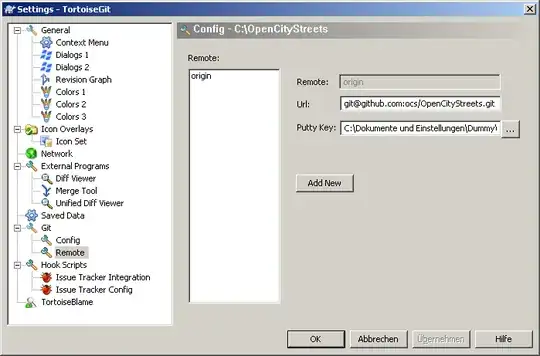
You can specify the key location for TortoiseGit the following way:
- Open an Explorer Window.
- Open the Contextmenu and navigate TortoiseGit → Settings
- In the now opened window, navigate to Git → Remote
- Set the path to your PuTTY key in the corresponding input box.
A screenshot is below:
Peter Mortensen
- 2,327

pacey
- 3,853
60
None of the previous answers worked for me. Here was what worked for me in the end. It is actually fairly simple, if you know what to type. It doesn't need PuTTY.
- Open a Git Bash prompt
- Type 'ssh-keygen'
- Accept the default location
- Choose a blank passphrase (so just press 'enter' to all questions')
- Now copy the public key to your server, for example: scp ~/.ssh/id_rsa.pub someuser@someserver.com:~
That's the bit on your own computer done. Now ssh into the destination server, then do
mkdir -p ~/.ssh
cd ~/.ssh
cat ../id_rsa.pub >> authorized_keys
rm ../id_rsa.pub
That's it! You're done! From Git Bash, do the following to test:
ssh someuser@someserver.com ls
If it lists the files in your home directory on the Git server, and then you're done!
For GitHub, you don't have shell access to their server, but you can upload the key using their website, so for the bit 'now copy to your server', do:
- In Git Bash, type 'cat ~/.ssh/id_rsa.pub', select the result, and copy it to the clipboard.
- On the GitHub website, go to 'Account settings', 'SSH and GPG keys', click 'New SSH key', and paste the key.
Peter Mortensen
- 2,327

Hugh Perkins
- 1,105
57
If you're using msysgit with the OpenSSH tools, you need to either create ~/.ssh/id_rsa, or create a Git configuration in ~/.ssh/config which points to your key.
Here's an example of a Git configuration for Bitbucket that will use the correct username, and a key other than the default key (in case you maintain one key for SSH connections, and another for Git accounts).
~/.ssh/config:
Host bitbucket.org
    Hostname bitbucket.org
    User git
    IdentityFile /C/keys/yourkey.key
Once in Git Bash, you can run two commands to add your key to your current session's ssh-agent to avoid having to repeatedly type the key's password.
eval `ssh-agent`
ssh-add /C/keys/yourkey.key
Peter Mortensen
- 2,327

GregB
- 1,432
18
I just set %HOME%=%HOMEPATH%
This has the advantage of working for all users logged into the system (they each get separate .ssh folders).
In Vista:
- Right-click on Computer
- Choose Properties
- Click on Advanced System Settings
- Click on Environment Variables
- In the bottom section (System Variables) Click on New
- For Variable name type: HOME
- For Variable path type: %HOMEPATH%
- Click OK

Jono
- 281
14
In my case I was using Git for Windows in the Docker container windowsservercore.
My Git was installed by Chocolatey to C:\Program Files\Git.
I had to update the file C:\Program Files\Git\etc\ssh\ssh_config with this:
Host example.com
   Identityfile ~/.ssh/id_rsa
Then I was could use key from C:\Users\<user>\.ssh\id_rsa
If you are using Git for windows together with OpenSSH for Windows. Git is still using its own ssh.
Plus if you plan using ssh-keyscan host.com > known_hosts from OpenSSH, be careful because piping output from stdout of keyscan (on Windows) changes encoding to UCS-2, but OpenSSH can read only UTF-8! So make sure to change the known_hosts file encoding.
Peter Mortensen
- 2,327

oglop
- 281
8
Your private key needs to be added to the SSH agent on your workstation. How you achieve this may depend on what git client you are using, however puTTY and its associated agent (pageant) might do the trick for you, here's the link to the official binaries and source:
http://www.chiark.greenend.org.uk/~sgtatham/putty/download.html


Declan Shanaghy
- 221
7
I've fixed the above issue by creating
~/.ssh/config
file and put:
IdentityFile C:\Users\adria\.ssh\mysshkey

Adrian Onu
- 171
6
The most efficient way is using Pageant because it will let you write the passphrase only once at the beginning of the session instead of every push. All answers here were too short, so I'll post a detailed guide here:
- Download
pageant.exe,puttygen.exe,putty.exeandplink.exefrom PuTTY's website. Place them inC:\puttyToolsdirectory. - Run
puttygen.exe. - Click button Generate.
- Wiggle the mouse around in the top part of the window until the progress bar is full, as the program asks you to do.
- Provide a passphrase, and repeat it in the subsequent textbox.
- Click "Save private key". The usual directory to save these in is
%USERPROFILE%\.ssh(in my computer this maps toC:\Users\andres\.ssh\). It doesn't matter what you call the key, but for demonstration purposes, I'm going to call itgithub.ppk. This file should have an extension of .ppk. - Copy the text in the top text box in PuTTYgen, the one labeled
Public key for pasting into OpenSSH authorized_keys fileand paste it into a new SSH key in GitHub's settings. Give it a title that describes what machine the key is on (e.g. "Work laptop"). - Run
pageant.exe, a new systray icon will appear. - Right click on the icon -> Add key.
- Locate your ppk file, enter your passphrase.
- Create these new user environment variables (via looking for application
Environthrough WindowsMenu which will findEdit environment variables for your account):GIT_SSH = "C:\puttyTools\plink.exe"andSVN_SSH = "C:\puttyTools\PuTTY\plink.exe" - Open putty.exe and try to connect to the host where you host your Git repositories. For example, try to connect to github.com via SSH, and a dialog will ask you if you accept the fingerprint of the server: click on YES.
- Run a new instance of your
MINGW64Git console, and verify that the environment variables are there by writing the commandenv | grep -i ssh. - You should be all set. Try to clone with the Git + SSH protocol from your host.
(Originally extracted from these two guides which I combined in one: How to setup Git for Windows and Configure MinGW-W64+MSYS to use PuTTY Plink/Pageant.)

knocte
- 377
- 1
- 6
- 18
5
I had similar issues and none of the answers here solved the problem. It turns out, my key pair were originally generated with an empty passphrase. (I know, dumb.)
Once I created a new keypair and uploaded the public key to GitHub, things started working again.
Peter Mortensen
- 2,327

Eric Cloninger
- 159
5
When mixing GitHub for Windows and Git GUI for Windows, you might run into issues where Git GUI keeps prompting you for a username and password. The cure for this is to change the remote URL from https: (which is what GitHub for Windows creates) to the Git protocol. In the .git directory in the configuration file, find:
[remote "origin"]
   url = https://github.com/**username**/**reponame**.git
   fetch = +refs/heads/*:refs/remotes/origin/*
Change it to:
[remote "origin"]
    url = git@github.com:**username**/**reponame**.git
    fetch = +refs/heads/*:refs/remotes/origin/*
Peter Mortensen
- 2,327

IDisposable
- 410
5
The standard location for the files is in %USERPROFILE%\.ssh.
%USERPROFILE% is the equivalent of $HOME in Unix (normally maps to something like c:\users\youruserid).
If you are using the SSH tools that came with Git, which are the standard command line Unix-style tools, you can use something like my script here to work with ssh-agent across all shells.
Peter Mortensen
- 2,327

Eric Blade
- 159
4
OK, I looked at the suggestion of ..
But placing in my private SSH keys in public folder I didn't think was a good idea, so I started to look for where the knownhost was.
So if you want to correctly protect your SSH key you need to put your key in the following directory:
For Windows 7, 8, and 8.1 32-bit:
C:\Users\\AppData\Local\VirtualStore\Program Files\Git\
For Windows 7, 8, and 8.1 64-bit:
C:\Users\\AppData\Local\VirtualStore\Program Files (x86)\Git\
Peter Mortensen
- 2,327

2
You can specify both the path to the key and the name of the key file like so (on Ubuntu). For example:
ssh -i /home/joe/.ssh/eui_rsa
Peter Mortensen
- 2,327

jim
- 37
2
The following answer also applies to this question when running ssh from Windows Service Account: Jenkins (Windows Service) with Git over SSH

Alexander Pacha
- 179
2
Pageant (an SSH agent supplied with the PuTTY bundle) solves the problem for me.
I have a shortcut in my Start Menu's Startup folder (C:\Users\owen.blacker\AppData\Roaming\Microsoft\Windows\Start Menu\Programs\Startup) pointing to "C:\Program Files (x86)\PuTTY\pageant.exe" "C:\Users\owen.blacker\Documents\SSH\OwenBlackerPersonal.ppk" "C:\Users\owen.blacker\Documents\SSH\OwenBlackerWork.ppk", so that it loads my SSH keys on startup and this makes Git "just work" :o)
Peter Mortensen
- 2,327

Owen Blacker
- 641
2
My msysgit OpenSSL/Bash Git experience (not PuTTY's plink) is that the search order for your the .ssh/ folder is as follows.
%HOME%/.ssh/%HOMEDRIVE%%HOMEPATH%/.ssh/%USERPROFILE%/.ssh/
Hence why so many people suggest setting HOME if one of the others is not what you expect. More importantly, you can check for yourself; to debug use ssh -v to a server that uses public key authentication as follows:
$ ssh -v git@github.com
OpenSSH_4.6p1, OpenSSL 0.9.8e 23 Feb 2007
debug1: Reading configuration data /d/.ssh/config
...
debug1: identity file /d/.ssh/identity type -1
debug1: identity file /d/.ssh/id_rsa type 1
debug1: identity file /d/.ssh/id_dsa type -1
...
debug1: Next authentication method: publickey
debug1: Trying private key: /d/.ssh/identity
debug1: Offering public key: /d/.ssh/id_rsa
..
Hi kcd83! You've successfully authenticated, but GitHub does not provide shell access.
We found ssh searching on an obscure drive and none of the previous answers seemed to explain what we saw.
Sometimes %HOMEDRIVE%%HOMEPATH% is a mapped network drive (e.g. H:/) which causes unnecessary failures when there are network/fileserver issues, even when %USERPROFILE%/.ssh is C:/Users/Username/.ssh and has the keys locally. Setting %HOME% to %USERPROFILE% stops it looking at the remote home drive.
Peter Mortensen
- 2,327

KCD
- 978


2
Using Windows 10, I could not get the pageant generated SSH key working (at least for Git on the command line, using SourceTree I didn't have an issue) when running:
git push origin master
So my solution:
- I opened 'Git Bash'
Ran
ssh-keygenConfirmed keys now exist
ls ~/.sshOpened id_rsa.pub in Notepad++, selected all the contents
Added a new key in Bitbucket, https://bitbucket.org/account/user/myusername/ssh-keys/
Labelled and pasted contents into the key field --> Add Key
After that, command line Git worked. It appears that it wants the old PEM format, because if I try to import this key into pageant it says as much.
Peter Mortensen
- 2,327

HostMyBus
- 21
2
Many answers say this, but for me not fast enough!
in windows using msys (standard windows console) C:\Users\{you}\.ssh\id_rsa
Basically it doesn't bother scanning installed keys (at least not on my new laptop) and so needs specifically id_rsa
I encountered this wanting to clone some private work repo's in ruby MSYS CLI for windows 10 64-bit

MrMesees
- 137
1
Reading your comment to Declan's answer, try opening a command prompt first (Start → Run → cmd) and then navigate to that git/bin folder and run ssh-keygen. Theoretically that will generate an RSA key and place it in the appropriate directory. Then you just have got to find it and share your public key with the world.
The reason that the window "blinks" is because Windows runs the program, and when it executes, it closes the command prompt, thinking you're done with it, when you really need the output.
Peter Mortensen
- 2,327

naydichev
- 111
1
Using v0.17 of Git Gui on Windows I clicked on the following menu command: Help → Show SSH Key.
A dialog appeared entitled Your OpenSSH Public Key. I generated a key and copied it to the clipboard. Then I continued to follow the setup-ssh instructions on githelp from Step Three onwards. Afterwards Git Gui communicated with GitHub silently - no need to enter any credentials.
Peter Mortensen
- 2,327

snow6oy
- 119
1
If you're on Windows 7/8, you should look in C:\Users\Your_User_Name.ssh Just copy & paste your id_rsa file here and it will all work out-of-the-box.

eeree
- 119
1
One mistake I made when using SSH on Windows was that when I attempted to use the keys through the Git Bash client, all of the files within ~/.ssh were the wrong permissions, yet it did not attempt to tell me that it was a problem.
Just as a test, make sure you've set everything in your ~/.ssh directory to chmod 600.

Spedge
- 119
1
If you have the necessary permissions on the Windows machine, and your policies permit it, I would suggest installing Cygwin (https://cygwin.com/), especially considering that you have prior experience with Linux. Cygwin will make it possible to handle your ssh-keys as you would on any other Linux/Unix machine. And it provides access to almost all of the cli tools of Linux.

torbenl
- 111
0
Windows --> Preferences --> ssh2--> general--> load the private key . The pair's public key should have been uploaded to the git and voila things should work.

0
This is not an answer, but it might still help some who who find this question only since they think they need a key pair authentication and oversee that there is another way as well:
I could clone from Gitlab with Tortoise with the https link instead of the ssh link. Yet, this worked only after a first login in Gitlab on that same terminal server. I had forgotten to log in on that machine since I was already logged in on my home computer. When I started working on a terminal server, I did not log in at first.
Do this only if you are in a safe network. Else, take ssh with its end-to-end encryption.

questionto42
- 464
0
On my Windows 7 system Git Gui looks for the RSA key in the userprofile/.ssh folder or more specifically c:/users/yourusername/.ssh/.
The tricky part for my setup was getting the shared host at hostmonster to accept the key. The only way I could get it to work was by using Git Gui to create the key pairs (without a password) and then copy and pasting the public key via the control panel, ssh, manage keys.
To start at the beginning, you have to create the keys in Git Gui by going to menu Help, Show SSH key, then Generate Key. Now you will have two new keys in the .ssh directory. Open the .pub file and copy the contents.
Log in to your control panel on the shared host and go into SSH, Manage SSH keys, and Import key. Paste into the Public box, and make sure you name it the right name without the extension-- mine was id_rsa. Now you must authorize the key using the manage authorization link, so it will get concatenated into the authorized_keys file.
Now your Git Gui and your Git Bash should be able to push using SSH without having to type the password. Oddly, I was able to push using SSH via Git Bash and Git Gui just fine on my own servers running Linux, it was just the shared hosting that was giving me fits. I hope this helps someone as it took me hours of trial and error to come up with this--and it's so simple!
Peter Mortensen
- 2,327

0
If you are using the Git command line for Windows you can do as follows:
Open cmd.exe and execute setx HOME c:\PATH_TO_PRIVATE_KEY.
Create a new folder, .ssh, (if not exist) inside c:\PATH_TO_PRIVATE_KEY and copy your id_rsa file (your private key) into it.
Done. Now you can use the Git command line normally.
Peter Mortensen
- 2,327

duccom
- 1
- 1
0
You can also load PuTTY Agent (pageant) and add the private key you generated with PuTTY for the server.
Git recognizes this and uses that for push/pull.
Peter Mortensen
- 2,327

deepakkt
- 1
0
I was using TortoiseGit as well as Git Bash on Windows, depending on need. I've added everything into TortoiseGit, and it worked fine, but Git Bash wasn't picking it up even though the keys were in the correct directory. It turns out I had to do this from Git Bash:
ssh-add C:\\Users\\<YOUR_USER>\\.ssh\\id_rsa
You can of course change the path to wherever your key is located, remembering to use \\ as the separator.
Peter Mortensen
- 2,327

0
If using Git for Windows, once the SSH keys have been generated, you must add your SSH key to ssh-agent.
See Generating a new SSH key and adding it to the ssh-agent.
eval $(ssh-agent -s)

// Tell where the keys are located

ssh-add ~/.ssh/id_rsa
Peter Mortensen
- 2,327

Matoeil
- 101