223

I was wondering if someone could give me a simple guide on how to set up virtual networking in VirtualBox (4.0.2) so that the following scenarios work:

  • Both Host and Guest can access the Internet
  • Host can ping Guest and vice versa
  • Host can access, for example, an apache web server running on Guest and vice versa

I've been fiddling around with the various Network Adapters available in the settings for my Guest, but I'm just not able to figure it out. Is there anyone that can help me out here?

The host is running Windows 7 32-bit and the guest is running Ubuntu 10.10 32-bit.

Svish
  • 7,527

6 Answers6

210

Try this:

  1. Setup the virtualbox to use 2 adapters:
    • The first adapter is set to NAT (that will give you the internet connection).
    • The second adapter is set to host only.
  2. Start the virtual machine and assign a static IP for the second adapter in Ubuntu (for instance 192.168.56.56). The host Windows will have 192.168.56.1 as IP for the internal network (VirtualBox Host-Only Network is the name in network connections in Windows). What this will give you is being able to access the apache server on ubuntu, from windows, by going to 192.168.56.56. Also, Ubuntu will have internet access, since the first adapter (set to NAT) will take care of that.
  3. Now, to make the connection available both ways (accessing the windows host from the ubuntu guest) there's still one more step to be performed. Windows will automatically add the virtualbox host-only network to the list of public networks and that cannot be changed. This entails that the firewall will prevent proper access.
  4. To overcome this and not make any security breaches in your setup:
    • go to the windows firewall section, in control panel,
    • click on advanced settings. In the page that pops up,
    • click on inbound rules (left column), then on new rule (right column). Chose custom rule, set the rule to allow all programs, and any protocol. For the scope, add in the first box (local IP addresses) 192.168.56.1, and in the second box (remote IP) 192.168.56.56. Click next, select allow the connection, next, check all profiles, next, give it a name and save.

That's it, now you have 2 way communication, with apache/any other service available as well as internet. The final step is to setup a share. Do not use the shared folders feature in virtualbox, it's quite buggy especially with windows 7 (and 64 bit). Instead use samba shares - fast and efficient.

Follow this link for how to set that up: https://wiki.ubuntu.com/MountWindowsSharesPermanently

Bogdan Nicolau
  • 2,216
  • 1
  • 14
  • 3
59

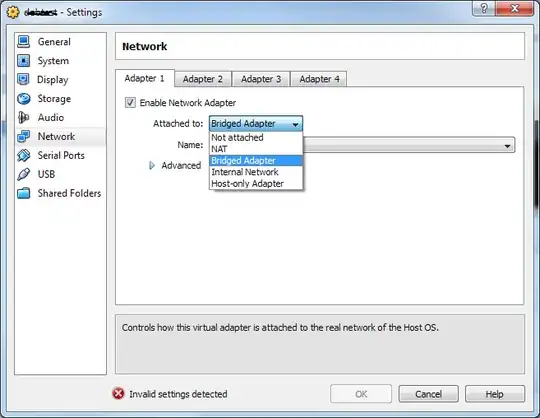
The best way to do this is to use a Bridge Adapter in virtualbox. In virtual box go to the settings for your machine->Network->Adapter 1 and select Bridged Adapter. This will make you virtual machine part of your main network.

If you have a dhcp server it should supply an address etc. to the virtual machine which will allow it to communicate with the rest of your systems and vice versa.

user9517
  • 117,122
16

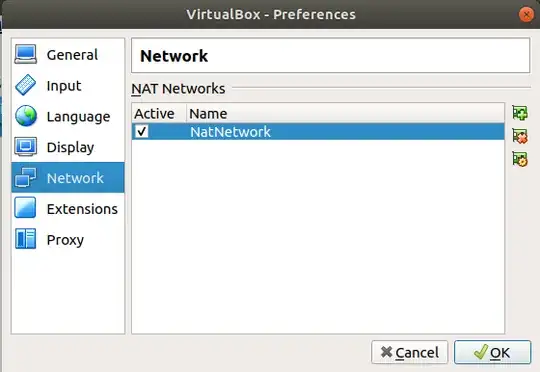
Just after the installation of VirtualBox, the next step is to go to the Preferences of VirtualBox (inside File menu:Ctrl+G) and select Network.

VirtualBox Preferences, Network tab. The Network tab is listed after General, Input, Language, and Display, and is followed by Extensions and Proxy.

Then add a New Nat Network.

A new, active NAT Network.

Given the requirements, I would choose a "bridged" adapter.

Within the network settings, on the "Adapter 1" tab. "Enable Network Adapter" is ticked, and "Attached to:" is selected to "Bridged Adapter".

Mithical
  • 107
  • 1
  • 5
skoivisto
  • 189
6

ON virtualbox 5.2, it's real easy: Set up a bridged adapter for the guest.

When you start the guest, it will use the same network as the host, using DHCP to get its own IP address.

O. Jones
  • 253
2

Setup host-only network and allow sharing of internet connection for that network. In this way you will have virtual interface on host that will be connected to guest.

imax
  • 2,351
1

According to the Virtualbox documentation ch 6.2 and its helpful table, Bridged Adapter seems to be the most permissive.

However, I have found that sometimes no settings through virtualbox have any effect whatsoever, and when that has been the case, I've solved this directly in the Linux guest via the command line.

  1. Change Virtualbox settings to bridged and use VB's recommended settings.
  2. In the Linux guest, via the command line as root / sudo, run nmtui which will bring up a user interface. Of the 3 options select "Activate a connection" and choose the name of the network adapter that VB assigned to the guest. If your host is permissive enough, this should set everything up. If not, you may need to select "Edit a connection" instead to manually input DNS servers, IP addresses, DHCP vs Static, gateway, etc. Don't forget to select "Automatically connect" in the edit screen.

When all else has failed, this has always been the answer for me.