138

A few of us at my company have root access on production servers. We are looking for a good way to make it exceedingly clear when we have ssh'd in.

A few ideas we have had are:

  • Bright red prompt
  • Answer a riddle before getting a shell
  • Type a random word before getting a shell

What are some techniques you guys use to differentiate production systems?

HopelessN00b
  • 54,273
Sionide21
  • 1,553

24 Answers24

138

The red prompt is a good idea, which I also use.

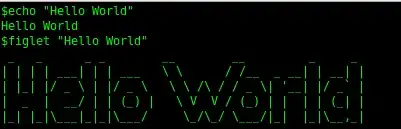
Another trick is to put a large ASCII-art warning in the /etc/motd file.
Having something like this greet you when you log in should get your attention:

 _______ _    _ _____  _____   _____  _____            
|__   __| |  | |_   _|/ ____| |_   _|/ ____|     /\    
   | |  | |__| | | | | (___     | | | (___      /  \   
   | |  |  __  | | |  \___ \    | |  \___ \    / /\ \  
   | |  | |  | |_| |_ ____) |  _| |_ ____) |  / ____ \ 
   |_|  |_|  |_|_____|_____/  |_____|_____/  /_/    \_\


 _____  _____   ____  _____  _    _  _____ _______ _____ ____  _   _ 
|  __ \|  __ \ / __ \|  __ \| |  | |/ ____|__   __|_   _/ __ \| \ | |
| |__) | |__) | |  | | |  | | |  | | |       | |    | || |  | |  \| |
|  ___/|  _  /| |  | | |  | | |  | | |       | |    | || |  | | . ` |
| |    | | \ \| |__| | |__| | |__| | |____   | |   _| || |__| | |\  |
|_|    |_|  \_\\____/|_____/ \____/ \_____|  |_|  |_____\____/|_| \_|


 __  __          _____ _    _ _____ _   _ ______ 
|  \/  |   /\   / ____| |  | |_   _| \ | |  ____|
| \  / |  /  \ | |    | |__| | | | |  \| | |__   
| |\/| | / /\ \| |    |  __  | | | | . ` |  __|  
| |  | |/ ____ \ |____| |  | |_| |_| |\  | |____ 
|_|  |_/_/    \_\_____|_|  |_|_____|_| \_|______|

You could generate such a warning on this website or you could use the figlet command.

figlet

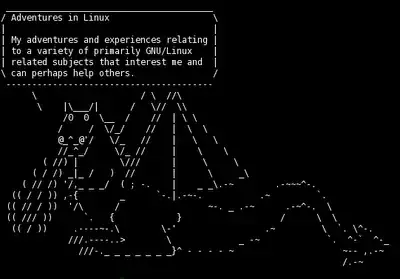
Like Nicholas Smith suggested in the comments, you could spice things up with some dragons or other animals using the cowsay command.

dragon cowsay

Instead of using the /etc/motd file, you could also call cowsay or figlet in the .profile file.

83

Not quite the same thing, but this web site recommends having your developers wear a pink sombrero when making changes to production systems. You could probably have a similar rule for sshing into them.

developer wearing a pink sombrero

52

The biggest I've used is a discrete naming-scheme where prod-systems are named obviously different than test/dev instances. This makes the "Username@Hostname: " style prompt visibly different. And by obvious I mean more than just different words, different formats too:

example: PRD-WEB001 vs DEVEL-BOB-WEB001

This has several things going for it:

  • The extra hypenated block makes it a set-of-three instead of a set-of-two.
  • The first of the set is a different length.
  • The overall length of names is markedly different, which makes the command-line spacing different relative to each other and other text in the window.

And best of all, it doesn't require special terminal-configs for production just to avoid Oops errors.

In my experience, you want something that is a constant reminder of where you are. Login-methods like riddles are good for about 10 seconds, until you forget which window is which. All it takes is to do an ls in the wrong directory to scroll the ominous login-banner out of view, bury the terminal window under a browser window while googling something, alt-tab back to the wrong window and mayhem ensues. Best to have some constant visual cue like a significantly different command-prompt.

sysadmin1138
  • 135,853
44

One thing you need to keep in mind is that this needs to be a persistent reminder, not just an indicator at login time. Very often, someone will have several shells running at the same time in different tabs and move between them. Some will be dev, some production. So when you are running a command, you need to have an indicator at that point. So having a special prompt is the best method, in my experience, with a modified title/tab bar being a nice complement to this for finding the right window/tab easily.

So I'd recommend having a colored prompt (red being the obvious choice) and all caps for the hostname, with similar behavior for the user (privileged vs. non-privileged) as your prompt. Some examples:

colored prompts example

Usually something like

set prompt =  "%{\033[1;44m%}`whoami`@`hostname -s`#%{\033[0m%} "` 

in your shell startup file. This one is for the blue. Replace the 44 with 41 fir red, and 42 for green. Other colors and wild patterns available too.

Chris S
  • 78,455
Tim
  • 1,909
15

These are my suggestions:

1) Make sure most commands (rm, chown, chmod, /etc/init.d/* ) on the Production environment require sudo access

2) Use PS1/PS2 to indicate that the user is in a Prod server

bash-3.2$  export PS1="[\u@\h \W]\$ "

This will show the command prompt as

[sridhar@prodappserver901 conf]$

3) If Using Putty/SSH clients, You can always set up unique Background color/profile to make the Production servers stand-out.

13

Just consider that your second and third ideas help during the initial connection but are of no value when you have multiple terminals open and move from one to another. sysadmin1138's idea of using naming is good when it can be applied but there are plenty of cases where it cannot be.

The only thing I've found to be really worthwhile is a coloured prompt. I like green for dev/testing, red for production and blue for machines in the DMZ. That way, even if I have two machines with the same name (in different networks), such as when preparing a replacement machine, I can still easily tell which one I'm on.

11

The red/special command prompt is good. Another thing might be a quicker auto-logout on those machines using the TMOUT variable. If you have opened many windows the production ones will go away faster.

This should lead to a different behaviour:

  1. Develop
  2. Test
  3. Make your changes to a staging server
  4. Only then make a quick dash to production and deploy there (exactly like you did it on the staging server)
Alicja Kario
  • 6,449
Nils
  • 7,815
9

Working on a production machine with a plain root account is never ever a good idea.

Have an account with full sudo permissions. Does not allow saving sudo session. Prohibit sudo su. Use separate password for it ( not one you have for your dev machine ). Probably tweak sudo to notify about production identity of the shell before executing the command ( via alias ).

It will make accidental mistakes quite a hard ones. And red prompt never hurts.

8

I went with the red prompt idea, and found it fairly tedious to find working code for .bashrc.

So here's my version, ready to be included in .bashrc - https://github.com/RichVel/nicer-bash-prompt. It's completely driven by hostname, so as long as you have a suitable pattern to production hostnames (say xyprod01, xyprod02, etc) it will work well, and you can use the same .bashrc in all environments.

It looks like this:

screenshot of red prompt

This creates a nicer bash prompt including red prompt on production hosts - also shows you the current git branch, and last 2 directories in $PWD. It takes care to avoid messing up the prompt display when doing Ctrl/R (reverse searching) in bash.

Also includes an optional feature to sync your bash history across all terminal windows, along the lines of this answer. This is nice but not everyone wants it, so it's disabled by default.

RichVel
  • 3,633
5

Though I don't know what your IT setup is like, one solution that might be effective would be to have a special room that you have to go to to SSH into production servers as root. If you have a datacenter this could be the server room itself, but having a separate physical location from which 'normal' work is not done would quite effectively serve as a constant reminder that you're accessing production machines.

Kyle Cronin
  • 1,238
4

Just a tweak on above suggestions. I use CDE as my unix desktop and all the production systems I access via a menu in .dt/dtwmrc. On all the dev and UAT systems I keep my normal colour scheme but on prod systems I set the terminal to have a red background. I don't like the look but that's kind of the point.

eta - missed Karol's suggesting basically the same thing

Wudang
  • 163
4

When I log into a production machine, I get a paragraph warning me that it's a production machine, as well as a short list of guidelines. There's a number I can call for UNIX support if I don't think I can perform my task alone safely, a reminder that blowing up a production machine can cost me my job, and a reminder that everything I do is logged.

edit: I work in the transportation industry.

Basil
  • 8,931
4

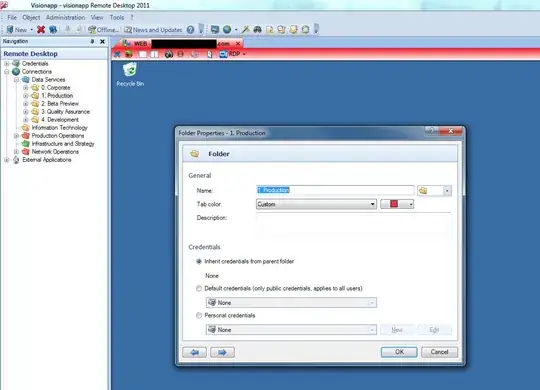
My group uses visionapp Remote Desktop (2017 edit: looks like the product got renamed but I think it's the same) to both RDP into Windows machines and SSH into Linux ones. Our connections are grouped into folders by tier and assigned a tab color.

So whenever we open a production connection -- bam! -- we get some bright red in our face:

enter image description here

It's definitely a worthwhile investment if you're a big Windows shop and rely on RDP a lot. I bet there are other great tools if all you need is SSH.

4

Simple answer? Change the color of your shell to red in the shell config. It will be dead obvious and simple to set up. Not only that, but unlike server headers it won't go away after you type in a few commands.

donatJ
  • 140
3

In PuTTY you can change the title of the window to something other than the default for a specific saved session. This always remains on the window no matter what you do inside the window. This also shows up in the task bar.

Expand Window, click Behaviour. Enter something in Window Title like:

  * * * * * * * * * * * * PRODUCTION  * * * * * * * * * * * * PRODUCTION  * * * * * * * * * * * *
sjbotha
  • 315
3

Here's what I did on my Mac. For every server, I add an entry for it in my ~/.ssh/config file, e.g.

Host app13
    HostName server.example.com
    User tom
    PermitLocalCommand yes
    LocalCommand osascript %d/bin/change_terminal_colours.scpt 12 35 35

This Applescript is triggered once the SSH session is established. It sets the terminal background colour to the RGB values provided (or back to default if no colour values are provided). The potentially tricky part is to intercept the end of the SSH session to set the colours back to the defaults. For that, I created the following shell script as ~/bin/ssh as to override the default ssh command. This essentially intercepts and wraps any calls to the SSH command. I tried using aliasing and functions, but this solution worked the best:

#!/bin/bash
/usr/bin/ssh $@
osascript ~/bin/change_terminal_colours.scpt

Here's the source for the change_terminal_colours.scpt script. Put this in your ~/bin directory also:

on run argv
    tell application "Terminal"
        # NOTE: Color values range from 0 to 65535.
        if (count of argv) > 0 then
            set backgroundColor to {(item 1 of argv) * 256, (item 2 of argv) * 256, (item 3 of argv) * 256}
        else
            set backgroundColor to background color of default settings
        end if

        try
            set background color of (selected tab of front window) to backgroundColor
        end try
    end tell
end run

I wrote this solution a week ago and have been using it ever since. I hope others find it of value. I find it works better than any of the solutions I found by Googling.

2

Apart from a unique prompt (which seems to be the most reliable solution), if you're logging in from the same workstation, you can use different profiles for your SSH sessions.

For instance, I have red backgrounds for production systems, green for development, blue for infrastructure (routers etc.) and white for local workstation.

If you use GNOME, there's an easy way to fire up a SSH connection with your desired profile:

gnome-terminal --window-with-profile=production -e 'ssh root@production.example.com'

The main disadvantage - it's client-side, so a special prompt is still your best bet if you're accessing servers from different locations.

Karol J. Piczak
  • 2,388
  • 1
  • 21
  • 22
2

Another way to make it clear that you're on a production system is to set the TMOUT (autologout) feature on the production system.

2

i use the prompt changes like others here. Its quick and nasty but works fine for my purposes. It'll give you red as a normal user on a production system, and red upper case as root on a prod system.

It could be written in less lines but i do it like this so i can tweak the other 2 cases (non root-non prod) if i want to.

We work on the assumption that a production server does not use DHCP, but you can use any other method for working out if its a prod system. Whatever works for you.

productionSrv=1
grep -qi bootproto=dhcp /etc/sysconfig/network-scripts/ifcfg-*
if [ "$?" -eq 0 ]; then
    productionSrv=0
fi
hostName=`hostname`
userName=`whoami`
if [ $userName == "root" ]
then
    if [ "$productionSrv" == 1 ]
    then
        hostName=`echo $hostName | tr [:lower:] [:upper:]`
        PS1='[\e[0;31m]\u[\e[0m]@[\e[0;31m]$hostName[\e[0m][$?][\e[0;31m][\W][\e[0m][\e[0;31m]\$[\e[0m]: '
    else
        PS1='[\e[0;31m]\u[\e[0m]@[\e[0;35m]$hostName[\e[0m][$?][\e[0;31m][\W][\e[0m][\e[0;31m]\$[\e[0m]: '
    fi
    PATH=$PATH:/sbin/
else
    if [ "$productionSrv" == 1 ]
    then
        PS1='[\e[0;32m]\u[\e[0m]@[\e[0;31m]$hostName[\e[0m][$?][\e[0;31m][\W][\e[0m][\e[0;32m]\$[\e[0m]: '
    else
        PS1='[\e[0;32m]\u[\e[0m]@[\e[0;35m]$hostName[\e[0m][$?][\e[0;31m][\W][\e[0m][\e[0;32m]\$[\e[0m]: '
    fi
fi

Sirex
  • 5,585
2

Due to the vast regulatory requirements while working in a particular industry, here everyone's activities are key-logged for any future disputes. Aecause of that, access is also restricted and you have to jump through a few "menus" that allow you to access a machine as one of a handful trusted users. By setting up this system, person must conciously pick PRODUCTION or QA environment and then pick the host they want to access from the list. This also has a timeout period so you don't run into situation of logging onto a prod host and forgetting which environment you're in the next day.

Alexandra
  • 121
1

Have a different (perhaps longer) root password on the production machines.

You could make a special sudo (or sudo wrapper), such that a special message is output for the production machines.

mdpc
  • 11,914
1

Here, we have default putty configurations to make the foreground color of the entire screen as bright pink.

  • Prod: bright pink.
  • Regression: pale green
  • Model: pale blue
  • Dev: normal

It works pretty well, but I do like some of the other ideas here.

  • Pro:unless something doesn't use the foreground color.., EVERY prod screen is bright pink.
  • Con: Obviously if you ssh through something other than the default putty config this does nothing though.
1

in the .bashrc/.bash_profile

echo " THIS IS THE PRODUCTION SYSTEM. BE RESPONSIBLE.. " .. 
Jay D
  • 111
0

Here's mine

I used ascii-image-converter for the image (forward the result to a file and cat it at the top of your .bashrc). Also using this for full effect:

export PS1="\[\e[1;32m\]\u\[\e[3;31m\]@\[\e[3;31m\] PROD \[\e[0;37m\]: \[\e[1;34m\]\w \[\e[0;31m\]$ \[\e[0m\]"
cya
  • 101