189

I just ran rm -rf /* accidentally, but I meant rm -rf ./* (notice the star after the slash).

alias rm='rm -i' and --preserve-root by default didn't save me, so are there any automatic safeguards for this?


I wasn't root and cancelled the command immediately, but there were some relaxed permissions somewhere or something because I noticed that my Bash prompt broke already. I don't want to rely on permissions and not being root (I could make the same mistake with sudo), and I don't want to hunt for mysterious bugs because of one missing file somewhere in the system, so, backups and sudo are good, but I would like something better for this specific case.


About thinking twice and using the brain. I am using it actually! But I'm using it to solve some complex programming task involving 10 different things. I'm immersed in this task deeply enough, there isn't any brain power left for checking flags and paths, I don't even think in terms of commands and arguments, I think in terms of actions like 'empty current dir', different part of my brain translates them to commands and sometimes it makes mistakes. I want the computer to correct them, at least the dangerous ones.

32 Answers32

231

One of the tricks I follow is to put # in the beginning while using the rm command.

root@localhost:~# #rm -rf /

This prevents accidental execution of rm on the wrong file/directory. Once verified, remove # from the beginning. This trick works, because in Bash a word beginning with # causes that word and all remaining characters on that line to be ignored. So the command is simply ignored.

OR

If you want to prevent any important directory, there is one more trick.

Create a file named -i in that directory. How can such a odd file be created? Using touch -- -i or touch ./-i

Now try rm -rf *:

sachin@sachin-ThinkPad-T420:~$ touch {1..4}
sachin@sachin-ThinkPad-T420:~$ touch -- -i
sachin@sachin-ThinkPad-T420:~$ ls
1  2  3  4  -i
sachin@sachin-ThinkPad-T420:~$ rm -rf *
rm: remove regular empty file `1'? n
rm: remove regular empty file `2'? 

Here the * will expand -i to the command line, so your command ultimately becomes rm -rf -i. Thus command will prompt before removal. You can put this file in your /, /home/, /etc/, etc.

OR

Use --preserve-root as an option to rm. In the rm included in newer coreutils packages, this option is the default.

--preserve-root
              do not remove `/' (default)

OR

Use safe-rm

Excerpt from the web site:

Safe-rm is a safety tool intended to prevent the accidental deletion of important files by replacing /bin/rm with a wrapper, which checks the given arguments against a configurable blacklist of files and directories that should never be removed.

Users who attempt to delete one of these protected files or directories will not be able to do so and will be shown a warning message instead:

$ rm -rf /usr
Skipping /usr
59

Your problem:

I just ran rm -rf /* accidentally, but I meant rm -rf ./* (notice the star after the slash).

The solution: Don't do that! As a matter of practice, don't use ./ at the beginning of a path. The slashes add no value to the command and will only cause confusion.

./* means the same thing as *, so the above command is better written as:

rm -rf *

Here's a related problem. I see the following expression often, where someone assumed that FOO is set to something like /home/puppies. I saw this just today actually, in the documentation from a major software vendor.

rm -rf $FOO/

But if FOO is not set, this will evaluate to rm -rf /, which will attempt to remove all files on your system. The trailing slash is unnecessary, so as a matter of practice don't use it.

The following will do the same thing, and is less likely to corrupt your system:

rm -rf $FOO

I've learned these tips the hard way. When I had my first superuser account 14 years ago, I accidentally ran rm -rf $FOO/ from within a shell script and destroyed a system. The 4 other sysadmins looked at this and said, 'Yup. Everyone does that once. Now here's your install media (36 floppy disks). Go fix it.'

Other people here recommend solutions like --preserve-root and safe-rm. However, these solutions are not present for all Un*xe-varients and may not work on Solaris, FreeBSD & MacOSX. In addition, safe-rm requires that you install additional packages on every single Linux system that you use. If you rely on safe-rm, what happens when you start a new job and they don't have safe-rm installed? These tools are a crutch, and it's much better to rely on known defaults and improve your work habits.

Stefan Lasiewski
  • 24,361
  • 42
  • 136
  • 188
34

Since this is on "Serverfault", I'd like to say this:

If you have dozens or more servers, with a largish team of admins/users, someone is going to rm -rf or chown the wrong directory.

You should have a plan for getting the affected service back up with the least possible MTTR.

Not Now
  • 3,602
24

The best solutions involve changing your habits not to use rm directly.

One approach is to run echo rm -rf /stuff/with/wildcards* first. Check that the output from the wildcards looks reasonable, then use the shell's history to execute the previous command without the echo.

Another approach is to limit the echo command to cases where it's blindingly obvious what you'll be deleting. Rather than remove all the files in a directory, remove the directory and create a new one. A good method is to rename the existing directory to DELETE-foo, then create a new directory foo with appropriate permissions, and finally remove DELETE-foo. A side benefit of this method is that the command that's entered in your history is rm -rf DELETE-foo.

cd ..
mv somedir DELETE-somedir
mkdir somedir                 # or rsync -dgop DELETE-somedir somedir to preserve permissions
ls DELETE-somedir             # just to make sure we're deleting the right thing
rm -rf DELETE-somedir

If you really insist on deleting a bunch of files because you need the directory to remain (because it must always exist, or because you wouldn't have the permission to recreate it), move the files to a different directory, and delete that directory.

mkdir ../DELETE_ME
mv * ../DELETE_ME
ls ../DELETE_ME
rm -rf ../DELETE_ME

(Hit that Alt+. key.)

Deleting a directory from inside would be attractive, because rm -rf . is short hence has a low risk of typos. Typical systems don't let you do that, unfortunately. You can to rm -rf -- "$PWD" instead, with a higher risk of typos but most of them lead to removing nothing. Beware that this leaves a dangerous command in your shell history.

Whenever you can, use version control. You don't rm, you cvs rm or whatever, and that's undoable.

Zsh has options to prompt you before running rm with an argument that lists all files in a directory: rm_star_silent (on by default) prompts before executing rm whatever/*, and rm_star_wait (off by default) adds a 10-second delay during which you cannot confirm. This is of limited use if you intended to remove all the files in some directory, because you'll be expecting the prompt already. It can help prevent typos like rm foo * for rm foo*.

There are many more solutions floating around that involve changing the rm command. A limitation of this approach is that one day you'll be on a machine with the real rm and you'll automatically call rm, safe in your expectation of a confirmation… and next thing you'll be restoring backups.

21

You could always do an alias, as you mentioned:

what_the_hell_am_i_thinking() {
   echo "Stop." >&2
   echo "Seriously." >&2
   echo "You almost blew up your computer." >&2
   echo 'WHAT WERE YOU THINKING!?!?!' >&2
   echo "Please provide an excuse for yourself below: " 
   read 
   echo "I'm sorry, that's a pathetic excuse. You're fired."
   sleep 2
   telnet nyancat.dakko.us
}

alias rm -fr /*="what_the_hell_am_i_thinking"

You could also integrate it with a commandline twitter client to alert your friends about how you almost humiliated yourself by wiping your hard disk with rm -fr /* as root.

trillian
  • 103
Naftuli Kay
  • 1,778
20

The simplest way to prevent accidental rm -rf /* is to avoid all use of the rm command! In fact, I have always been tempted to run rm /bin/rm to get rid of the command completely! No, I'm not being facetious.

Instead use the -delete option of the find command, but first before deleting the files I recommend previewing what files you'll be deleting:

find | less

Note, in modern versions of find if you leave out the name of a directory, it will implicitly use the current directory, so the above is the equivalent of:

find . | less

Once you're sure these are the files you want to delete you can then add the -delete option:

find path/to/files -delete

So, not only is find safer to use, it is also more expressive, so if you want to delete only certain files in a directory hierarchy that match a particular pattern you could use an expression like this to preview, then delete the files:

find path/to/files -name '*~' | less
find path/to/files -name '*~' -delete

There are lots of good reasons to learn and use find besides just a safer rm, so you'll thank yourself later if you take the time to learn to use find.

aculich
  • 3,700
17

There's some really bad advice in this thread, luckily most of it has been voted down.

First of all, when you need to be root, become root - sudo and the various alias tricks will make you weak. And worse, they'll make you careless. Learn to do things the right way, stop depending on aliases to protect you. One day you'll get root on a box which doesn't have your training wheels and blow something up.

Second - when you have root, think of yourself as driving a bus full of school children. Sometimes you can rock out to the song on the radio, but other times you need to look both ways, slow things down, and double check all your mirrors.

Third - You hardly ever really have to rm -rf - more likely you want to mv something something.bak or mkdir _trash && mv something _trash/

Fourth - always ls your wildcard before rm - There's nothing crazy about looking at something before destroying it forever.

eventi
  • 231
16

Yes: Don't work as root and always think twice before acting.

Also, have a look at something like https://launchpad.net/safe-rm.

Sven
  • 100,763
11

The solution to this problem is to take regular backups. Anytime you produce something you don't want to risk losing, back it up. If you find backing up regularly is too painful, then simplify the process so that it's not painful.
For example, if you work on source code, use a tool like git to mirror the code and keep history on another machine. If you work on documents, have a script that rsyncs your documents to another machine.

11

This is standard of mine specifically for regexps in the context of rm, but it would have saved you in this case.

I always do echo foo*/[0-9]*{bar,baz}* first, to see what the regexp is going to match. Once I have the output, I then go back with command-line editing and change echo to rm -rf. I never, ever use rm -rf on an untested regexp.

MadHatter
  • 81,580
8

It seems like the best way to reduce this risk is to have a two-stage delete like most GUIs. That is, replace rm with something that moves things to a trash directory (on the same volume). Then clean that trash after enough time has gone by to notice any mistake.

One such utility, trash-cli, is discussed on the Unix StackExchange, here.

nnutter
  • 180
3

One important key factor to avoid such type of mistakes is to not login using root account. When you login using normal non-privileged user, you need to use sudo for each command. So, you should be more careful.

Khaled
  • 37,789
3

When I delete a directory recursively, I put the -r, and -f if applicable, at the end of the command, e.g. rm /foo/bar -rf. That way, if I accidentally press Enter too early, without having typed the whole path yet, the command isn't recursive so it's likely harmless. If I bump Enter while trying to type the slash after /foo, I've written rm /foo rather than rm -rf /foo.

That works nicely on systems using the GNU coreutils, but the utilities on some other Unixes don't allow options to be placed at the end like that. Fortunately, I don't use such systems very often.

Wyzard
  • 1,173
3

I like the windows approach of the recycle bin.

I usually create a directory named "/tmp/recyclebin" for everthing I need to delete:

mkdir /tmp/recyclebin

And never use rm -rf, I always use:

mv target_folder /tmp/recyclebin

Then later on, I empty the recyclebin using a a script or manually.

Basil A
  • 2,300
2

It may be complicated, but you can setup roles within SELinux so that even if the user becomes root via sudo su - (or plain su), the ability to delete files can be limited (you have to login directly as root in order to remove files). If you are using AppArmor, you may be do something similar.

Of course, the other solution would be to make sure that you have backups. :)

Rilindo
  • 5,088
2

My deletion process on Unix based machines is as follows.

  • Type ls /path/to/intented/file_or_directory in the terminal window and then hit return (or Tab, as desired), to see the list of files.

If everything looks good,

  • click the up arrow key to bring ls /path/to/intented/file_or_directory from the terminal history again.

  • replace ls with rm or rm -r or rm -rf, as required. I personally don't like to use -f flag.

This process of validation also prevents the premature execution of the rm command, something which has happened to me, before I started following this process.

2

Avoid using globbing. In Bash, you can set noglob. But again, when you move to a system where noglob is not set, you may forget that and proceed as if it were.

Set noclobber to prevent mv and cp from destroying files too.

Use a file browser for deletion. Some file browsers offer a trashcan (for example, Konqueror).

Another way of avoiding globbing is a follows. At the command line, I echo filenamepattern >> xxx. Then I edit the file with Vim or vi to check which files are to be deleted, (watch for filename pattern characters in filenmates.) and then use %s/^/rm -f/ to turn each line into a delete command. Source xxx. This way you see every file that is going to be deleted before doing it.

Move files to an 'attic' directory or tarball. Or use version control (as said before me).

2

The ZSH asks me (as default) before performing a rm -rf *.

And ZSH also provides plugin (zsh-safe-rm) to add safe-rm functionality so that rm will put files in your OS's trash instead of permanently deleting them.

alper
  • 232
  • 2
  • 8
math
  • 453
1

One may use safe project as an alias:

$ alias rm='safe rm'

You will now get both parameter expansion and confirmation on any rm command by users. For example:

$ rm test*
> rm test test_000.png test_001.png test-0.png test-1.png testaudio.mp3
Are you sure? y|n n
Ok, moving on. They say, better to be safe than sorry.
$ rm test*png
> rm test test_000.png test_001.png test-0.png test-1.png
Are you sure? y|n y
Alright.

More info at the README of Safe Repository on GitHub

Alexar
  • 266
  • 1
  • 3
  • 13
1

Outside of chattr, there's not a whole lot of safeguards from letting root run such a command. That's why proper groups and careful commands are important when running privileged.

Next time; scope out the files you plan on deleting - omit 'f' from rm -rf, or use find and pass it to xargs rm

thinice
  • 4,746
  • 23
  • 38
1

Some safety aliases for other commands, to prevent similar disasters, found here:

# safety features
alias cp='cp -i'
alias mv='mv -i'
alias rm='rm -I'                    # 'rm -i' prompts for every file
alias ln='ln -i'
alias chown='chown --preserve-root'
alias chmod='chmod --preserve-root'
alias chgrp='chgrp --preserve-root'

Notice the uppercase -I, it is different from -i:

prompt once before removing more than three files, or when removing recursively. Less intrusive than -i, while still giving protection against most mistakes

1

Just use ZFS to store the files you need to resist accidental removal and have a daemon that:

  • regularly makes snapshots of this file system
  • removes older/unnecessary snapshots.

Should files are removed, overwritten, corrupted, whatever, just rollback your file system to a clone of the last good snapshot and you are done.

jlliagre
  • 9,031
1

If you're not in the mood to acquire new habits right now, .bashrc/.profile is a good place to add some tests to check if you are about to do something stupid. I figured in a Bash function I could grep for a pattern that might ruin my day and came up with this:

alias rm='set -f; myrm' #set -f turns off wildcard expansion need to do it outside of           
                        #the function so that we get the "raw" string.
myrm() {
    ARGV="$*"
    set +f #opposite of set -f
    if echo "$ARGV" | grep -e '-rf /*' \
                           -e 'another scary pattern'
    then
        echo "Do Not Operate Heavy Machinery while under the influence of this medication"
        return 1
    else
        /bin/rm $@
    fi
}

The good thing about it is that it's only Bash.

It's clearly not generic enough in that form, but I think it has potential, so please post some ideas or comments.

kln
  • 11
1

In addition to all other solutions here, when doing a large rm usually use the -v flag to see what is being deleted and have a chance to ^C quickly if I have the slightest doubt. Not really a way to prevent bad rm's, but this can be useful to limit the damage in case something goes wrong.

a3nm
  • 939
1

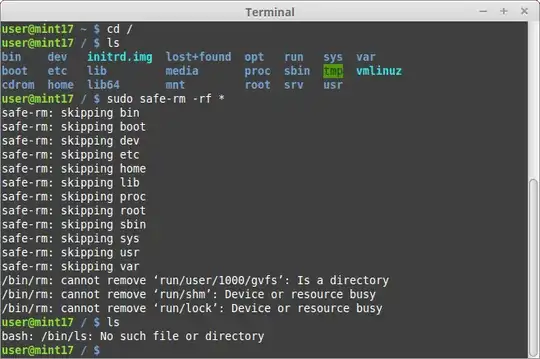
Sadly, I cannot leave a comment above due to insufficient karma, but wanted to warn others that safe-rm is not a panacea for accidental mass-deletion nightmares.

The following was tested in a Linux Mint 17.1 virtual machine (warning to those unfamiliar with these commands: DON'T DO THIS! Actually, even those familiar with these commands should/would probably never do this to avoid catastrophic data loss):

Text version (condensed):

$ cd /
$ sudo safe-rm -rf *
$ ls
bash: /bin/ls: No such file or directory

Image version (full):

enter image description here

Miles
  • 201
1

I think this is a powerful prevention tip, with * expansion shortcut in shell:

First, type rm -rf * or rm -rf your/path/*, DON'T type Enter key. (of course, you should have a habit of caring not to press Enter fast/accidentally when using rm -rf)

Then, press Alt-Shift-8 (i.e. Alt-Shift-*) to expand the "*" wildcard explicitly in bash. This also avoid re-entering a "rm -rf *" command when navigating the history.

Finally, after checked the expansion has the right files/directories, press Enter.

Done.

1

In case this helps someone out there for their own case:

1. Use rmsafe:

It moves files to a "trash" folder and you always have the chance to bring them back with a simple mv:

$ rmsafe /path/to/important/files

Source: https://github.com/pendashteh/rmsafe

2. Use safe:

You can set an alias for rm using safe:

$ alias rm="safe rm"

Now if you run rm /* you get this in response:

$ rm /*
Are you sure you want to 'rm /bin /boot /data /dev /etc /home /initrd.img /lib /lib64 /mnt /opt /proc /root /run /sbin /srv /sys /tmp /usr /var'? [y/n]

and I believe you won't type y!

Source: https://github.com/pendashteh/safe

Alexar
  • 266
  • 1
  • 3
  • 13
0

If you really are that careless at the shell prompt, or just having a bad day.. then a shell alias of rm to mv can save you from time to time.

https://unix.stackexchange.com/questions/379138/aliasing-rm-to-create-a-cli-recycle-bin

The Unix Janitor
  • 2,558
  • 15
  • 13
0

Hehe (untested and somewhat facetiously!):

$ cat /usr/local/bin/saferm

#! /bin/bash

/bin/ls -- "$@"

echo "Those be the files you're about to delete."
echo "Do you want to proceed (y/N)?"

read userresponse

if [ "$userresponse" -eq "y" ]; then

  echo "Executing...."
  /bin/rm -- "$@"

fi

And then:

alias rm="/usr/local/bin/saferm"

Realistically, you should have a mental pause before executing that sort of operation with a glob, whether you're running as root, prepending "sudo" to it, etc. You can run an "ls" on the same glob, etc., but, mentally, you should stop for a sec, make sure you've typed what you wanted, make sure what you want is actually what you want, etc. I suppose this is something that's mainly learned by destroying something in the first year as a Unix SA, in the same way that the hot burner is a good teacher in telling you that something on the stove may be hot.

And make sure you have good backups!

cjc
  • 25,492
0

Also, not as a safeguard, but as a way to find out what files were deleted before you hit ^C, you can use locate database (of course only if it was installed and survived rm)

I've learned about it from this blog post

0

not so much an answer but a tip, i always do rm (dir) -rf not rm -rf (dir) i.e: don't go nuclear until the last possible moment.

It helps mitigate situations in which you fat finger the dir name in such a way that it's still a valid deletion, such as slipping and hitting the enter key.

Sirex
  • 5,585
0

I simply did my own script that can simply warn and ask confirmation for every kind of situation, just up to you on how to improve it

#!/bin/sh
# just sudo mv /usr/bin/rm to /usr/bin/rm-original

path=${!#}

color_yel="\x1b[1;33m"
color_rst="\x1b[0m"

function get_yn() {
    read i
    if [ "$i" != "y" ]; then echo "aborted."; exit 1; fi
}

if [ -d ${path} ]; then
    echo -e "${color_yel}You are deleting a folder, it's potentially dangerous, are you sure (y/n) ?${col>
    get_yn
    /usr/bin/rm-original $@
fi

Further idea to improve it:

  • check particular flags and paths
  • move to a trash folder and remove
  • empty old stuff in the trash after some time

So a simple customizable script allows to have any special behavior and avoid any additional package to be installed.

With some bash knowledge, you can trash only certain kind of things.