277

The aim for this Wiki is to promote using a command to open up commonly used applications without having to go through many mouse clicks - thus saving time on monitoring and troubleshooting Windows machines.

Answer entries need to specify

  • Application name
  • Commands
  • Screenshot (Optional)

Shortcut to commands

dance2die
  • 2,051

160 Answers160

119

A little known one is

getmac

It shows the MAC address(es) of your network adapter(s).

Screenshot of running getmac from a Windows commandline window.

splattne
  • 28,776
65

In the command prompt type:

C:\> start .

It opens the current directory in the Windows Explorer.

Toro
  • 766
50

Remote Desktop Connection

mstsc.exe

Opens:

Some image demonstrationg the use of mstsc.exe.

dance2die
  • 2,051
45

A list I use a lot:

  • nbtstat - List NetBIOS stats and information
  • netstat - List TCP/IP stats and information
  • ipconfig - List TCP/IP configuration for a system
  • netsh - Network configuration for a system
  • sc - manage services
  • net - whole slew of commands to manage users and groups, shares, connections, etc.
  • ping - makes sure a system is up on the network
  • tracert - trace the hops between two hosts. useful to see if there's a break in between and where it is.
  • nslookup - Query DNS for information
  • dcdiag - check health of the domain controller
  • setspn - check SPNs for Kerberos configuration
42

Services control panel:

services.msc
40
shutdown.exe

allow you to shutdown or reboot a machine. You can even reboot a remote machine with

shutdown -m \\server -t 0 -r

It even comes with a graphical user interface

shutdown -i

and you can abort a shutdown with

shutdown -a
37

Robocopy is really useful. It mirrors directories.

It is great for backups, restoring, and transferring large amounts of files. It only transfers files which have changed and can resume from where it left off.

It comes standard in Windows Vista and later, but Windows XP users can get it as part of the Windows Server 2003 Resource Kit (free) or later.

thomasrutter
  • 2,656
34

(Not really a command per-se, but a way to get there.)

For those of you that find yourself going to Start > Run > "cmd" a lot, you can cut down some steps.

Say you want to get your IP address. You would normally go Start > Run > "cmd" [enter] then...

ipconfig [enter]

Now instead, go...

Start > Run > "cmd /k ipconfig"

This will run cmd and the command 'ipconfig', and it will keep the window open. So if I want to quickly get my MAC address (physical address), I'd do:

 cmd /k ipconfig /all

...all from the run menu in one line.


All courtesy of BostonMark

28

The forgotten art: DOS String Manipulation!

set mydate=%date:~10,4%_%date:~4,2%_%date:~7,2%
echo %mydate%

Output will be YYYY_MM_DD.

Copy and paste this into a .bat file and be amazed! This is especially useful for creating backups, or any time/date series of directories and files.

An example:

@echo off
:: Yes, this looks bad, but it works, it sets the file veriable mydate to YYYY_MM_DD.
set mydate=%date:~10,4%_%date:~4,2%_%date:~7,2%

echo Backing up DC1:
:: start a new backup session, the /M switch is for the type of bakcup being performed, type ntbackup /? for more info
start /wait ntbackup backup \\DC1\c$ /j "DC1 Backup" /f "C:\BAK\DC1\DC1_%mydate%.bkf" /M incremental
echo DC1 is Done

echo Backing up EXCH:
start /wait ntbackup backup \\EXCH\c$ /j "EXCH Backup" /f "C:\BAK\EXCH\EXCH_%mydate%.bkf" /M incremental
echo EXCH is Done

echo Backing up FS1:
start /wait ntbackup backup \\FS1\c$ /j "FS1 Backup" /f "C:\BAK\FS1\FS1_%mydate%.bkf" /M incremental
echo FS1 is Done

echo Backup was completed %date% %time%
pause
Joseph Kern
  • 9,989
26
tasklist.exe

will list processes on local or a remote machine.

tasklist.exe /S server

It can display which Services the scvhost.exe processes are hosting with

tasklist /SVC

You can also do some filtering. This will display the processes on a remote machine that have used more than 15 minutes of CPU time

tasklist /S server /FI "CPUTIME gt 00:15:00"
25

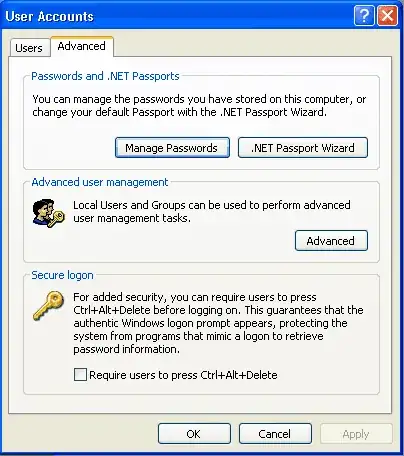
control userpasswords2

Opens the classic User Accounts dialog:

enter image description here

Bart De Vos
  • 18,171
24

I find that I use findstr a lot to find stuff in logs, error files, etc.

A simple example: in the log file ex0905.log we find all lines that have 2009-05-05 in them:

findstr "2009-05-05" ex0905.log
22

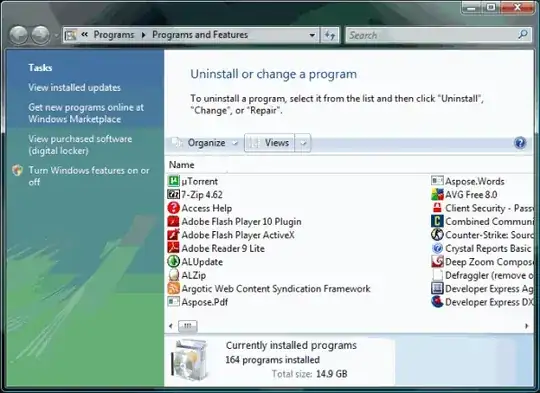
Programs and Features (Formerly known as "Add or Remove Programs")

appwiz.cpl

Opens

alt text

dance2die
  • 2,051
21

Sometimes I have to worry about too few free sessions for a Terminal Server connection to a server.

quser displays information about user sessions on a terminal server.

quser /SERVER:myserver

Output

C:\Documents and Settings\sysmanager01>quser /SERVER:serverx
USERNAME                    SESSIONNAME        ID  STATE   IDLE TIME  LOGON TIME
usr_hot1                                        1  Disc        none   30.04.2009 17:59
usr_hot                                         2  Disc        none   30.04.2009 18:01
appsuperuser                rdp-tcp#6           3  Conn            .  01.01.1601 02:00

Sometimes it's even possible to find pure workaholics like appsuperuser :-)

It's easier when pasting the quser executable from any 32-bit Server to my local System32 folder.

17

I use

qwinsta

to see disconnected remote desktop sessions and

logoff

to end them.

It works on Windows 2000, Windows XP, Windows Vista, Windows Server 2003 and probably Windows Server 2008 (never tried).

Jim Harte
  • 101
16

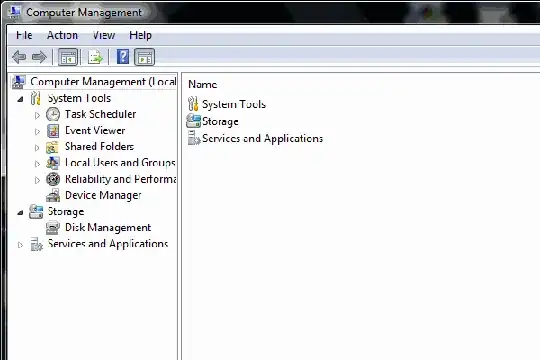
Computer Management

compmgmt.msc

Opens
enter image description here

dance2die
  • 2,051
16
systeminfo

Displays a ton of information about the system at hand. The following are what it outputs on Vista:

  • Host Name
  • OS Name
  • OS Version
  • OS Manufacturer
  • OS Configuration
  • OS Build Type
  • Registered Owner
  • Registered Organization
  • Product ID
  • Original Install Date
  • System Boot Time
  • System Manufacturer
  • System Model
  • System Type
  • Processor(s)
  • BIOS Version
  • Windows Directory
  • System Directory
  • Boot Device
  • System Locale
  • Input Locale
  • Time Zone
  • Total Physical Memory
  • Available Physical Memory
  • Page File
  • Max Size
  • Page File
  • Available
  • Page File
  • In Use
  • Page File Location(s)
  • Domain
  • Logon Server
  • Hotfix(s)
  • Network Card(s)
phuzion
  • 2,223
15

Very useful one I only found out about recently:

winver.exe

Gives you a dialog box with the version of Windows the machine is running, complete with Service Pack level and build number.

17 of 26
  • 101
14

There is still no mention of WMIC.exe :)

Find whatever you want from remote machine, local machine... multiple machines.

Nicely filled out HTML page with all data related to OS

WMIC OS get /all /format:htable

Look at all the options available

ALIAS                    - Access to the aliases available on the local system
BASEBOARD                - Base board (also known as a motherboard or system board) management.
BIOS                     - Basic input/output services (BIOS) management.
BOOTCONFIG               - Boot configuration management.
CDROM                    - CD-ROM management.
COMPUTERSYSTEM           - Computer system management.
CPU                      - CPU management.
CSPRODUCT                - Computer system product information from SMBIOS.
DATAFILE                 - DataFile Management.
DCOMAPP                  - DCOM Application management.
DESKTOP                  - User's Desktop management.
DESKTOPMONITOR           - Desktop Monitor management.
DEVICEMEMORYADDRESS      - Device memory addresses management.
DISKDRIVE                - Physical disk drive management.
DISKQUOTA                - Disk space usage for NTFS volumes.
DMACHANNEL               - Direct memory access (DMA) channel management.
ENVIRONMENT              - System environment settings management.
FSDIR                    - Filesystem directory entry management.
GROUP                    - Group account management.
IDECONTROLLER            - IDE Controller management.
IRQ                      - Interrupt request line (IRQ) management.
JOB                      - Provides  access to the jobs scheduled using the schedule service.
LOADORDER                - Management of system services that define execution dependencies.
LOGICALDISK              - Local storage device management.
LOGON                    - LOGON Sessions.
MEMCACHE                 - Cache memory management.
MEMLOGICAL               - System memory management (configuration layout and availability of memory).
MEMPHYSICAL              - Computer system's physical memory management.
NETCLIENT                - Network Client management.
NETLOGIN                 - Network login information (of a particular user) management.
NETPROTOCOL              - Protocols (and their network characteristics) management.
NETUSE                   - Active network connection management.
NIC                      - Network Interface Controller (NIC) management.
NICCONFIG                - Network adapter management.
NTDOMAIN                 - NT Domain management.
NTEVENT                  - Entries in the NT Event Log.
NTEVENTLOG               - NT eventlog file management.
ONBOARDDEVICE            - Management of common adapter devices built into the motherboard (system board).
OS                       - Installed Operating System/s management.
PAGEFILE                 - Virtual memory file swapping management.
PAGEFILESET              - Page file settings management.
PARTITION                - Management of partitioned areas of a physical disk.
PORT                     - I/O port management.
PORTCONNECTOR            - Physical connection ports management.
PRINTER                  - Printer device management.
PRINTERCONFIG            - Printer device configuration management.
PRINTJOB                 - Print job management.
PROCESS                  - Process management.
PRODUCT                  - Installation package task management.
QFE                      - Quick Fix Engineering.
QUOTASETTING             - Setting information for disk quotas on a volume.
RECOVEROS                - Information that will be gathered from memory when the operating system fails.
REGISTRY                 - Computer system registry management.
SCSICONTROLLER           - SCSI Controller management.
SERVER                   - Server information management.
SERVICE                  - Service application management.
SHARE                    - Shared resource management.
SOFTWAREELEMENT          - Management of the  elements of a software product installed on a system.
SOFTWAREFEATURE          - Management of software product subsets of SoftwareElement.
SOUNDDEV                 - Sound Device management.
STARTUP                  - Management of commands that run automatically when users log onto the computer system.
SYSACCOUNT               - System account management.
SYSDRIVER                - Management of the system driver for a base service.
SYSTEMENCLOSURE          - Physical system enclosure management.
SYSTEMSLOT               - Management of physical connection points including ports,  slots and peripherals, and
TAPEDRIVE                - Tape drive management.
TEMPERATURE              - Data management of a temperature sensor (electronic thermometer).
TIMEZONE                 - Time zone data management.
UPS                      - Uninterruptible power supply (UPS) management.
USERACCOUNT              - User account management.
VOLTAGE                  - Voltage sensor (electronic voltmeter) data management.
VOLUMEQUOTASETTING       - Associates the disk quota setting with a specific disk volume.
WMISET                   - WMI service operational parameters management.

and many, many more.

KAPes
  • 1,004
13

Chaining commands, in particular net stop and start to restart any service:

net stop w3svc && net start w3svc

(It is a silly example as iisreset will do that, but anyway ;)

13
color 02

This, my friends, is the only command you'll ever need. The rest is nonessential.

12
explorer .

Open explorer with the current folder selected.

explorer /e, .

Open explorer, with folder tree, with current folder selected.

Richard
  • 5,374
12

To change the title of the CMD window you have open, simply use:

title [your new title]

I've got a lot of CMD windows and other programs open at work. This command, combined with Taskbar Shuffle (allows you to drag taskbar items into new orders) has saved me from insanity.

11

Windows 7 Run Commands

I find it better to know where to find them until I have used them often enough to actually remember them.

p.campbell
  • 4,447
jake
  • 194
10

You can hit F7 in The Windows Command Line for a history of commands that you can choose with your keyboard.

Also...I love this one - you can copy a file path by just dragging a file into the command line.

cop1152
  • 2,736
10

On Windows XP at least (I haven't tried on Windows Vista and Windows 7):

appwiz.cpl @,2

It takes you straight to the Add/Remove Windows Components pane.

Another way to add or remove components in an automated fashion is to use

sysocmgr.exe

in unattended mode with a .inf file that lists the components you'd like to install. For example,

[NetOptionalComponents] 
SNMP = 1 

[SNMP] 
Contact_Name = IT Dept. 
Location = Office
Service = Physical, Applications, End-to-End 
Community_Name = Mormon 
Traps = server1, server2 
Send_Authentication = Yes 
Accept_CommunityName = Public:Read_Only 
Any_Host = No 
Limit_Host = server1, server2

(Credit due to thesystemadministrator.com for .inf file.)

It's a clunky tool (hey, it's MS), but it's invaluable for getting your components sorted out post-install.

10

To restart IIS

iisreset
Gulzar
  • 381
10

I didn't see taskkill on the list yet.

TASKKILL [/S system [/U username [/P [password]]]] { [/FI filter] [/PID processid | /IM imagename] } [/F] [/T]

Parameter List: /S system Specifies the remote system to connect to.

/U    [domain\]user    Specifies the user context under which
                       the command should execute.

/P    [password]       Specifies the password for the given
                       user context. Prompts for input if omitted.

/F                     Specifies to forcefully terminate
                       process(es).

/FI   filter           Displays a set of tasks that match a
                       given criteria specified by the filter.

/PID  process id       Specifies the PID of the process that
                       has to be terminated.

/IM   image name       Specifies the image name of the process
                       that has to be terminated. Wildcard '*'
                       can be used to specify all image names.

/T                     Tree kill: terminates the specified process
                       and any child processes which were started by

it.

Works great in conjunction with tasklist

atom255
  • 213
9

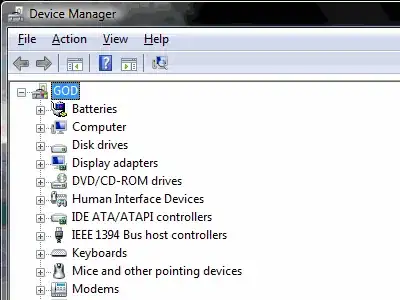
Device Manager

devmgmt.msc

Opens

enter image description here

dance2die
  • 2,051
8

I just recently found out about forfiles

FORFILES [/P pathname] [/M searchmask] [/S] [/C command] [/D [+ | -] {MM/dd/yyyy | dd}]

Description: Selects a file (or set of files) and executes a command on that file. This is helpful for batch jobs.

I use this to delete old backups with this line, this basically deletes files that are older than 6 days:

Forfiles /p " C:\Backups\SQL " /d -6 /c "CMD /C del @FILE"
Hondalex
  • 703
8

Run something as a different user (good for troubleshooting w/o having people to log off)

runas /U:*domainname*\*username* "*someapplication*"

for example, if you want to open an explorer window with your credentials

runas /U:example.com\mylogin "explorer /separate"

for management console snapins (services in this example) you need to use mmc followed by the normal command to open that snap-in

runas /U:example.com\mylogin "mmc services.msc"

For situations where you need to run an application as a domain user from a non-domain-joined PC (eg SQL Server Management Studio)

runas /netonly /U:domain\username application.exe
Neil
  • 307
8
netsh firewall set opmode disable 

turns off the Windows firewall.

taskkill.exe /f /fi "status eq Not Responding"

kills all not responding programs.

Maxwell
  • 5,086
8

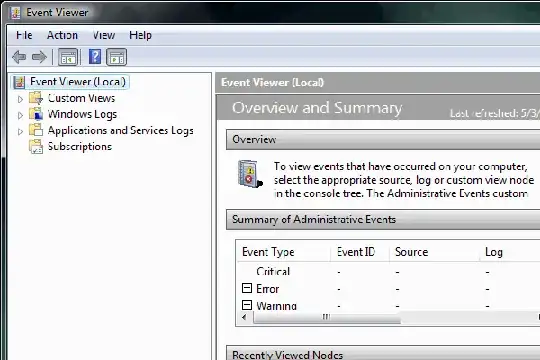
EventViewer

eventvwr.msc

Opens enter image description here

dance2die
  • 2,051
8

Registry Editor

regedit
Palmin
  • 350
8

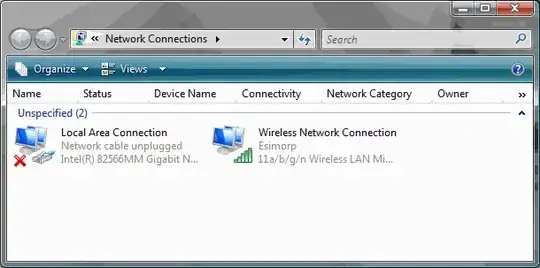
Network Connections (Windows Vista/Windows XP)

The command

ncpa.cpl

opens

alt text

dance2die
  • 2,051
8

dsquery * and dsmod

Pipe your dsquery results into dsmod and do mass changes to Active Directory.

Description:  Finds any objects in the directory according to criteria.

Syntax:     dsquery * [{<StartNode> | forestroot | domainroot}]
            [-scope {subtree | onelevel | base}] [-filter <LDAPFilter>]
            [-attr {<AttrList> | *}] [-attrsonly] [-l]
            [{-s <Server> | -d <Domain>}] [-u <UserName>]
            [-p {<Password> | *}] [-q] [-r] [-gc]
            [{-uc | -uco | -uci}]

Parameters:
Value                       Description
{<StartNode> | forestroot | domainroot}
                            The node where the search will start:
                            forest root, domain root, or a node
                            whose DN is <StartNode>.
                            Can be "forestroot", "domainroot" or an object
                            DN.
                            If "forestroot" is specified, the search is done
                            via the global catalog. Default: domainroot.
-scope {subtree | onelevel | base}
                            Specifies the scope of the search:
                            subtree rooted at start node (subtree);
                            immediate children of start node only (onelevel);
                            the base object represented by start node (base).
                            Note that subtree and domain scope
                            are essentially the same for any start node
                            unless the start node represents a domain root.
                            If forestroot is specified as <StartNode>,
                            subtree is the only valid scope.
                            Default: subtree.
-filter <LDAPFilter>        Specifies that the search use the explicit
                            LDAP search filter <LDAPFilter> specified in the
                            LDAP search filter format for searching.
                            Default:(objectCategory=*).The search filter
                            string must be enclosed in double quotes.
-attr {<AttrList> | *}      If <AttrList>, specifies a space-separated list
                            of LDAP display names to be returned for
                            each entry in the result set.
                            If *, specifies all attributes present on
                            the objects in the result set.
                            Default: distinguishedName.
-attrsonly                  Shows only the attribute types present on
                            the entries in the result set but not
                            their values.
                            Default: shows both attribute type and value.
-l                          Shows the entries in the search result set
                            in a list format. Default: table format.
{-s <Server> | -d <Domain>}
                            -s <Server> connects to the domain controller
                            (DC) with name <Server>.
                            -d <Domain> connects to a DC in domain <Domain>.
                            Default: a DC in the logon domain.
-u <UserName>               Connect as <UserName>. Default: the logged in
                            user. User name can be: user name,
                            domain\user name, or user principal name (UPN).
-p <Password>               Password for the user <UserName>. If * then you
                            are prompted for a password.
-q                          Quiet mode: suppress all output to standard
                            output.
-r                          Recurse or follow referrals during search.
                            Default: do not chase referrals during search.
-gc                         Search in the Active Directory global catalog.
-limit <NumObjects>         Specifies the number of objects matching the
                            given criteria to be returned, where <NumObjects>
                            is the number of objects to be returned.
                            If the value of <NumObjects> is 0, all matching
                            objects are returned. If this parameter is not
                            specified, by default the first 100 results are
                            displayed.
{-uc | -uco | -uci}         -uc Specifies that input from or output to pipe
                            is formatted in Unicode.
                            -uco Specifies that output to pipe or file is
                            formatted in Unicode.
                            -uci Specifies that input from pipe or file is
                            formatted in Unicode.

Remarks:
The dsquery commands help you find objects in the directory that match
a specified search criterion: the input to dsquery is a search criteria
and the output is a list of objects matching the search. To get the
properties of a specific object, use the dsget commands (dsget /?).

A user-entered value containing spaces or semicolons must be enclosed in
quotes (""). Multiple user-entered values must be separated using commas
(for example, a list of attribute types).


Examples:
To find all users in the current domain only whose SAM account name begins
with the string "jon" and display their SAM account name,
User Principal Name (UPN) and department in table format:

dsquery * domainroot
-filter "(&(objectCategory=Person)(objectClass=User)(sAMAccountName=jon*))"
-attr sAMAccountName userPrincipalName department

To read the sAMAccountName, userPrincipalName and department attributes of
the object whose DN is ou=Test,dc=microsoft,dc=com:

Dsquery * ou=Test,dc=microsoft,dc=com -scope base
-attr sAMAccountName userPrincipalName department

To read all attributes of the object whose DN is ou=Test,dc=microsoft,dc=com:

Dsquery * ou=Test,dc=microsoft,dc=com -scope base -attr *

See also:
dsquery computer /? - help for finding computers in the directory.
dsquery contact /? - help for finding contacts in the directory.
dsquery subnet /? - help for finding subnets in the directory.
dsquery group /? - help for finding groups in the directory.
dsquery ou /? - help for finding organizational units in the directory.
dsquery site /? - help for finding sites in the directory.
dsquery server /? - help for finding servers in the directory.
dsquery user /? - help for finding users in the directory.
dsquery quota /? - help for finding quotas in the directory.
dsquery partition /? - help for finding partitions in the directory.
dsquery * /? - help for finding any object in the directory by using
a generic LDAP query.

Directory Service command-line tools help:
dsadd /? - help for adding objects.
dsget /? - help for displaying objects.
dsmod /? - help for modifying objects.
dsmove /? - help for moving objects.
dsquery /? - help for finding objects matching search criteria.
dsrm /? - help for deleting objects.
dsquery failed:The parameter is incorrect.
type dsquery /? for help.
8

fsutil

From Microsoft Technet "Performs tasks that are related to file allocation table (FAT) and NTFS file systems, such as managing reparse points, managing sparse files, or dismounting a volume."

One of its most helpful options is to disable the creation of legacy 8.3 filenames. This is particularly helpful on servers that have very large numbers of files in a directory with long filenames.

To disable legacy 8.3 filenames on XP or Server 2003:

fsutil behavior set disable8dot3 1

On Windows 7 (and possibly Vista and Server 2008) you'd use:

fsutil 8dot3name set 1

For more information see: http://technet.microsoft.com/en-us/library/cc753059.aspx

Elias
  • 101
8

ipconfig

USAGE:

ipconfig [/? | /all | /renew [adapter] | /release [adapter] |

          /flushdns | /displaydns | /registerdns |

          /showclassid adapter |

          /setclassid adapter [classid] ]

where

adapter         Connection name 

               (wildcard characters * and ? allowed, see

examples)

Options:

   /?           Display this help message

   /all         Display full configuration information.

   /release     Release the IP address for the specified adapter.

   /renew       Renew the IP address for the specified adapter.

   /flushdns    Purges the DNS Resolver cache.

   /registerdns Refreshes all DHCP leases and re-registers DNS names

   /displaydns  Display the contents of the DNS Resolver Cache.

   /showclassid Displays all the dhcp class IDs allowed for adapter.

   /setclassid  Modifies the dhcp class id.  

The default is to display only the IP address, subnet mask and

default gateway for each adapter bound to TCP/IP.

For Release and Renew, if no adapter name is specified, then the IP address

leases for all adapters bound to TCP/IP will be released or renewed.

For Setclassid, if no ClassId is specified, then the ClassId is removed.

Examples:

> ipconfig                   ... Show information.

> ipconfig /all              ... Show detailed information

> ipconfig /renew            ... renew all adapters

> ipconfig /renew EL*        ... renew any connection that has its 

                                 name starting with EL

> ipconfig /release *Con*    ... release all matching connections,

                                 eg. "Local Area Connection 1" or

                                     "Local Area Connection 2"
6
mstsc  # starts the Remote Desktop window.
mstsc -v 192.168.0.1  # to remotely connect to a given IP.
mB.
  • 101
6

To get the current date / time for use in a batch file:

for /f "usebackq tokens=1,2,3,4 delims=/ " %%w in (`echo %DATE%`) do set YMD=%%z%%x%%y
for /f "usebackq tokens=1,2,3,4 delims=:." %%x in (`echo %TIME%`) do set HMS=%%x%%y%%z
set NOW=%YMD%_%HMS%
echo %NOW%
jftuga
  • 5,831
6

Windows Update Service

wuauclt.exe 

/demoui
/a /ResetAuthorization
/r /ReportNow
/detectnow

This single command has a lot of mythology surrounding it. It reports no errors, has no help dialog, and the only real output is run for /demoui. But it does work, I think.

Reference

Joseph Kern
  • 9,989
6

I find that often I need to create large files for testing.

fsutil file createnew C:\1_gb-ish_file.txt 1000000000

breadly
  • 217
5

I know this is a bit of an old question here, but I looked through the five pages of answers, and I did not see the following:

pushd, popd

Usage:

C:\Users\MyUser\src> pushd C:\Users\MyUser\Documents
C:\Users\MyUser\Documents> cd Backup
C:\Users\MyUser\Documents\Backup> copy ..\*.* .
C:\Users\MyUser\Documents\Backup> popd
C:\Users\MyUser\src> rem Continue working in src directory.

Useful when working in long directories. I want to get back where i was.

mpbloch
  • 982
5

Lately I have had to use: net use \\servername /d

It kills permissions to specified resources.

Another use for net use is to re-mount a local drive as administrator, so that you don't need to log out (on WinXP, switch user was disabled on domains).

net use \\localShare /user:admin

Jonas
  • 161
cop1152
  • 2,736
5

Disk management from the command line:

diskpart

See A Description of the Diskpart Command-Line Utility for more information.

fretje
  • 1,734
5

The clip command on Windows Vista and Windows Server 2008 is very useful: it puts anything passed in on standard input on the clipboard.

Examples:

Copy current directory to clipboard:

dir | clip

List C files containing a particular string:

findstr /i /s /m /c:"someFunction" *.c | clip
5

rasdial

USAGE:
    rasdial entryname [username [password|*]] [/DOMAIN:domain]
            [/PHONE:phonenumber] [/CALLBACK:callbacknumber]
            [/PHONEBOOK:phonebookfile]
            [/PREFIXSUFFIX]
rasdial [entryname] /DISCONNECT

rasdial

For Online Privacy Information please refer to
'http://go.microsoft.com/fwlink/?LinkId=34493'

connects to a VPN or a dialup network from the command line.

5

Quite possibly the most powerful command yet:

cmd.exe

Favorite option:

/K Carries out the command specified by string but remains

5

subst.exe - associates a path with a drive letter, including local drives. Usage example (add then remove):

subst M: C:\Documents and Settings\user\My Music\
subst M: /D

(note: is not persistent and needs to be run on every logon)

4

netsh

netsh can do many useful things, i.e: (no pun intended ;-)
Import proxy settings from Internet Options to command line tools:

netsh
netsh>winhttp
netsh winhttp>import proxy source=ie

Display current proxy settings:

netsh winhttp>show proxy  

net config server

Hide computer from Browser list:

net config server /hidden:yes
Casual Coder
  • 1,236
4

What about rundll32.exe?
It allows running functions from within any 32 bit DLL.
You can do almost everything with this command - and script your OS to your heart's content.
The syntax is:

RUNDLL32.EXE <dllname>,<entrypoint> <optional arguments>

E.G.:

RUNDLL32.EXE SHELL32.DLL,Control_RunDLL HotPlug.dll

Will bring up the "USB Disconnect" dialog (equivalent to right-clicking the "Safely Remove Hardware option in the system tray).

RUNDLL32 PRINTUI.DLL,PrintUIEntry /?

Will give you dozens of options to control your printer from the command line.
And there are millions more...

4

Forfiles:

forfiles

This is great for running a given command on any file that matches a list of criteria.

For example, the following will delete all files with a last modified date earlier than seven days ago:

forfiles -p . /D -7 /M *.* /S -c "cmd /C del @File /Q"
3

start:

start .                (opens explorer to the pwd)

start c:\              (opens explorer to the root of C:)

start document.doc     (open the document - just like double-clicking on it)

start wordpad file.txt (open wordpad for the file, creating if necessary)

start calc             (launch the calculator app)
3
cipher /w:C:\

/W Removes data from available unused disk space on the entire volume. If this option is chosen, all other options are ignored. The directory specified can be anywhere in a local volume. If it is a mount point or points to a directory in another volume, the data on that volume will be removed.

support.microsoft.com/kb/814599

Per Noalt
  • 136
3

Monitor network connections in the background, command-line while you work. (AKA - The `revolving netstat'):

> netstat -a 1

Stop services via command-line:

> net stop [servicename]

Fire up a Terminal Services session to a remote computer, via command-line:

> mstsc /v:[servername]

They kept around the "more" command, which was nice. Check out what's going on with the latest updates that have been installed, via WSUS:

> more /c c:\windows\windowsupdate.log

Problems with resolving via netBIOS? (Remember that buggy-ole-protocol?) Or issues with domain trusts? This set of commands has always served well on old domain controllers. (Also demonstrates how to link commands, (the double-ampersand means, `only continue if the last command completed successfully')

> nbtstat -R && nbtstat -r & nbtstat -c
Helen
  • 113
Greg Meehan
  • 1,156
3

cacls (or the more up-to-date icalcs):

cacls (Change Access Control Lists) is a command line utility for Microsoft Windows to change Access Control List (ACL) permissions on a directory, its subcontents, or files. An access control list is a list of permissions for a securable object, such as a file or directory, that controls who can access it.

alt text http://articles.techrepublic.com.com/i/tr/cms/contentPics/r00220020626van01_02.gif

It is a real life-saver on a file-server when specific file(s) and/or directory(s) permissions have to be modified.

Berzemus
  • 1,192
3

Problem Steps Recorder - A beautiful new feature in Windows 7 and Server 2008 R2.

PSR.EXE
3

Useful for batch/cmd processing:

cd %0\..

changes the path including the drive to the directory where the batch/cmd files is located.

For example, when you have your bat/cmd in z:\test, and you open up a shortcut to the bat/cmd from your desktop, with the command inside your bat/cmd you can change the path to z:\test and go on from there.

Edit: the command above only changes the path, not the drive! My fault... I tested it only on the same drive. The correct command for also changing the drive would be

cd /d %0\..
GHad
  • 109
3

Windows key + r cmd

This opens the command-line window without the mouse. It is the quickest way I've found to get it up. Combine with the cmd \k *command* mentioned above.

3

chkdsk (or checkdisk) is a command that checks the disk surface for physical errors or bad sectors. It can also fix logical file system errors.

Picture

adopilot
  • 1,541
3

Hopefully this fits in here - exporting the results of a command to file. For example, running a ping:

ping localhost

Can be exported to a log file:

ping localhost > C:\ping.log

Anything that would otherwise appear within the console screen, will be written to the file. Very useful for creating logs of running scheduled tasks.

Lazlow
  • 383
3

I saw FINDSTR listed above but nobody mentioned FIND. This command is incredibly useful to search the list returned from another command. Example: netstat -an | find ":6667"

This command will find any IRC traffic on your computer. Substitute another port or an IP address to narrow down the returned results accordingly.

Marcus
  • 536
3

I seem to regularly use "sc stop wuauserv", which turns off the Windows Update service. Primarly to make it stop nagging me to restart every few minutes.

davenpcj
  • 711
3

The arp command gives you the IP address and Ethernet address for hosts your machine knows of on the network. Very useful to debug hairy network troubles... I usually use

arp -a
wazoox
  • 7,156
3

I find that MS's SysInternals are really useful. So I often keep the folder updated by running this robocopy command:

robocopy "\\live.sysinternals.com\Tools" "C:\utils\sysinternals" /LEV:0 /Z /XO /IT /R:10 /W:10

The three I use the most are:

  • autoruns.exe manage processes that start automatically
  • procexp.exe a heavy duty process explorer, great for finding file locks
  • contig.exe defragment a single file (useful for virtual machines)
travis
  • 151
3
mode

It allows you to resize your cmd.exe window.

The cmd.exe window normally has 300 lines and 80 columns, which can be quite small sometimes.

You can double the height and width of the command window with

mode con cols=160 lines=600

To see your current settings use

mode con /status
3

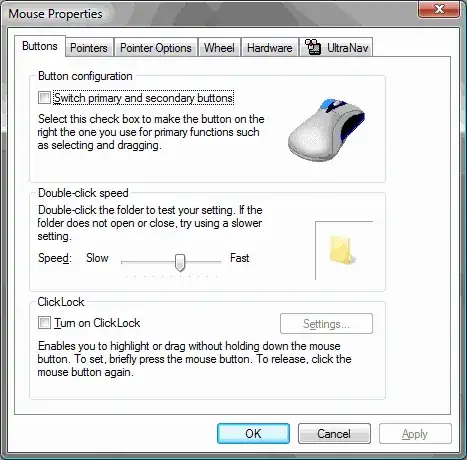
enter image description here#####Mouse Properties control mouse

-- or --

main.cpl

Opens

Bart De Vos
  • 18,171
dance2die
  • 2,051
3

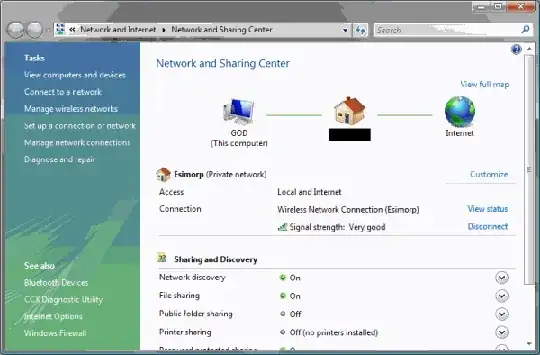
Network and Sharing Center

control.exe /name Microsoft.NetworkAndSharingCenter

Reference: http://technet.microsoft.com/en-us/library/cc733147.aspx#BKMK_Anchor3

Opens
enter image description here

dance2die
  • 2,051
3

Local Security Settings

secpol.msc
Wedge
  • 1,617
3

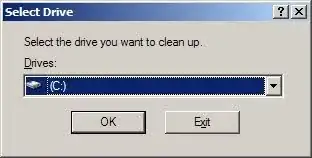
To free up some disk space:

format c:

No, really, here's Disk Cleanup:

cleanmgr.exe

enter image description here

Bart De Vos
  • 18,171
3

The ever-so-appropriately named lusrmgr.msc - Local Users and Groups Administrator

Kara Marfia
  • 7,882
3

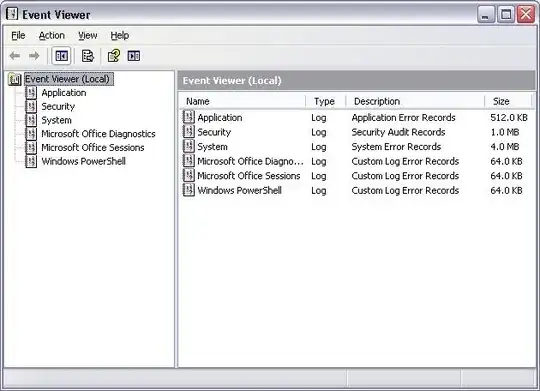
To open the Windows Event Log (Event Viewer).

Eventvwr

enter image description here

Bart De Vos
  • 18,171
C. Ross
  • 3,125
3

If you suspect something's wrong with protected system files, you can use this tool.

sfc /scannow
macbirdie
  • 581
3

When I was testing my WSUS server I found these useful:

gpresult > gp.txt (gives the policies aplied)

gpupdate /force (will force an group policy update on the machine)

wuauclt /detectnow (to force the Windows update agent to search for updates)
Flip
  • 109
3

Microsoft Windows Malicious Software Removal Tool

mrt
3

SC - Manage anything you want to do with services.

DESCRIPTION:
        SC is a command line program used for communicating with the
        NT Service Controller and services. USAGE:
        sc <server> [command] [service name] <option1> <option2>...
atom255
  • 213
3

The set command with filtering to display contents of environment variables. Instead of typing

C:\Users\Erlend>echo %computername%
ASUS-G1S
you can type
C:\Users\Erlend>set comp
COMPUTERNAME=ASUS-G1S
to get the same effect. Using set alone shows you all environment variables.
3

One of my favourites is rsop.msc, 'Resultant Set of Policy'.

RSoP shows the combined effect of all group policies active on the current system/login. So on a client machine if you're unsure about which particular policy settings are/aren't applied, simply check it out in RSoP!

CapBBeard
  • 948
3

The two I use the most are:

PathPing - Traces the route and pings the site at the same time (ie: pathping www.zdnet.com)

and an easy way to lock your workstation/server:

%windir%\System32\rundll32.exe user32.dll,LockWorkStation
JFV
  • 761
2
reg.exe

manipulates the Windows Registry.

splattne
  • 28,776
2

Depending on the version of Windows, Scheduled Tasks, and for command-line goodness, the schtasks or at commands.

schtasks

Parameter List:
    /Create  : Creates a new scheduled task.
    /Delete  : Deletes the scheduled task(s).
    /Query  : Displays all scheduled tasks. 
    /Change  : Changes the properties of scheduled task. 
    /Run  : Runs the scheduled task immediately. 
    /End  : Stops the currently running scheduled task. 
    /?              Displays this help/usage.

at

\\computername: Specify a remote computer (default local machine.
time: Specify the time when the task is to run.
/interactive: Allow the task to interact with the desktop of the user who is logged on at the time the task runs.
/every:date,...: Schedule the task to run on the specified day or days of the week or month.
/next:date,...: Schedule the task to run on the next occurrence of the day (for example, next Monday).
command: Specify the command, the program (.exe or .com file), or the batch program (.bat or .cmd file) that you want to run.
id: Specify the identification number that is assigned to a scheduled task.
/delete: Cancel a scheduled task. If you omit the id parameter, all scheduled tasks on the computer are canceled.
/yes: Force a yes answer to all queries from the system when you cancel scheduled tasks.
Andy
  • 1,523
2

If you're on one of the more professional Windows distributions (XP Professional, Vista Business, Vista Ultimate), use

gpedit.msc

to do Group Policy editing.

Aistina
  • 113
2

The command

powercfg.cpl

launches the power management control panel applet.

Jim Harte
  • 101
2

DIRCMD is an environmental variable that the DIR command reads its switches from.

Order directory listing by sub-directories, file extension, and name, including hidden and system files:

set DIRCMD=/ogen/a

dir
2

If you have pstools installed in the root of drive C;

c:\pstools\psexec \\\\computername -u username -p password cmd

opens the command prompt on a remote machine. From there you can do whatever you want.

cop1152
  • 2,736
2

There have been a couple of mentions of WMIC, but there's a lot of power there that isn't being highlighted. Granted, much of this can be done easier now with PowerShell, but if you don't know PowerShell or aren't able to use it for whatever reason, then it's WMIC to the rescue!

You are able to use many of the WQL keywords. For some reason a nice well-documented syntax on how to use these on the command line in conjunction with WMIC is not found anywhere.

Some examples:


List the QFE (Quick Fix Engineering) hotfixes installed on a system

// See them all
wmic qfe | more

// List the HotFixID, InstalledBy and InstalledOn properties of the ones that begin with "KB9"
wmic qfe where "HotfixID like '%KB9%'" get HotFixID,InstalledBy,InstalledOn

// Useful if you're just trying to find out if a particular KB is installed, and you don't care about the properties
wmic qfe | find "981793"

// Or, if you need the properties just for the one
wmic qfe where "HotFixID = 'KB981793'"

Display, start and stop services! Very useful when you have a group of related services that you need to stop/start.

// Display McAfee services
wmic service where "DisplayName like '%McAfee%'"

// Stop all McAfee services
wmic service where "DisplayName like '%McAfee%'" call StopService

Context-sensitive Help


See what properties are available with a particular alias:

wmic service get /?

See what methods are available with a particular alias:

wmic service call /?

See which classes the aliases map to:

wmic alias list brief

Run a query or command against multiple computers:


// Get a list of all the patches on hostname1 and hostname2 and save it as a .csv file for easy import into Excel
wmic /node:hostname1,hostname2 get /format:csv > Patches.csv

// You can also list all your systems (one per line) in a text file and run it against all of them:
wmic /node:@MyServers.txt get /format:csv > Patches.csv

2

"| more" is an essential sub-command. It pauses at each screen, making large amounts of text easier to read.

Examples:

dir | more
help | more
type filename.txt | more

It saves from scrolling back up to find what you want, and losing your place.

Scott Forsyth
  • 16,599
2

sqlwb Starts Microsof SQL Server Management Studio. Handy when you can't find it listed in the start menu, but you know it's installed on that server. :)

2

Run dxdiag, a DirectX diagnostic tool. Apart from giving DirectX components installed on your system it also gives a system information summary. All information can be exported as a text file.

CIPHER: this is a good one to permanently delete files off the computer. Once a file is deleted, it is only marked as deleted and it won't truly be delted off the hard drive until it's overwritten with the information or you can run cipher and the location of where the file used to be to truly delete it from the hard drive.

Usage:

cipher /w:"drive letter":"folder name"  

Example:

 cipher /w:C: (to do all the C: drive.) 
2

Amazing Shutdown timer:

shutdown -s -t 7200 -c "shutting down in 120 mins, please type 'shutdown -a' in a command prompt to cancel" -f
2

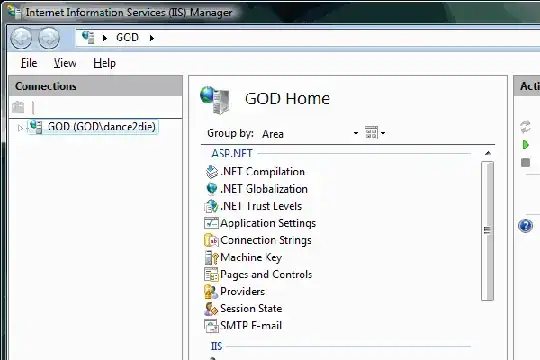
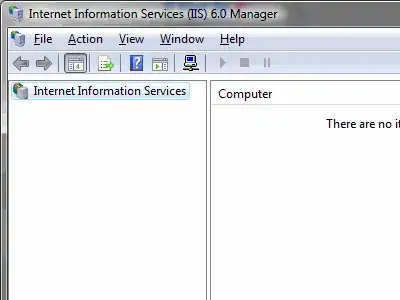
Internet Information Services (IIS) Manager

InetMgr.exe - IIS 7
InetMgr6.exe - IIS 6
  • IIS 7
    enter image description here

  • IIS 6
    enter image description here

dance2die
  • 2,051
2

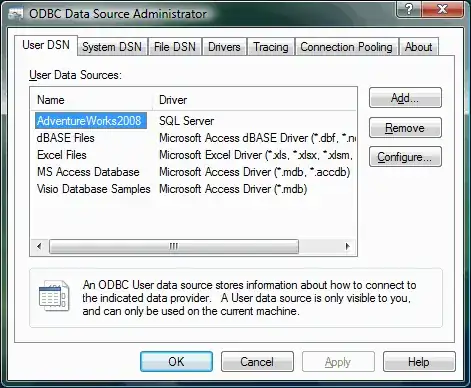
ODBC Data Source Administrator

odbcad32.exe

Opens
enter image description here

dance2die
  • 2,051
2

To manage the entire IIS7 from the standard command-line (no PowerShell needed ;)

appcmd.exe
2

I find the FOR command to be essential, usually parsing a text file of server names or user accounts. Sure, powershell or vbscript is more versatile, but sometimes the command prompt is what you have.

FOR /f %i in (servername.txt) do psexec \\%i netsh int ip show dns 

(with pstools) runs netsh on multiple servers and outputs their dns settings.

FOR /F "tokens=1,2,3* skip=8 usebackq" %i in (`net group /domain "Domain Admins"`) do net user /domain %i && net user /domain %j && net user /domain %k 

Dumps out each Domain Admin in WinNT "net user" style -- doing a dsquery command would be better. Add ">>filename.txt" to each part to save in a file. The >>file format appends. You get an error on the last line from the "net group".

Full command details are in "FOR /?" including string substitution, doing sequences (FOR /L %i IN (start,step,end) gives a loop where %i can be a number) and compound results.

marty
  • 71
2

fsmgmt.msc to access File Shares.

SqlACID
  • 2,206
2

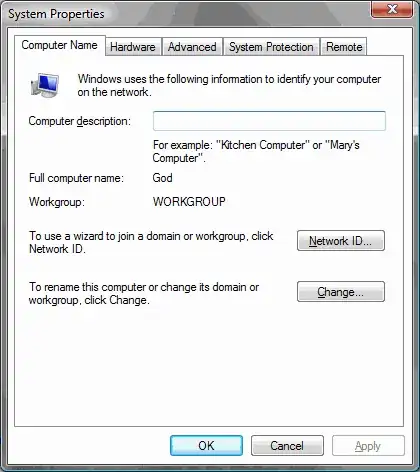
System Properties

The command

sysdm.cpl

opens

alt text

dance2die
  • 2,051
2

Remote Assistance

%SYSTEMROOT%\System32\rcimlby.exe -LaunchRA

This is very handy to create as a shortcut on a users desktop. It goes straight to the "Invite someone to help you" page in the help centre. (Tested on XP/Pro Home).

Helen
  • 113
Ash
  • 273
2

The Advanced Tab of the System Properties dialog.

control sysdm.cpl,@0,3

I use this regularly to get to Page file settings, Performance, Environment Variables and User Profiles.

Syntax:

@0 = the function within sysdm.cpl to display (In this case System Properties)

3 = the tab number to activate (in this case Advanced)

For anyone interested, Victor Laurie provides more info on this syntax.

Helen
  • 113
Ash
  • 273
2

calc to open Calculator.

ecleel
  • 363
2
net statistics workstation

or

net statistics server

One way of finding out how long the box has been up for.

Note: The times that these commands report are how long the Workstation and Server services have been running for. These are normally started with the rest of the OS, but I've seen secure builds that disable Workstation.

Tom Dunham
  • 1,925
2

Restart an IIS app pool from the command line:

cscript c:\WINDOWS\system32\iisapp.vbs /a SuperDuperAppPool /r

Where 'SuperDuperAppPool' is your app pool name

2

cls clears the command line screen.

It is very useful when you want to run a new command and clear the current screen.

Techboy
  • 1,602
1

The key combination . . . notepad will show all files in the directory, use the up and down key to select, then enter to execute the command. Very useful for lazy typers like myself.

1
whoami /all

Used to be reskit.

WooYek
  • 304
1

qfecheck
for Server 2003,2000 & XP - Does not apply to Server 2008, Vista or Win7(as far as I know)

Shows installed Hotfixes applied to the server/workstation.

More detail at -> http://support.microsoft.com/kb/282784

1

Behold:

command.com

Very often would I see the system being plagued by trojans/worms that attempt to lock down every way of getting through to system internals like regedit, mmc, cmd.exe, etc. Then you have no choice, but to boot from a live CD. But, obviously, with command.com at your disposal you can do anything you want, and I've yet to see THAT made unavailable.

shylent
  • 820
1

Years ago I started using sync.exe (for file cache flushing) from the NTinternals guys. I've been migrating that binary around for maybe a decade, and it still works. Their company got assimilated by Microsoft, but the binaries are still hanging around on the net if you search.

1

vssadmin

Usage:

vssadmin list shadows [/set={shadow copy set guid}]
        Lists all shadow copies in the system, grouped by shadow copy set Id.

vssadmin list writers
        Lists all writers in the system

vssadmin list providers
        Lists all currently installed shadow copy providers

vssadmin is essential to troubleshooting backup products that use vss. With vssadmin you can check writer status, and list all outstanding shadow copies on a volume. Very handy.

Holocryptic
  • 5,675
1

I particularly like pushd and popd for directory navigation via stack. Not only can they change the current folder, they can also change the current drive. (cd /d can do this too.) What's more, if you try to pushd to a UNC path, the shell will automatically map the share to a drive letter starting from Z and working backwards. When the matching popd is called, the drive is unmapped automatically.

afrazier
  • 710
  • 4
  • 8
1

Get the current day, month and year into environment variables (adjust for locale).

Command line:

for /f "tokens=2,3,4 delims=/ " %a in ('echo %date%') do set mon=%a && set day=%b && set year=%c

Or in a batch file:

for /f "tokens=2,3,4 delims=/ " %%a in ('echo %date%') do set mon=%%a && set day=%%b && set year=%%c

Other stuff

ipconfig /displaydns

WMIC - command line access to WMI

dsqery, dsget, dsmod, dsadd - command line access to AD

net localgroup

for /f %%a (' some command ') do call :sub %%a

Use :: instead of REM in batch files.

nbtstat

NTRIGHTS.EXE grant sePriveleges

Set /P for prompting.

IF ELSE in batch:

IF EXIST filename. (
    del filename.
) ELSE (
    echo filename. missing.
)
1

A particularly useful aspect of netsh that I think is worth a mention: netsh winsock reset This was added in XP service pack 2 to reset the tcpip implementation back to its defaults. In versions prior to XP, this was accomplished by uninstalling and reinstalling TCP/IP. Prior to SP2 you either needed the winsockxpfix.exe application or an ugly method of ripping out tcp/ip and reinstalling it. This command can correct issues where tcp/ip becomes corrupted for whatever reason.

Also, the HELP command lists a whole slew of other commands that can be of use.

DHayes
  • 351
1

Use

httpcfg [query | set | delete] iplisten [ip address]

to find out or change the IP addresses IIS is listening on

(If you want to run IIS and some other HTTP server on the same box and port with different IP addresses.)

1

I've found Launchy to be a very useful tool for Windows. It lets you launch many programs that would normally be launched by clicking icons by typing a few keystrokes. There's also a version for Linux. It can be found at www.launchy.net, and is free and open-source.

For example, to open an Explorer window from anywhere, type Alt-space (the default Launchy hot-key) followed by "c:\" followed by Enter. You can run any program for which you have a Windows shortcut by typing a few characters from the name of the shortcut. For example: Alt-space "co" Enter brings up Control Panel. You can also do Google searches, open URLs in the browser, and many other things without taking your fingers from the keyboard.

1

psexec

While it's from Sysinternals, the sysinternals tools are so essential and commonly installed on servers they might as well be part of the OS.

psexec \\targetserver -w "d:\bin" "cmd" 

You now have an interactive shell on a remote computer. Enter "exit" to come back home. I will often use it to apply something to a group of servers as follows.

set srvs=server1 server2 server3 
set execthis=[something useful]
for %s IN (%srvs%) DO (
start psexec \%s -u domain\someUser -p superSecretOfCourse "cmd" "/C %execthis%" 
)

Here I show several handy tricks:

  1. Use for loops to execute a command multiple times (from batch use %%s instead of %s)
  2. Start to open a window in a new process - handy if each operations takes a few minutes.
  3. Psexec can use windows auth or a login. Noting that integrated auth usually won't hop from local to server to a third location (e.g. SAN) - provide user and password if you need to access a network resource
1

Change {username}'s password:

net user {username} {newpass}

map a network drive

net use z: \\servername\sharename /user:username
Ehsan
  • 250
1
  1. mspaint

alt text

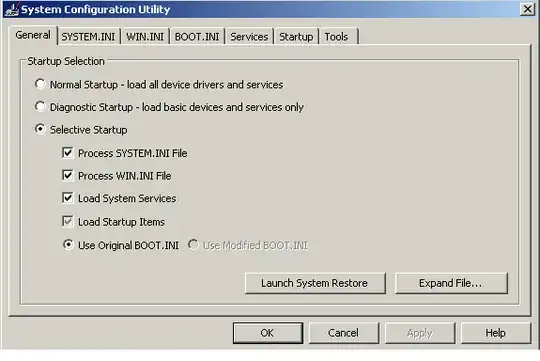
  1. msconfig :-System Configuration Utility alt text

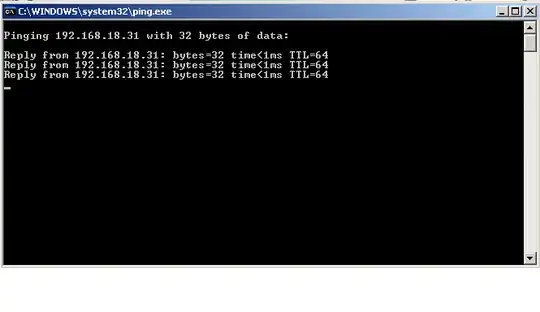
3. ping ip address alt text

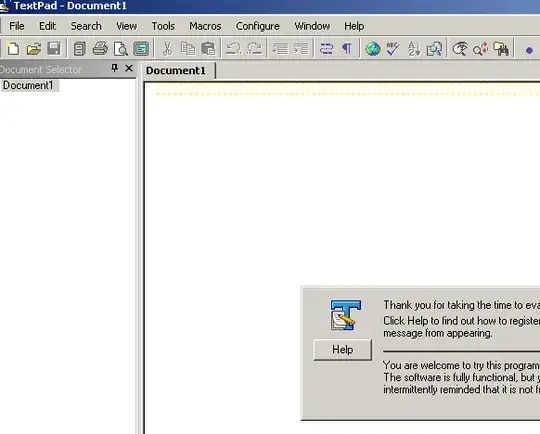
4.textpad

alt text

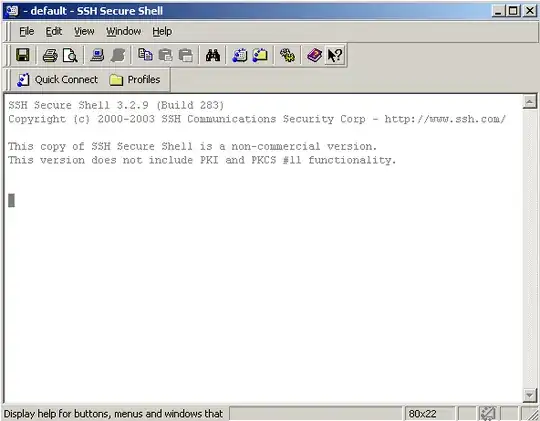
5.sshclient alt text

6.%temp% alt text

1
bootsect.exe {/help | /nt52 | /nt60} {SYS | ALL | <DriveLetter:>} [/force]

From Bootsect Command-Line Options:

Bootsect.exe updates the master boot code for hard disk partitions to switch between BOOTMGR and NTLDR. You can use this tool to restore the boot sector on your computer.

Mind you that this tool is only available on the Windows installation DVD under the BOOT folder. (I think only Windows Vista or higher.)

fretje
  • 1,734
1

FTP

alt text

adopilot
  • 1,541
1

dsa.msc - opens active directory users and computers.

1

Here is a VBScript that will do elevation when you RUNAS in Vista:

Set objShell = CreateObject("Shell.Application")
app = wscript.arguments(0)
args = ""
for i = 1 to (WScript.Arguments.length - 1)
   args = args + wscript.arguments(i)
next
objShell.ShellExecute app, args, "", "runas"

Use like so: runas.exe /user:domain\user "wscript.exe runas_script.vbs mmc.exe"

JamesR
  • 1,107
1

Command to abort the shutdown process.

c:\shutdown -a

Ziyad PK
  • 101
1

The following web site shows how to create command line shortcuts to anything using the Windows registry key, "HKEY_LOCAL_MACHINE\SOFTWARE\Microsoft\Windows\CurrentVersion\App Paths".

Customizing Windows Run Command
http://weblogs.asp.net/whaggard/archive/2004/04/11/111232.aspx

1
at

Gives you a way to schedule tasks either locally or remotely without using Scheduled Tasks.

Running a command every Friday

AT 23:30 /EVERY:f c:\backups\weekly.cmd
pjp
  • 133
1

print %logonserver%

A very quick and easy way to view the DC that your workstation has authenticated against. Useful when working with GPO's and scripts.

1

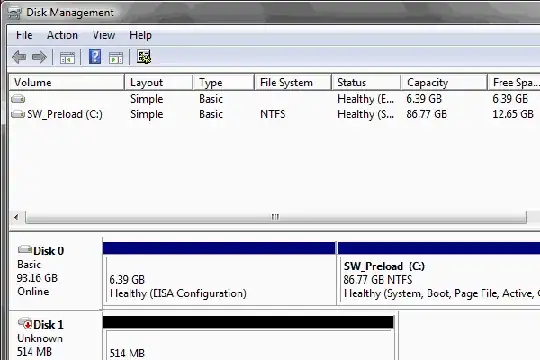
Disk Management
diskmgmt.msc

Opens
enter image description here

dance2die
  • 2,051
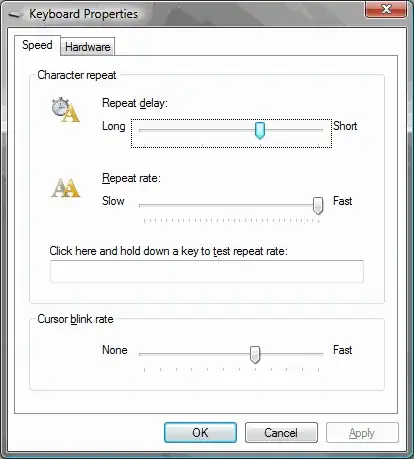
1

Keyboard Properties

control keyboard

Opens
enter image description here

dance2die
  • 2,051
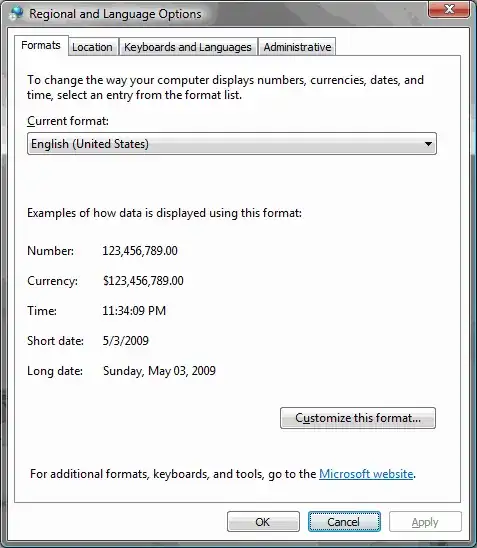
1

Regional and Language Options

intl.cpl

Opens
enter image description here

dance2die
  • 2,051
1

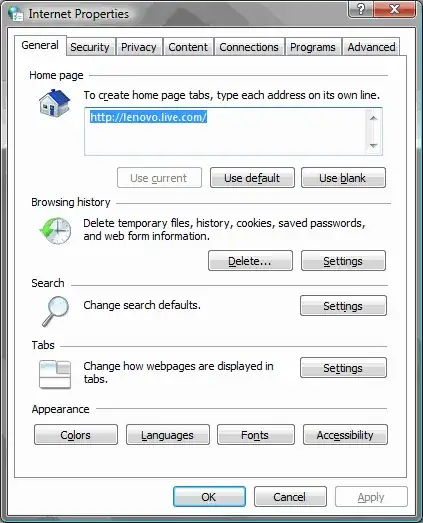
Internet Properties

inetcpl.cpl

Opens
enter image description here

dance2die
  • 2,051
1

Task Manager | taskmgr.exe

James Moore
  • 1,267
1
desk.cpl

opens the display properties. (Sorry, no image)

Yuval
  • 217
1

Notepad or something similar

notepad
Gulzar
  • 381
1

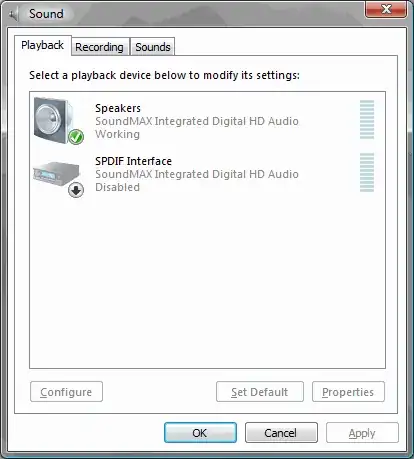
Sound

The command

mmsys.cpl

opens

alt text

dance2die
  • 2,051
1

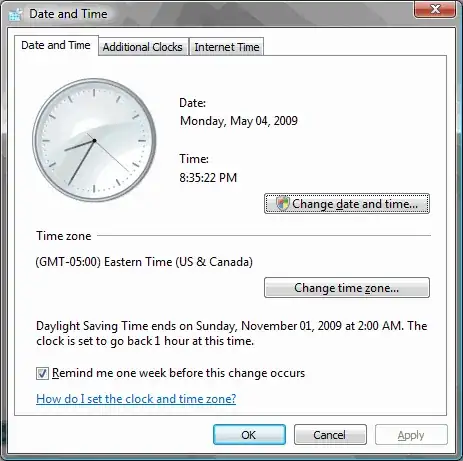
Date and Time

The command

timedate.cpl

opens

alt text

dance2die
  • 2,051
1

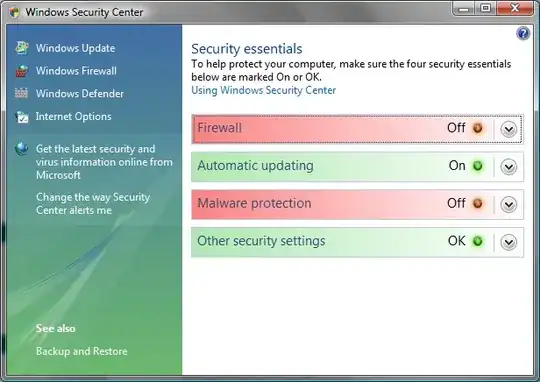
Windows Security Center

wscui.cpl

opens

alt text

dance2die
  • 2,051
1

Best way to avoid clicks is to stay on the command line. A directory in your path with the GNU tools and the sysinternals tools will go a long way to making your life simpler. Nothing that a good grep can't fix. :-)

WaldenL
  • 1,270
1

My favorites:

ipconfig
tracert
ping
telnet
OscarRyz
  • 384
1

When starting the services control panel for the first time, on a fresh install;

services.msc /a

then choose the "standard"-tab, move the description column all the way to the right, and then File -> Save the new layout.

1
dsa.msc

is a nice quick way to open up Active Directory Users and Computers.

1

Query Domain Controllers @ netdom /query /domain:MyDomainName fsmo

Nick O'Neil
  • 1,781
1
  • pushd/popd to move around directories in a stack style
  • ldp.exe - all the LDAP/AD power at your fingertips
  • nltest.exe - the swiss army knife of domains and trusts
Nasko
  • 727
1
getmac

shows the MAC address of any network adapters installed.

1
firewall.cpl

Opens the Windows Firewall settings.

scottm
  • 369
1
perfmon

Opens up Windows Performance Monitor.

1

System Configuration

msconfig

It is very useful to see what runs at startup

1

tracert

Usage: tracert [-d] [-h maximum_hops] [-j host-list] [-w timeout] target_name

Options:

-d                 Do not resolve addresses to hostnames.

-h maximum_hops    Maximum number of hops to search for target.

-j host-list       Loose source route along host-list.

-w timeout         Wait timeout milliseconds for each reply.
1

To quickly open the Exchange 2007 Management Shell:

exshell.psc1

Active Directory Sites and Services:

dssite.msc

Basically, anything in the start menu I try to grab the properties of the shortcuts and find out what they actually call.
Oh, and the "elevated" command-prompt in Vista:

Start -> from the Search box "cmd" + Ctrl+Shift+Enter

:)

Helen
  • 113
Guamaniac
  • 458
1

The items in the following list might be duplicates, but I just want to add it just in case (this is from a buddy's list). This might be more useful to an office worker than to a system administrator though:

  1. devmgmt.msc = Device Manager
  2. msinfo32 = System Information
  3. cleanmgr = Disk Cleanup
  4. ntbackup = Backup or Restore Wizard (Windows Backup Utility)
  5. mmc = Microsoft Management Console
  6. excel = Microsoft Excel (If Installed)
  7. msaccess = Microsoft Access (If Installed)
  8. powerpnt = Microsoft PowerPoint (If Installed)
  9. winword = Microsoft Word (If Installed)
  10. frontpg = Microsoft FrontPage (If Installed)
  11. notepad = Notepad
  12. wordpad = WordPad
  13. calc = Calculator
  14. msmsgs = Windows Messenger
  15. mspaint = Microsoft Paint
  16. wmplayer = Windows Media Player
  17. rstrui = System Restore
  18. netscp6 = Netscape 6.x
  19. netscp = Netscape 7.x
  20. netscape = Netscape 4.x
  21. waol = America Online
  22. control = Opens the Control Panel
  23. control printers = Opens the Printers Dialog
1

pathping - a traceroute that collects detailed packet loss statistics.

1

To allow user to log on without pressing ctrl-alt-delete, or log on without entering a password:

control userpasswords2
Andomar
  • 953
0

I am a big fan of

newsid
Honk
  • 143
0

powercfg.exe /QUERY

Description: This command line tool enables an administrator to control the power settings on a system.

powercfg.exe /? for full command list

ggonsalv
  • 390
  • 1
  • 12
0
devenv   # to start visual studio IDE.
mB.
  • 101
0

MSINFO32

MSINFO32.EXE

Msinfo32 [/?] [/pch] [/nfo Path] [/report Path] [/computer ComputerName] [/showcategories] [/category categoryID] [/categories categoryID]

Between this, the event log and the Problem Steps Recorder, you can usually get the critical support data in just a few keystrokes.

When I am skeptical of user-reported information, I often have them run the following and e-mail me the output:

msinfo32 /report %userprofile%\Desktop\sysinfo.txt

Or just:

msinfo32

Then:

File > Export
0

A little known one is eventtriggers.

The windows task scheduler has a hidden way to schedule programs to run when particular events occur in one of the windows event logs. These kinds of tasks can only be configured from the eventtriggers command. It works in a very similar way to schtasks.

See http://technet.microsoft.com/en-us/library/bb490901.aspx

simon
  • 714
0

Someone posted somthing simular - I have a modified version.

I create a desktop shortcut to logoff.exe and place in allusers/desktop on all servers. This way when you are done with your RDP sesssion, you just double click the logoff icon!

Love it!

Alan
  • 866
0

Except for BGInfo with my custom configuration file, this is the best thing I've deployed to the domain via group policy:

elevate

It does exactly that; it elevates whatever command you run at the command prompt so that you don't need to have explicitly started an elevated command prompt, nor have to run everything in elevated mode. It still brings up the UAC prompt, but I find it useful when I've had a command prompt running most of the day that has the commands I've used in it, but then need to quickly add a route, or do something that requires elevation without losing my history and starting a new cmd.

As I said, I deployed it via group policy (into %windir%\system32) and got it from John Robbin at Wintellect.

Ashley
  • 647
0

shadow will allow you to shadow someone's RDP or Terminal Server session. Very useful for troubleshooting a box remotely with another party:

query user
shadow SESSIONNAME

A Control + * will stop the shadowing the session.

0

I use 'set' from a command line quite a lot when wanting to find the system environment variables. Such as whether or not an end users machine is 64bit.

set

Type SET without parameters to display the current environment variables.

0

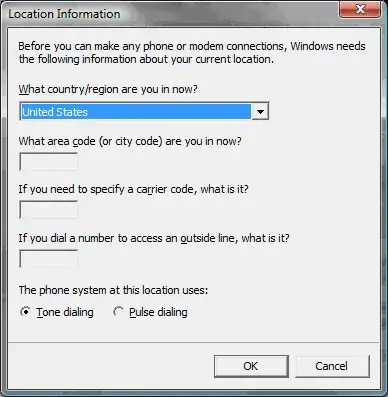
Telephone and Modem Properties

The command

telephon.cpl

opens

alt text

Side Note: I wish I never get to see this screen ever again...

dance2die
  • 2,051
0

It is always fun to create a macro that performs a quick and unconditional format of a disk:

doskey cd=format $1 /q /u

Then to format a disk in drive A type:

cd A:
notandy
  • 574