57

Is there any way to see what process(es) caused the most CPU usage?

I have AMAZON EC2 Linux which CPU utilization reaches 100 percent and make me to reboot the system. I cannot even login through SSH (Using putty).

Is there any way to see what causes such a high CPU usage and which process caused that ?

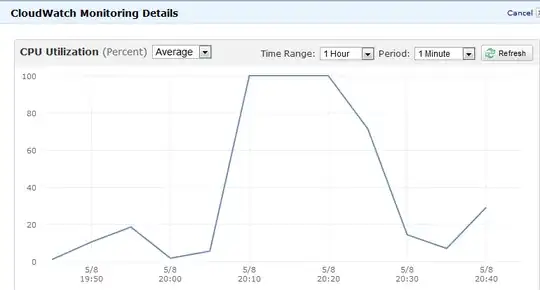
I know about sar and top command but I could not find process execution history anywhere. Here is the image from Amazon EC2 monitoring tool, but I would like to know which process caused that :

enter image description here

I have also tried ps -eo pcpu,args | sort -k 1 -r | head -100 but no luck finding such a high CPU usage.

pmoubed
  • 683
  • 1
  • 6
  • 5

6 Answers6

51

There are a couple of possible ways you can do this. Note that its entirely possible its many processes in a runaway scenario causing this, not just one.

The first way is to setup pidstat to run in the background and produce data.

pidstat -u 600 >/var/log/pidstats.log & disown $!

This will give you a quite detailed outlook of the running of the system at ten minute intervals. I would suggest this be your first port of call since it produces the most valuable/reliable data to work with.

There is a problem with this, primarily if the box goes into a runaway cpu loop and produces huge load -- your not guaranteed that your actual process will execute in a timely manner during load (if at all) so you could actually miss the output!

The second way to look for this is to enable process accounting. Possibly more of a long term option.

accton on

This will enable process accounting (if not already added). If it was not running before this will need time to run.

Having been ran, for say 24 hours - you can then run such a command (which will produce output like this)

# sa --percentages --separate-times
     108  100.00%       7.84re  100.00%       0.00u  100.00%       0.00s  100.00%         0avio     19803k
       2    1.85%       0.00re    0.05%       0.00u   75.00%       0.00s    0.00%         0avio     29328k   troff
       2    1.85%       0.37re    4.73%       0.00u   25.00%       0.00s   44.44%         0avio     29632k   man
       7    6.48%       0.00re    0.01%       0.00u    0.00%       0.00s   44.44%         0avio     28400k   ps
       4    3.70%       0.00re    0.02%       0.00u    0.00%       0.00s   11.11%         0avio      9753k   ***other*
      26   24.07%       0.08re    1.01%       0.00u    0.00%       0.00s    0.00%         0avio      1130k   sa
      14   12.96%       0.00re    0.01%       0.00u    0.00%       0.00s    0.00%         0avio     28544k   ksmtuned*
      14   12.96%       0.00re    0.01%       0.00u    0.00%       0.00s    0.00%         0avio     28096k   awk
      14   12.96%       0.00re    0.01%       0.00u    0.00%       0.00s    0.00%         0avio     29623k   man*
       7    6.48%       7.00re   89.26%       0.00u    0.00%       0.00s    

The columns are ordered as such:

  1. Number of calls
  2. Percentage of calls
  3. Amount of real time spent on all the processes of this type.
  4. Percentage.
  5. User CPU time
  6. Percentage
  7. System CPU time.
  8. Average IO calls.
  9. Percentage
  10. Command name

What you'll be looking for is the process types that generate the most User/System CPU time.

This breaks down the data as the total amount of CPU time (the top row) and then how that CPU time has been split up. Process accounting only accounts properly when its on when processes spawn, so its probably best to restart the system after enabling it to ensure all services are being accounted for.

This, by no means actually gives you a definite idea what process it might be that is the cause of this problem, but might give you good feel. As it could be a 24 hour snapshot theres a possibility of skewed results so bear that in mind. It also should always log since its a kernel feature and unlike pidstat will always produce output even during heavy load.

The last option available also uses process accounting so you can turn it on as above, but then use the program "lastcomm" to produce some statistics of processes executed around the time of the problem along with cpu statistics for each process.

lastcomm | grep "May  8 22:[01234]"
kworker/1:0       F    root     __         0.00 secs Tue May  8 22:20
sleep                  root     __         0.00 secs Tue May  8 22:49
sa                     root     pts/0      0.00 secs Tue May  8 22:49
sa                   X root     pts/0      0.00 secs Tue May  8 22:49
ksmtuned          F    root     __         0.00 secs Tue May  8 22:49
awk                    root     __         0.00 secs Tue May  8 22:49

This might give you some hints too as to what might be causing the problem.
Matthew Ife
  • 24,261
27

Atop is a particularly handy daemon for looking at drill-downs to the process level and by default archives this data for 28 days. Besides presenting an awesome real-time monitoring interface, you can specify those log files to open and step through them.

The article gives some idea of the capabilities, and you can find more in the manpage.

It's truly a wonderful piece of software.

sciurus
  • 12,958
  • 3
  • 33
  • 51
Jeff Ferland
  • 20,987
4

Programs such as psmon and monit maybe helpful for you. Those can monitor the processes running on your system and if any threshold (CPU usage, memory usage...) gets exceeded, you can set them send you an e-mail report about what's going on.

It's also possible to automatically restart the misbehaving processes.

1

Bash Script to log file

I'll add my solution separately as it doesn't require any package installation compared to other answers.(Ubuntu 23.10)

To add on rackandboneman idea here is my script to log the ressources in a log file.

#!/bin/bash

LOGFILE="/var/log/resource_monitor.log" echo "------" >> $LOGFILE

date >> $LOGFILE top -b -n 1 | head -n 20 >> $LOGFILE free -h >> $LOGFILE df -h >> $LOGFILE

  • date adds date and time to the log entry
  • top to take a snapshot of the processes using the most CPU.
  • head limits output to the first lines
  • free to view memory usage
  • df to view disk usage
  • -h makes it human-readable

Adjust to your needs freely

Make it executable

chmod +x resource_monitor.sh

Create a recurrent task

Open the CRON editor with the command : crontab -e

Add a line to run your script at regular intervals. For example, to run the script every 5 minutes

*/5 * * * * /link/to/resource_monitor.sh

Further docummentation on cron jobs : help.ubuntu.com/community/CronHowto

Output

Here is an exemple output :

Sun Mar  3 00:15:01 UTC 2024

---CPU--- top - 00:15:01 up 8:27, 0 user, load average: 0.43, 0.51, 0.54 Tasks: 154 total, 1 running, 153 sleeping, 0 stopped, 0 zombie %Cpu(s): 0.0 us, 25.0 sy, 0.0 ni, 50.0 id, 25.0 wa, 0.0 hi, 0.0 si, 0.0 st MiB Mem : 3810.3 total, 112.6 free, 3730.7 used, 178.9 buff/cache
MiB Swap: 0.0 total, 0.0 free, 0.0 used. 79.6 avail Mem

PID USER      PR  NI    VIRT    RES    SHR S  %CPU  %MEM     TIME+ COMMAND

88411 ubuntu 20 0 5903644 2.5g 1636 S 43.8 68.1 190:12.21 java 62 root 20 0 0 0 0 S 6.2 0.0 1:22.84 kswapd0 3869 darwin 20 0 1180964 275688 4992 S 6.2 7.1 1:09.69 node 175975 darwin 20 0 12268 5248 3200 R 6.2 0.1 0:00.01 top 1 root 20 0 168936 8544 4832 S 0.0 0.2 0:27.17 systemd 2 root 20 0 0 0 0 S 0.0 0.0 0:00.00 kthreadd 3 root 0 -20 0 0 0 I 0.0 0.0 0:00.00 rcu_gp 4 root 0 -20 0 0 0 I 0.0 0.0 0:00.00 rcu_par+ 5 root 0 -20 0 0 0 I 0.0 0.0 0:00.00 slub_fl+ 6 root 0 -20 0 0 0 I 0.0 0.0 0:00.00 netns 8 root 0 -20 0 0 0 I 0.0 0.0 0:00.00 kworker+ 11 root 0 -20 0 0 0 I 0.0 0.0 0:00.00 mm_perc+ 12 root 20 0 0 0 0 I 0.0 0.0 0:00.00 rcu_tas+

---RAM--- total used free shared buff/cache available Mem: 3.7Gi 3.6Gi 120Mi 2.8Mi 171Mi 83Mi Swap: 0B 0B 0B

---DD--- Filesystem Size Used Avail Use% Mounted on tmpfs 382M 1.4M 380M 1% /run /dev/sda1 78G 6.9G 71G 9% / tmpfs 1.9G 0 1.9G 0% /dev/shm tmpfs 5.0M 0 5.0M 0% /run/lock /dev/sda15 105M 6.1M 99M 6% /boot/efi tmpfs 382M 4.0K 382M 1% /run/user/1001

Hope this helps

Didix
  • 119
0

Years have brought some good lightweight opensource options, like ttop.

  1. Get the binary from github or compile it yourself
  2. Configure it to run every minute (by default it's capturing system stats every 10 minutes):
    ttop --on 1
  1. When you have some stats collected (/var/log/ttop/*) you can run the ttop TUI and look through historical stats to find prediods when CPU/MEM usage was high to see what processes were causing that.

ttop screenshot

Alex
  • 101
0

One solution is writing a script that is run via one minute cron or in a sleep loop, and sends you an email/scp job/dump to an ebs volume... with relevant output (dmesg, pstree -pa and ps aux, probably vmstat) the instant it finds the load average over a certain limit...