AKA "When developers have to be their own sysadmins"
I've tried every configuration from the top 10 stack overflow and server fault results for WebDAV 405 on IIS (for verb PROPFIND and PUT). I'm running server 2008 SP2. Followed all the instructions here. I'm no stranger to configuring servers. This has gotten nowhere after 8 hours.
Confirmed system.webserver in applicationhost.config:
<add name="WebDAV" path="*" verb="PROPFIND,PROPPATCH,MKCOL,PUT,COPY,DELETE,MOVE,LOCK,UNLOCK" modules="WebDAVModule" resourceType="Unspecified" requireAccess="None" />
Port 443 with basic auth, same issue.
Tried port 80 with windows auth. Broken. (405)
Windows authentication. Check.
Added authoring rules for default site and application. Check.
Not the firewall. Check.
added "Desktop Experience" role feature
Tried HTTPS with Basic Authentication on port 443. Does not work.
No other services are running like Sharepoint. Check.
confirmed user has read/write NT level permissions for the folder/virtual dir
tried
net use * http://localhost /user:MYDOMAIN\me myPassget error 1920, if I don't authenticate I get error 67confirmed I'm not applying filtering to WebDAV:
  <requestFiltering>
    <fileExtensions applyToWebDAV="false" />
    <verbs applyToWebDAV="false" />
    <hiddenSegments applyToWebDAV="false" />
405 - HTTP verb used to access this page is not allowed.
The page you are looking for cannot be displayed because an invalid method (HTTP verb) was used to attempt access.
SHOULD I JUST GIVE UP?
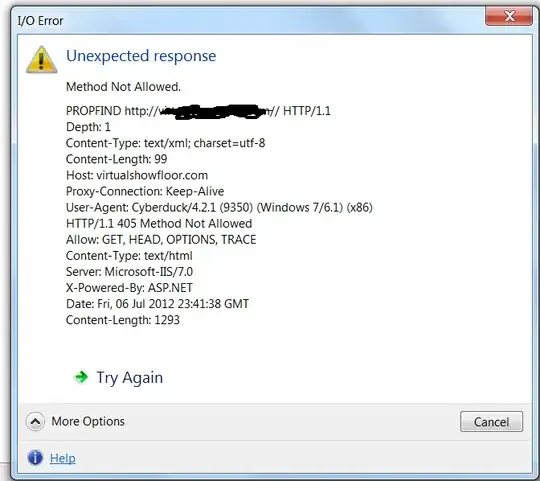
Other questions that helped none:
405 - ‘Method not Allowed’ adding service hosted in IIS7
webdav on iis7.5 - simply cannot make it work
http://studentguru.gr/b/kingherc/archive/2009/11/21/webdav-for-iis-7-on-windows-server-2008-r2.aspx


