9

I encounter the problem when I try to shrink one logical volume. I took the actions as following steps shown below:

# unmount /home
# lvreduce --size -100G /dev/vg_dev/lv_home 
# lvdisplay /dev/vg_dev/lv_home

--- Logical volume --- LV Path /dev/vg_dev/lv_home LV Name lv_home VG Name vg_dev LV UUID QOxrP3-nS36-nZTG-yL7e-sDi0-Wl9z-LXp4pJ LV Write Access read/write LV Creation host, time , LV Status available

open 1

LV Size 197.98 GiB Current LE 50683 Segments 1 Allocation inherit Read ahead sectors auto

  • currently set to 256

Block device 253:4

e2fsck -f /dev/vg_dev/lv_home

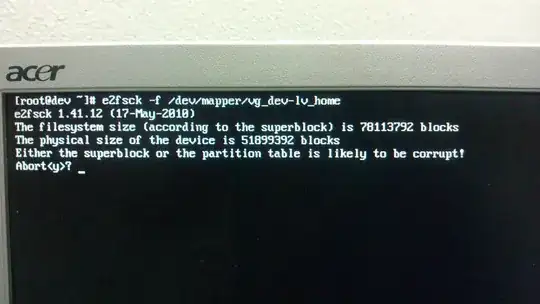
e2fsck 1.41.12 (17-May-2010) The filesystem size (according to the superblock) is 78113792 blocks The physical size of the device is 51899392 blocks Either the superblock or the partition table is likely to be corrupt! Abort<y>?

resize2fs /dev/vg_dev/lv_home

resize2fs 1.41.12 (17-May-2010) Please run 'e2fsck -f /dev/vg_dev/lv_home' first.

Picture of console.

I cannot mount the logical volume at all, can someone help me solve this problem?

leeand00
  • 5,051

6 Answers6

17

It sounds like you've tried to resize a volume and filesystem in the wrong order.

When shrinking, you should perform actions in this order

  1. Resize the file system
  2. Resize the logical volume

When growing, you should perform actions in this order

  1. Resize the logical volume
  2. Resize the file system

For your issue

The first thing I would do is clone the entire drive using dd to a spare drive, and work on this one for recovery.

If you are lucky and you didn't use any of the LV available extents and thus the blocks on the disk haven't changed, you might be able to resize the LV back to what it was previously, then attempt a fsck on the file system. If the fsck passes, you can then resize the file system.

If you still get an error with the fsck you might have done irreparable damage.

NB

lvresize now supports file system resize when passing an additional argument -r|--resizefs which mitigates the need to resize in a particular order and drastically reduces the potential for error.

Ben Lessani
  • 5,374
5

I resized my logical disc, /dev/mapper and I got the error:

Either the superblock or the partition table is likely to be corrupt!

The solution was to make this order with the corrupt partition:

[root@localhost]# mke2fs /dev/mapper/VolGroup-lv_home && fsck /dev/mapper/VolGroup-lv_home

and that's all.

source: Size in superblock is different from the physical size of the partition

techraf
  • 4,403
1

One possible solution is to extend the filesystem by 100GB, but there may be some data loss. Please take the backup of the desired filesystem.

# lvextend -L +100G /dev/vg_dev/lv_home 
# resize2fs /dev/vg_dev/lv_home 

Then you can mount the filesytem.

Hope this would solve your issue.

Michael Hampton
  • 252,907
0

Backup any filesystems you'll be doing operations on before starting.

I made the same error on debian 11 and fixed it using the hint from Ben Lessani
The vserver-lv-home filesystem was originally 429.3G

Original error...
> lvs

check the usage on /home
> du -d 1 /home

backup
> cd /;tar cfzv /root/home.tgz /home
> umount /home
> e2fsck /dev/mapper/vserver-lv-home
> lvresize --size -129.3G /dev/mapper/vserver-lv-home

File system unmountable and rebooted into single user mode only. Also, I had forgotten exactly how much I reduced so ran..

The Fix...
> lvresize --size +128G /dev/mapper/vserver-lv-home
which then told me I still had free space or extants?
> lvresize --size +1G /dev/mapper/vserver-lv-home
> lvresize --size +0.1G /dev/mapper/vserver-lv-home
...etc You can also try --size +100M but kept going with smaller increments till no more free space, 0 extants?
> mount /home
or
> mount /dev/mapper/vserver-lv-home

It mounted with no errors, rebooted and got back to desktop login

Then followed the correct sequence to shrink use absolute 300G size instead
> umount /dev/mapper/vserver-lv-home
> e2fsck /dev/mapper/vserver-lv-home
> resize2fs /dev/mapper/vserver-lv-home 300G
> lvresize --size 300G /dev/mapper/vserver-lv-home

this was a hack to run e2fsck on the other file systems as I was unable to umount -var because it had active processes and of course could not umount -root easily. The proper way to do this would be to boot from an installer and umount the drives and perform the required operations. I had backups my projects so I just went ahead without the umount and e2fsck.

Again backup your -var and -root filesystems before proceeding.
> tune2fs -c 1 /dev/mapper/vserver-lv-var
> tune2fs -c 1 /dev/mapper/vserver-lv-root
> shutdown -r now

It ran e2fsck on boot up, in fact I ran tune2fs -c on all filesystems. Again this should have been done booted from an install/recovery flash drive.

Then I used the freed space I took from from /home.
> lvresize --size 64G /dev/mapper/vserver-lv-var
> resize2fs /dev/mapper/vserver-lv-var 64G

Repeated the same for -root with the other 64G freed from /home.
> lvresize --size 64G /dev/mapper/vserver-lv-root
> resize2fs /dev/mapper/vserver-lv-root 64G
> reboot and let it run efsck

Set reboot count back to defaults and reboot
> tune2fs -c -1 /dev/mapper/vserver-lv-var
> tune2fs -c -1 /dev/mapper/vserver-lv-root
> shutdown -r now

I was not able to resize tmp to use the extra 1.3G but will post again if I find out how, probably just need to free up a full 1G or more as the command did not seem to take smaller increments.

https://man7.org/linux/man-pages/man8/lvresize.8.html

https://manpages.debian.org/bullseye/e2fsprogs/resize2fs.8.en.html

https://www.linuxfordevices.com/tutorials/linux/tune2fs-command
wgate
  • 1
  • 2
0

Tested it myself.

lvreduce --resizefs -L {x}G /dev/{vgname}/{lvname}

and perform a lsblk and df -h to compare the new filesystem size

will make sure to resize the filesystem and perform the shrink of the disk, without corrupting the LVM. you may use lvresize, but it will perform a umount, so better use lvreduce.

0

Obviously, only the filesystem superblock is corrupted.  To fix this issue, execute the following commands, in case if it is an ext2/3 filesystem:

mke2fs -S /dev/XXX && fsck /dev/XXX

/dev/XXX has to be replaced with the corresponding device.   For other FS, it is expected to use the corresponding mkfs commands.  With the "-S" option, only the superblock and the group descriptors will be reinitialized. The "fsck" command right after the first one is run in order to fix/adjust the group descriptors.

Juri
  • 1