I know this is an old question, but the answer could really use some updates and improvement. There are a number of possible ways to configure this kind of scenario. I'll try to outline a few in order of least complex to most complex.
The network topology is as follows:
WAN > Physical ONT/Modem/Router/Gateway > Hypervisor > VMs > LAN
Physical Gateway
In this scenario the Physical Gateway, the DSL/Cable modem or Fiber ONT, is your network edge. This physical device performs your NAT and is your default gateway.
Reasons to use this configuration:
- It's simple and easy, mostly "plug and play"
- It's easy to maintain and administer
- It's well-supported by hardware, software, drivers
- The physical gateway is likely owned/managed by your ISP so you can call the vendor for support
Reasons to not use this configuration:
- Your network design has requirements that are not supported by your physical gateway (such as multiple VLANs, SD-WAN, or high availability) (and an upgraded physical edge is not appropriate for one reason or another)
- You own your own physical edge hardware and want to reduce your hardware footprint
- Your edge hardware is out of date and a hardware refresh is out of budget
Physical switches, hypervisor, virtual switches, and VMs do not require VLANs (unless you want a Guest VLAN or something). Your hypervisor can run on a single physical NIC as long as the virtual switch is configured to share the interface with the host operating system.
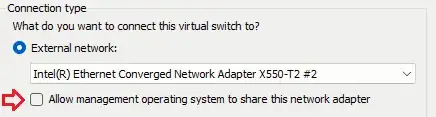
If your hypervisor has two physical NICs, you can configure one as the host NIC and the other as a dedicated VM Switch interface; or you can configure them as an LBFO Team and share the interface with the VMs and the host (note that LBFO Teams are no longer supported as of Windows Server 2025 Hyper-V).
Virtual Gateway With Dedicated NICs
In this scenario you have a Virtual Machine running a router/firewall OS (such as ASA-V, FortiGate VM, PF Sense, Tomato, etc). Your hypervisor has multiple physical NICs.
Reasons to use this configuration:
- Virtualizing your edge is already in-scope
- Your hypervisor already has multiple physical NICs available for assignment
- Your edge VM has licensing limitations (e.g. FortiGate VM's free evaluation license limits you to 3 interfaces)
- Your physical network switches do not support 802.1Q VLANs
Reasons to not use this configuration:
- You have a small number of physical NICs available on the hypervisor
- You need SD-WAN with multiple edge router VMs in high availability
- You're a nerd and a glutton for punishment
In this configuration you would create a virtual switch on your hypervisor and assign it to a physical NIC both of which would be dedicated to your WAN. This physical NIC and vSwitch would NOT be shared with your management OS. You would plug your ISP uplink (e.g. ethernet cable to your modem or ONT) directly into this physical NIC; though you could also plug your ISP uplink into a switch if your switch supports VLANs or port isolation, just make sure you configure the vNIC on your edge VM with the correct VLAN.
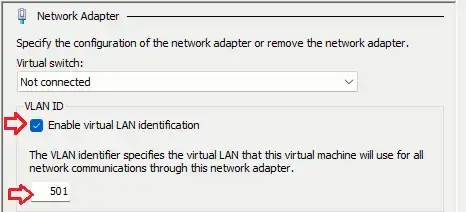
You would then have a second physical NIC on your hypervisor configured for your LAN. This could be shared with your management OS if you do not have a third physical NIC available. If your edge router VM and your physical switches support VLANs and subinterfaces, you can configure these all on the same virtual switch and physical NIC.
Virtual Gateway With a Single Physical NIC
This scenario gets a lot more complex real fast. It requires advanced configuration of your physical network switches as well as advanced configuration of your hypervisor and virtual edge router. However, it can offer a lot of flexibility and scalability that would be cost-prohibitive or unsupported in the previous scenarios.
Reasons to use this configuration:
- You have complex networking requirements (such as SD-WAN with high availability)
- You have project constraints (like 40G or 100G and a tiny budget)
- Your physical switches must be stacked with redundant up and down links
- You're a network admin at a datacenter configuring multiple complex virtualization solutions for customers
- You only have a single physical NIC on your hypervisor that MUST share both WAN and LAN traffic
- You have way too much free time and this would be really cool if you got it working
Reasons to not use this configuration:
- You have enough physical NICs on your hypervisor to dedicate one to your WAN
- Your physical network switches do not support VLANs
- You're not a datacenter and you want to do literally anything other than work on your weekends
This scenario requires a more detailed network design phase. Where the other scenarios can (most likely) get by with native VLAN shenanigans, this one requires taking a moment to plan ahead. Identify your primary LAN VLAN(s) and select a VLAN ID(s) for your WAN(s). Ensure your physical switches fully support 802.1Q. You may need your switches to also support DHCP Relay depending on how complex your environment is. I recommend in advance confirming that your physical NICs on your hypervisor support those features as well, support monitor/promiscuous mode, and are supported by your hypervisor OS.
Connect your ISP uplink(s) to your physical switch and assign those switch ports to your WAN VLAN(s). If you have multiple ISPs with SD-WAN you will want a dedicated VLAN for each ISP. These only need configured on your core switch (as long as your ISPs and hypervisor are connected to the same switch).
Connect your hypervisor to the switch. The switch port must be configured as a trunk port: your ISP and LAN VLANs must be tagged. (Depending on hardware support, you can opt to leave a VLAN untagged
Configure a virtual switch on the hypervisor and assign it the physical NIC you just connected. All virtual NICs on your edge router VM and LAN VMs will be connected to the same virtual switch.
If you are assigning a dedicated virtual NIC in your hypervisor to each WAN port on your edge router VM, you can specify the VLAN for each ISP in the VM NIC settings.
If you are assigning a single virtual NIC in your hypervisor to your WAN and will be using subinterfaces on your virtual edge router, you must configure the WAN virtual NIC on the VM as a trunk port. In Hyper-V this must be done in PowerShell: (Get-VMNetworkAdapter -VMName "VMName")[ID of virtual NIC] | Set-VMNetworkAdapterVlan -Trunk -AllowedVlanIdList 1001-1002 -NativeVlanId 1000. You will also need to configure each WAN interface on your edge router VM as a VLAN with the corresponding VLAN IDs.
Your LAN VMs will need their virtual NICs assigned the appropriate VLAN in their virtual NIC settings in the VM settings.
This scenario is complex and can bump into support constraints depending on vendors. For example, when I tested this in my lab I found that FortiGate VM doesn't cooperate well with VLAN subinterfaces on the WAN side - this appears to be a combination of factors related to the xFinity ISP DHCP, the "prosumer" physical switch's loop detection, and FortiGate VM just not playing ball with DHCP Discover on VLAN subinterfaces. It's complicated and I haven't fully resolved it yet. It's complicated even further by the Intel X550 driver support for Hyper-V, which actually broke VLAN tagging altogether with the latest drivers, causing a 24hr outage and forcing a roll back to the default drivers shipped with Windows Server. In short, this scenario absolutely requires fully business-grade L2+ switch hardware and must be vetted in a lab with production-identical hardware before rolling into a production environment.
The Takeaway
Environments that do not require a virtual edge router should stick to physical hardware. It's easier to support and manage and easier to call vendors when something breaks. And for most small business with all-cloud infrastructure, the equipment issued by your ISP is more than sufficient.
There are some use cases for a virtual edge. Solutions like PFSense or FortiGate VM have the potential to save an SMB with on-prem infrastructure thousands of dollars over hardware firewalls while providing a business-class solution that is miles above budget prosumer hardware from the likes of Ubiquiti. Not to mention datacenter needs that go far beyond a typical SMB. But the admin overhead is high, especially during the design/development phase, so it could end up costing more money in hours than it saves in hardware.
Full disclosure: I went this route with FortiGate VM's evaluation license in my home lab recently because I wanted to reduce my hardware footprint and lower my energy costs. It has proven to be so much more trouble and more expensive than just buying a new off-the-shelf home wifi combo router. Since we use FortiGate at work, it's been a valuable training experience, but it's not something I would pitch to our customers without having our other engineers take a lab crack at it themselves to ensure we have a holistic picture of the design, deployment, and long-term admin costs.


