11

Background / Problem

  • I have two new servers (Dell R720 & Dell R520) that I plan to install ESXi onto.
  • During the VMWare Hypervisor installation, I'm told that no network adapters exist.
  • Upon checking, I realized that the Broadcom NetXtreme I drivers are required additionally
  • I have obtained the Broadcom driver software bundle from VMWare's web site
  • I have installed PowerCLI on my desktop in case I will need it.

Question

Most ESXi guides describe doing this on a server that's already been set up once, but I am installing ESXi on these boxes for the first time.

  • How do I properly get these network card drivers into the installation process?

  • I am under the impression that I may need to configure a custom installation package that includes these drivers (and use PowerCLI to do this) -- if so, how do I best go about doing this?

SeanKilleen
  • 1,213

5 Answers5

8

Which version of ESXi are you trying to install.. I think the drivers for those are now included in 5.1 (I might be wrong though).

Alternatively, you can try to use the Dell customized build of ESXi ISO to install VMWare and see if those include the required drivers you need.

Rex
  • 7,945
6

Another way that can work:

  1. Download the offline software bundle for the NetXtreme I cards from VMWare.
  2. Download the ESXi Customizer software
  3. Extract ESXi customizer
  4. Run ESXi customizer as an administrator.
  5. Select the ISO file
  6. Select the .VIB file for the drivers
  7. Select an output directory
  8. During the installation, allow ESXi customizer to replace the VIB file
  9. ESXi Customizer creates a bootable ISO.
  10. Use the custom ESXi ISO to install.

A huge thanks for these tools as they are the only thing that allowed me to get this done quickly.

I'm going to wait to see how the Dell ISO works out and then try this one. I'll mark the answer as correct in that order of which one works.

References

SeanKilleen
  • 1,213
2

Make this easy on yourself - get the Dell-provided ESXi images. Those should have all the hardware things you might need.

mfinni
  • 36,892
1

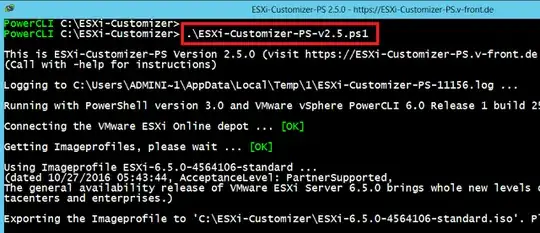
If you use ESXi 6.0 or ESXi 6.5 or newer, you must use ESXi-Customizer-PS. The Windows desktop app: ESXi-Customizer is deprecated.

ESXi-Customizer-PS is a free tool from the same author that runs under PowerCLI and you can also inject a driver into ISO ESXi install.

Reference: http://www.sysadmit.com/2017/01/vmware-esxi-instalar-driver.html

ESXi-Customizer-PS

HBruijn
  • 84,206
  • 24
  • 145
  • 224
0

Possibly the easiest way to do this is to use an existing vCenter install to create an ESXi ISO with your bundled driver, even if it is completely unrelated to this new server.

  1. vCenter > ☰ > Auto Deploy

  2. Configure > Enable Image Builder Service

    • There is no need to enable Auto Deploy (which is the 1st of the 2 options)
  3. Software Depots > New:

    Setting Value
    Type Custom Depot
    Name Custom Depot 1
  4. Software Depots > Import:

    Setting Value
    Name ESXi 6.7U3B offline bundle
    File ESXi670-201912001.zip
  5. Software Depots > Import:

    Setting Value
    Name Adaptec 8405 RAID driver
    File aacraid-6.0.6.2.1.59002-offline_bundle-16258587.zip
  6. Adaptec 8405 RAID driver > Software Packages

  7. Note down the name - E.G. scsi-aacraid

  8. ESXi 6.7U3B offline bundle > Image Profiles

  9. Choose the latest standard version (it was the top one and it was auto-selected for me) - E.G. ESXi-6.7.0-20191204001-standard

  10. Clone:

    Setting Value
    Name ESXi-6.7.0-20191204001-standard with Adaptec 8405 RAID controller driver
    Description Append with:
    ESXi-6.7.0-20191204001-standard with Adaptec 8405 RAID controller driver
    Software Depot Custom Depot 1
  11. Next

  12. Do NOT tick everything using the top-left checkbox (note in the bottom-right corner that not all items in the list are selected), attempting to do this will throw an error in the next step due to conflicting/obsolete drivers

  13. Filter the Name to scsi-aacraid (as noted down earlier)

  14. Tick it

  15. Note down the version - E.G. 6.0.6.2.1.59002-1OEM.600.0.0.2494585

  16. Untick any other version of scsi-aacraid in the list

  17. Next

  18. If the validation results show that packages obsolete each other:

    1. Note down the name of the conflicting package - E.G. VMW_bootbank_scsi-aacraid_1.1.5.1-9vmw.670.0.0.8169922
    2. Back
    3. Untick that package
    • This shouldn't be necessary if you unticked the extra copy of scsi-aacraid in the list
  19. Finish

  20. Switch to Custom Depot 1

  21. Export > ISO > OK

  22. Download

  23. Rename the file to ESXi67U3BwithAdaptecRAID8405Driver59002.iso