2

I have a Ubuntu 12.04 VM running on VMWares ESXi 5.1.

The server (VM) itself has run out of space, the results of df -h are as follows:

Filesystem      Size  Used Avail Use% Mounted on
/dev/sda1        19G   17G  1.2G  94% /
udev            490M  4.0K  490M   1% /dev
tmpfs           200M  232K  199M   1% /run
none            5.0M     0  5.0M   0% /run/lock
none            498M     0  498M   0% /run/shm

The original VM HDD size was just under 19GB which is I have now increased to 100GB within the vCenter GUI:
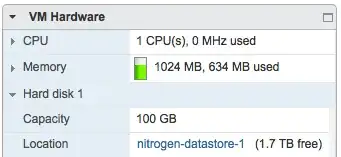
vCenter GIU

Is there a simple way of doing this? The VM doesn't seem to acknowledge the increase at all.

dannymcc
  • 2,747
  • 10
  • 49
  • 73

3 Answers3

1

Is it Ubuntu Server or desktop?

Before doing anything make a backup of the VM..

If you have a desktop ISO boot to the live desktop, open GParted and see if the extra space is available. You can then stretch the partition in to the free space

If you don't have a desktop ISO you can boot off download Parted Magic and boot from that and use GParted from there

deveneyi
  • 294
1

I guess you have one big partition and all your data are on this partition this is sda1.

If this assumption is false do not proceed! (Tell me your setup: fdisk -l and I will update this answer accordingly.)

So you boot some live CD. Ubuntu LiveCD would be fine.

  1. It is always a safe bet to make backups just in case. (You can make a snapshot with vmware which you later delete if everything is fine.)
  2. So you boot some live CD. Ubuntu LiveCD would be fine.
  3. Open a terminal/shell or switch to console. If you are not root sudo bash will get you a root shell.
  4. fdisk /dev/sda
    1. Type d then 1 this will delete you partition from the partition table, but it won't touch your data.
    2. Type n then choosing the defaults is fine.
    3. Type p to see how it looks. We recreated your partition with a bigger size.
    4. Type w to write changes to disk. q exits you back to shell.
  5. resize2fs /dev/sda1 will increase the size of the filesystem.
  6. You can reboot.
cstamas
  • 6,917
0

Even though you increased the size of the vmdk file by editing the Virtual Machine settings, your Linux OS will not see that change because it is not sitting on a Logical Volume. For this, you need to setup a LVM (logical volume management).

Take a look at this diagram: http://www.tuxradar.com/files/LXF112.tut_adv.2.png

EDIT: Seems like deveneyi have provided you with a good solution. It is always a good idea to have filesystems on Logical Volumes rather than Physical Volumes.

hanes
  • 84