14

I'm trying to find differences in the content of two folder structures using Windows Powershell. I have used the following method to ensure that the file names are the same, but this method does not tell me if the contents of the files are the same:

$firstFolder = Get-ChildItem -Recurse folder1
$secondFolder = Get-ChildItem -Recurse folder2
Compare-Object -ReferenceObject $firstFolder -DifferenceObject $secondFolder

The technique described in this ServerFault question works for diffing a single file, but these folders contain hundreds of files at a variety of depths.

The solution does not necessarily need to tell me what specifically in the files is different - just that they are. I am not interested in differences in metadata such as date, which I already know to be different.

David Smith
  • 249
  • 1
  • 2
  • 7

5 Answers5

16

If you want to wrap the compare into a loop I would take the following approach:

$folder1 = "C:\Users\jscott"
$folder2 = "C:\Users\public"

# Get all files under $folder1, filter out directories
$firstFolder = Get-ChildItem -Recurse $folder1 | Where-Object { -not $_.PsIsContainer }

$firstFolder | ForEach-Object {

    # Check if the file, from $folder1, exists with the same path under $folder2
    If ( Test-Path ( $_.FullName.Replace($folder1, $folder2) ) ) {

        # Compare the contents of the two files...
        If ( Compare-Object (Get-Content $_.FullName) (Get-Content $_.FullName.Replace($folder1, $folder2) ) ) {

            # List the paths of the files containing diffs
            $_.FullName
            $_.FullName.Replace($folder1, $folder2)

        }
    }   
}

Note that this will ignore files which do not exist in both $folder1 and $folder2.

jscott
  • 25,114
5

I have taken jscott's answer an expanded it to output the files that are present in one but not the other for those who are insterest in that type of functionality. Please note it also shows progress made since it was hard for me to see that given the huge folders with not very many differences. It looked like the script was hung to me. Here is the powershell code for that:

$folder1 = "C:\Folder1"
$folder2 = "C:\Folder2"

# Get all files under $folder1, filter out directories
$firstFolder = Get-ChildItem -Recurse $folder1 | Where-Object { -not $_.PsIsContainer }

$failedCount = 0
$i = 0
$totalCount = $firstFolder.Count
$firstFolder | ForEach-Object {
    $i = $i + 1
    Write-Progress -Activity "Searching Files" -status "Searching File  $i of     $totalCount" -percentComplete ($i / $firstFolder.Count * 100)
    # Check if the file, from $folder1, exists with the same path under $folder2
    If ( Test-Path ( $_.FullName.Replace($folder1, $folder2) ) ) {
        # Compare the contents of the two files...
        If ( Compare-Object (Get-Content $_.FullName) (Get-Content $_.FullName.Replace($folder1, $folder2) ) ) {
            # List the paths of the files containing diffs
            $fileSuffix = $_.FullName.TrimStart($folder1)
            $failedCount = $failedCount + 1
            Write-Host "$fileSuffix is on each server, but does not match"
        }
    }
    else
    {
        $fileSuffix = $_.FullName.TrimStart($folder1)
        $failedCount = $failedCount + 1
        Write-Host "$fileSuffix is only in folder 1"
    }
}

$secondFolder = Get-ChildItem -Recurse $folder2 | Where-Object { -not $_.PsIsContainer }

$i = 0
$totalCount = $secondFolder.Count
$secondFolder | ForEach-Object {
    $i = $i + 1
    Write-Progress -Activity "Searching for files only on second folder" -status "Searching File  $i of $totalCount" -percentComplete ($i / $secondFolder.Count * 100)
    # Check if the file, from $folder2, exists with the same path under $folder1
    If (!(Test-Path($_.FullName.Replace($folder2, $folder1))))
    {
        $fileSuffix = $_.FullName.TrimStart($folder2)
        $failedCount = $failedCount + 1
        Write-Host "$fileSuffix is only in folder 2"
    }
}
helios456
  • 151
1

The following function recursively checks multiple folders (though two at a time) for deletions (only in the former), additions (only in the latter), AND changes (where files sharing a name have different content)

'folder1','folder2' | DiffFolders

The function:

Function DiffFolders {
    Begin {
        $last = $NULL
    }
    Process {
        $current = @{}
        $unchanged = 0
    $parent = $_
    $parentPath = (Get-Item -Path $parent).FullName
    $parentRegex = "^$([regex]::escape($parentPath))"
    Get-ChildItem -Path $parentPath -Recurse -File `
    | %{
        $name = $_.FullName -replace $parentRegex,''
        $current.Add($name, (Get-FileHash -LiteralPath $_.FullName).Hash)

        if (!$last) {
            return
        }

        if (!$last.Contains($name)) {
            [PSCustomObject]@{
                parent = $parent
                event = 'Added'
                value = $name
            }
            return
        }

        if ($last[$name] -eq $current[$name]) {
            ++$unchanged
        }
        else {
            [PSCustomObject]@{
                parent = $parent
                event = 'Changed'
                value = $name
            }
        }
        $last.Remove($name)
    }

    if ($last) {
        [PSCustomObject]@{
            parent = $parent
            event = 'Unchanged'
            value = $unchanged
        }
        $last.Keys `
        | %{
            [PSCustomObject]@{
                parent = $parent
                event = 'Deleted'
                value = $_
            }
        }
    }

    $last = $current
}

}

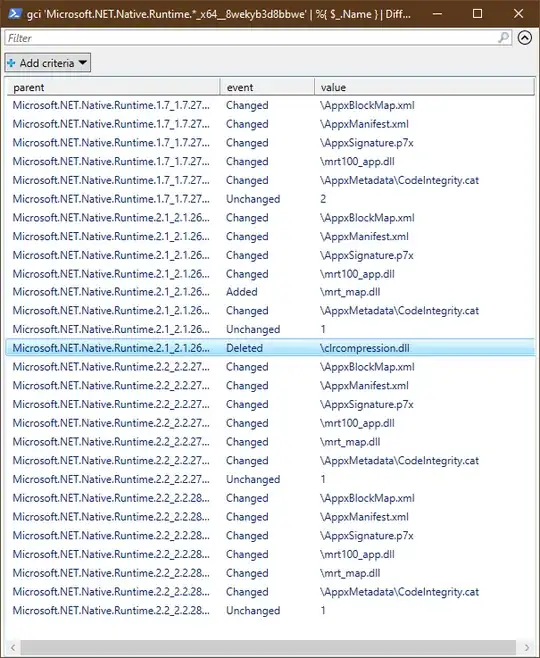
Here's a neat demo that should be on most win10 machines:

PS C:\Program Files\WindowsApps> gci 'Microsoft.NET.Native.Runtime.*_x64__8wekyb3d8bbwe' | %{ $_.Name }
Microsoft.NET.Native.Runtime.1.7_1.7.25531.0_x64__8wekyb3d8bbwe
Microsoft.NET.Native.Runtime.1.7_1.7.27422.0_x64__8wekyb3d8bbwe
Microsoft.NET.Native.Runtime.2.1_2.1.26424.0_x64__8wekyb3d8bbwe
Microsoft.NET.Native.Runtime.2.2_2.2.27011.0_x64__8wekyb3d8bbwe
Microsoft.NET.Native.Runtime.2.2_2.2.28604.0_x64__8wekyb3d8bbwe
PS C:\Program Files\WindowsApps> gci 'Microsoft.NET.Native.Runtime.*_x64__8wekyb3d8bbwe' | %{ $_.Name } | DiffFolders | Out-GridView

We can see exactly at which versions files were added and removed from the .NET runtime, and which were changed.
Unchanged files aren't mentioned, but counted for brevity (usually you'll have way more unchanged than changed files I imagine).
enter image description here

Also works on linux, for you powershell users out there running it there :)

For those curious, the unchanged files were clrcompression.dll,logo.png, logo.png, logo.png, and logo.png

Hashbrown
  • 366
1

You just wrap a loop around the correct answer from your linked question that already answered this, and walk the directory tree comparing every file with the same name.

/Edit : If that's actually your question, it's more appropriate for SO, where you seem to be a regular contributor. You're asking a programming question. I understand you're doing it for a sysadmin-type of purpose, in which case, I would tell you to use a purpose-built tool like WinDiff.

mfinni
  • 36,892
1

Do this:

compare (Get-ChildItem D:\MyFolder\NewFolder) (Get-ChildItem \\RemoteServer\MyFolder\NewFolder)

And even recursively:

compare (Get-ChildItem -r D:\MyFolder\NewFolder) (Get-ChildItem -r \\RemoteServer\MyFolder\NewFolder)

and is even hard to forget :)