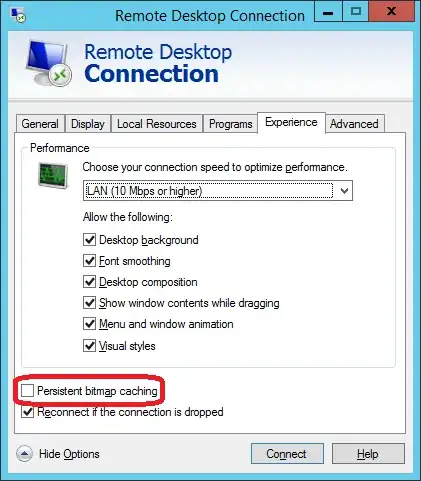
I'm connecting from Windows Server 2012 R2 to Hyper-V virtual machine running Windows 8.1 via RDP (mstsc.exe). The VM is hosted on the same machine from which I'm connecting.
Everything was fine until today. When I connected to the VM today, I've seen that windows doesn't render properly and have random black rectangles as shown on the screenshot below:
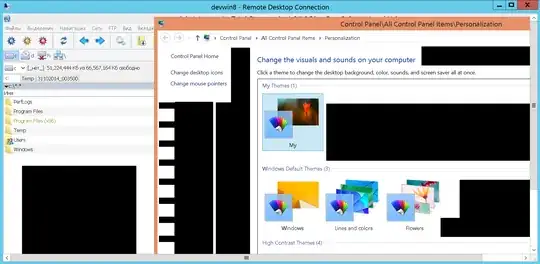 This issue occures across all programs and any windows I'm trying to open, resize. scroll etc.
I've tried reconnecting to the VM, rebooting the VM, changing Windows themes on the VM, disabling and re-enabling display and display driver on the VM, changing resolution and color depth in the mstsc, disabling firewalls on both Server and VM to ensure ports are opened - nothing helped.
Does anybody has suggestions what else I can try to resolve this issue?