11

I just recently installed ESXI on a server for some basic tasks, but now I'm having a problem with my windows VM.

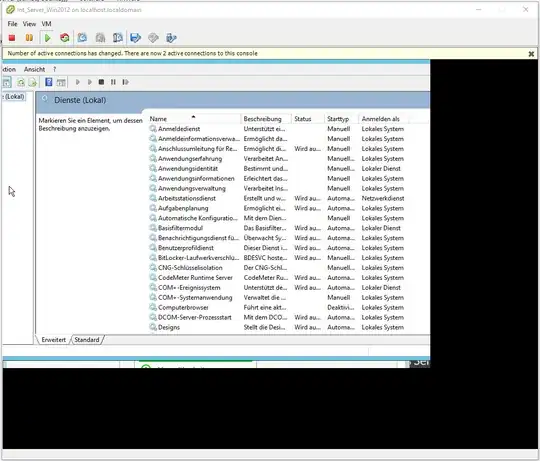
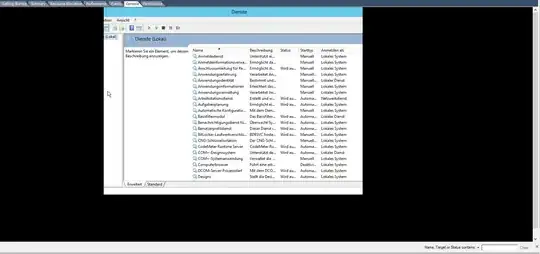
The thing is, the bottom and the right-hand side of the screen go beyond what the VSphere Client is showing me (This happens with an external console as well as the tabbed one)

Here is what I mean:

  • "New Window" console:

    "New Window" console

  • "Tabbed" console

    "Tabbed" console

I haven't been able to find ANYTHING pertaining to this on here or on google. What I tried so far, however:

  • Restart the server VM
  • Restart ESXI
  • Restart my Computer
  • Go to View -> fiddle with the auto-fit settings (no change at all)
  • Change the VM's resolution (Migitated the problem somewhat, as I can see more window content, but there is still a lot missing at 1024x786, which is the smallest it willl go)
  • Change my resolution
  • Unplug my extra screens (I have 3 including my laptop)

The used ESXI Server is Version 6.0.0, I am on Windows 10.

Any ideas?

Eskir
  • 213

3 Answers3

14

This is easy to fix, go properties of the vSphere Client shortcut icon (used to launch vSphere) >> compatibility >> tick "disable display scaling on high DPI settings"

G3ryk
  • 156
1

The problem has to do with Windows 10 scaling and the vSphere remote console client. It needs fixed, but will not be fixed since everything is moving to the web. So a better fix is in windows 10 (and 8.1 I believe) Right click your desktop and go to display settings. There is a “zoom slider” just under the pictures of the monitors. Set it to 100%.


A better fix is in windows 10 (and 8.1 I believe) Right click your desktop and go to display settings. There is a “zoom slider” just under the pictures of the monitors. Set it to 100%.

The problem has to do with Windows 10 scaling and the vSphere remote console client. It needs fixed, but will not be fixed since everything is moving to the web.

HBruijn
  • 84,206
  • 24
  • 145
  • 224
Jim
  • 11
0

VMware ESXi defaults to a resolution of 640 x 480 px for new Virtual machines without guest tools installed or any settings changed. You have basically three choices:

  • Live with it, because you manage the VM in other ways (SSH, specific application that runs on the server, automatic management/deployment, etc.)
  • Install guest tools like Gerald Schneider suggested (they not only support nearly all resolutions and auto-change of resolutions, but also remove the annoying Mouse/Keyboard-lock in the VNC client), this would also be my personal suggestion
  • Change the resolution manually without guest tools installed, as described by VMware here: Adding video resolution modes to Windows guest operating systems (1003)

If you have trouble navigating the reduced UI before installing the tools, I would suggest to use Keyboard shortcuts: hitting Alt + Space on the currently active window gives you a menu where you can select Move (DownArrow 2 times) and Resize (DownArrow 3 times), hit Return and then move/resize the window with the arrow keys. I only tested it in Windows 7, but it should also work in 10.

user121391
  • 2,572